Write Tag is a click behavior in the Interactions category: when an operator clicks this shape on the exported page, it writes one computed value to one tag. Use it for a single-action "click to send a value" control, such as starting/stopping a pump, writing a setpoint, or resetting an alarm flag. At runtime it calls the host write channel (window.HQVISU_HOST.tags.write), so the host decides whether the write actually succeeds: it may check permission, show a confirm dialog, require a reason, write asynchronously, or refuse. It runs only when the user interacts with the exported page, not in the editor preview. To change a single bit inside an integer tag (set/reset/toggle), use Write Tag Bit instead.
Interactions
Interactions: Write Tag
Write one value to one tag when the user clicks the shape. Common for start/stop buttons, writing a setpoint, or resetting a flag; whether the write succeeds is decided by the host (permission, confirm, audit).
What it is / what it's for
Write Tag is a click behavior in the Interactions category: when an operator clicks this shape on the exported page, it writes one computed value to one tag. Use it for a single-action "click to send a value" control, such as starting/stopping a pump, writing a setpoint, or resetting an alarm flag. At runtime it calls the host write channel (window.HQVISU_HOST.tags.write), so the host decides whether the write actually succeeds: it may check permission, show a confirm dialog, require a reason, write asynchronously, or refuse. It runs only when the user interacts with the exported page, not in the editor preview. To change a single bit inside an integer tag (set/reset/toggle), use Write Tag Bit instead.
How to use it: fields in the editor
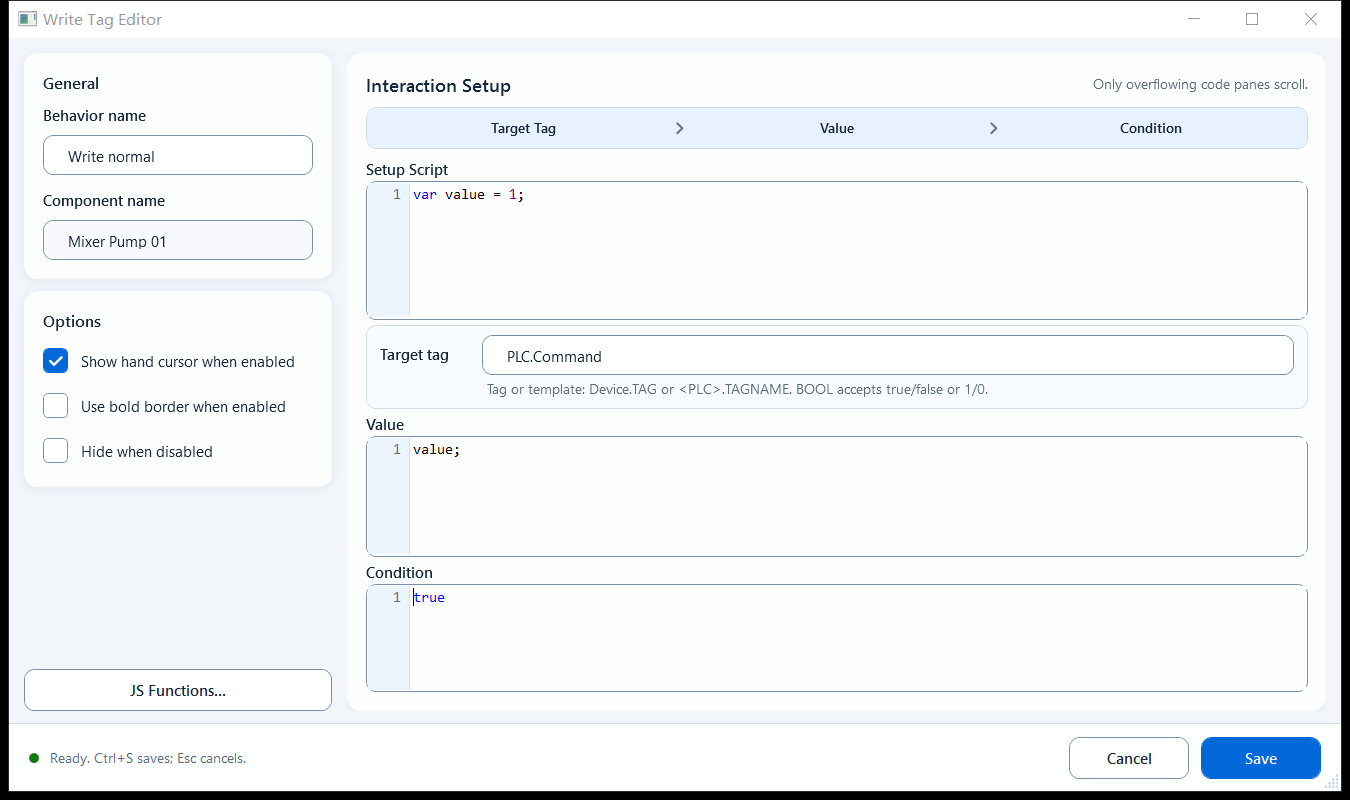
Double-click the shape to open the Write Tag editor. The two main fields are the target tag and the value to write; the rest are optional setup script, an enable gate, and appearance options.
Target Tag: the tag-name expression to write to. Enter the tag name directly, or use a template placeholder for reuse; the hint reads "Use Bit Index for bit writes."
Value: the value to write. It can be a single expression or full JavaScript (end multi-line script with return). The default cue is '1';.
Setup Script / Definition: optional; prepare shared variables or helper logic for Value to use.
Enabled: optional gate, defaults to true; when false the whole behavior does not run.
Options: Show hand cursor when enabled, Use bold border when enabled, Hide when disabled.
// Setup Script
var running = ReadTagBoolean("PLC1.PUMP.RUN", false);

// Target Tag
PLC1.PUMP.START

// Value (toggle on click)
running ? 0 : 1
When to use it
Best for a fixed "one click = write one value" action. For example, a Start button on the screen that writes 1 to PLC1.PUMP.START on click, or a Reset button that writes 1 to an alarm-reset flag. If the value must be typed by the operator at click time (for example a manual setpoint), use Click Script with prompt + WriteTagInteger instead; to change a single bit in an integer, use Write Tag Bit.
Boundaries / common mistakes
The host decides whether the write succeeds; do not assume "call means success."
Target Tag holds a tag-name expression, not necessarily a quoted string; just enter the tag name as the editor expects.
If Value is multi-line script, it must end with return, otherwise nothing is written.
The write may not take effect immediately: the host may run permission checks, a confirm dialog, an async write, or reject it; host write handlers may return a Promise.
Do not hand-assemble an integer here just to flip one bit. Use Write Tag Bit for that.
Figure 1: Write Tag editor
Enter the target tag and the value to write; on click it writes to that tag, and the host decides whether the write succeeds.