Open Link is an Interactions behavior that runs only when a user clicks the bound shape at runtime. Its five user-facing modes open an exported PowerPoint page, a file or URL, a host menu/screen code, a website, or a custom script action. Stored values such as ppt-page, html-page, screen-code, external-url, and javascript are compatibility protocol values, not the names users should look for in the current editor.
Interactions
Interactions: Open Link (Click to Navigate)
Add a click-to-open behavior to a shape. The current editor exposes five modes: Presentation Page, File / URL, System Screen, Website, and Script Action, with placement options where the destination supports them.
What it is and what it's for
Open Link is an Interactions behavior that runs only when a user clicks the bound shape at runtime. Its five user-facing modes open an exported PowerPoint page, a file or URL, a host menu/screen code, a website, or a custom script action. Stored values such as ppt-page, html-page, screen-code, external-url, and javascript are compatibility protocol values, not the names users should look for in the current editor.
How to use it: editor fields
Drag Open Link onto the target component, open the editor, choose Destination type, and fill only the fields for that mode:
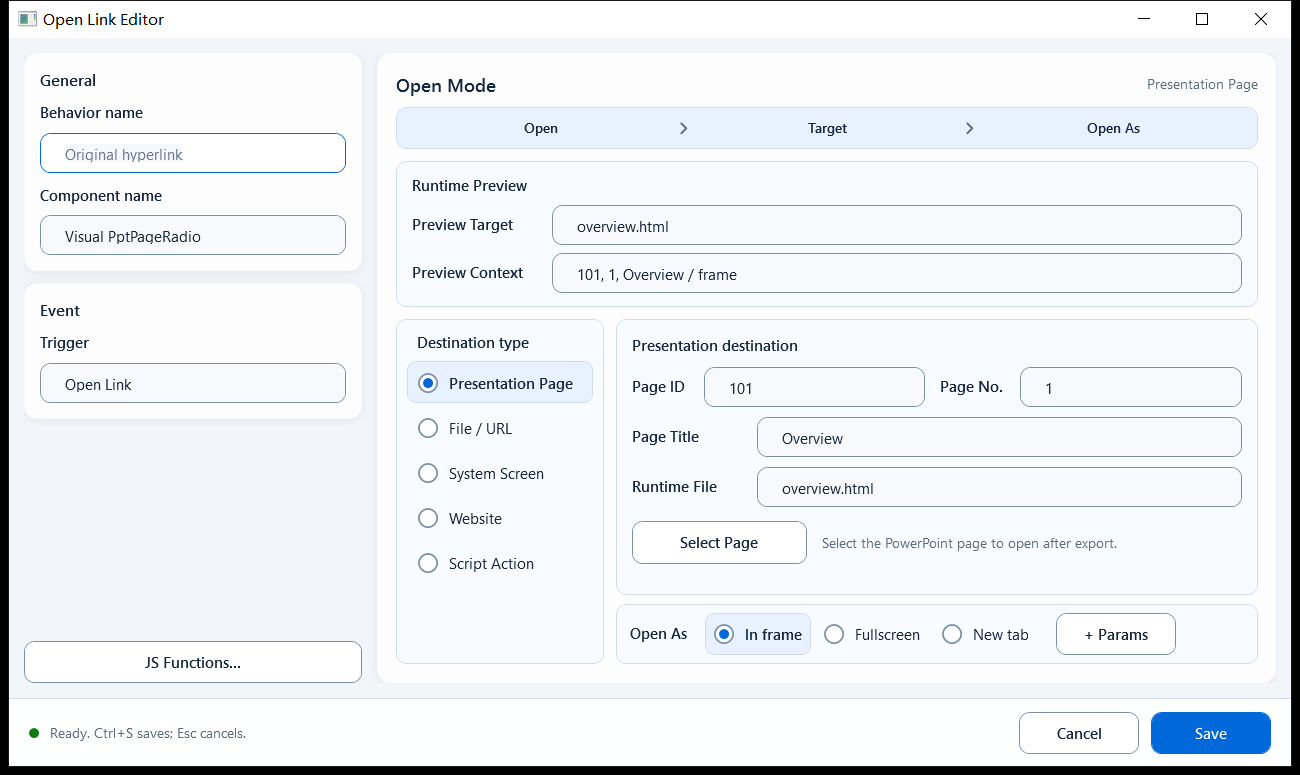
Presentation Page: use Select Page to choose a page in this PowerPoint file; the editor shows Page ID, Page No., Page Title, and the exported Runtime File.
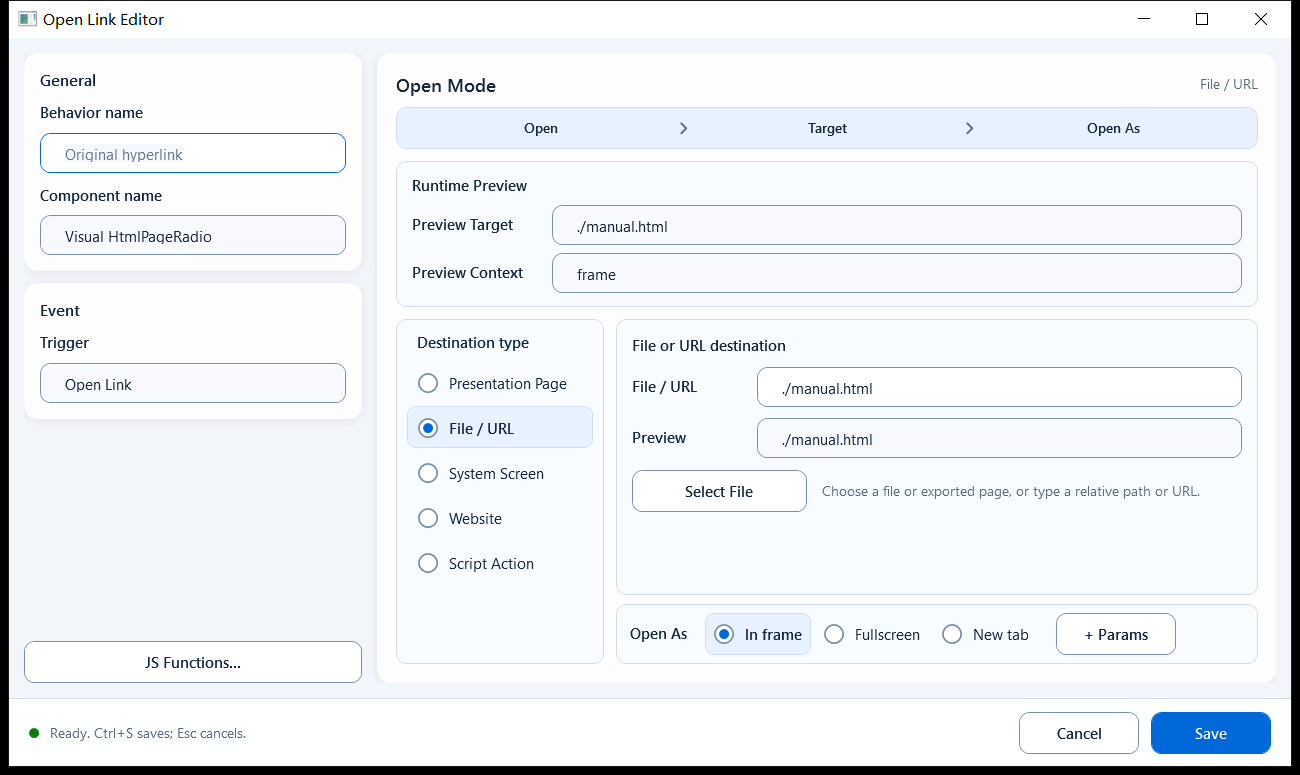
File / URL: select a file or enter an exported page, relative file path, or URL. The editor classifies the target as a local page/file or an external address.
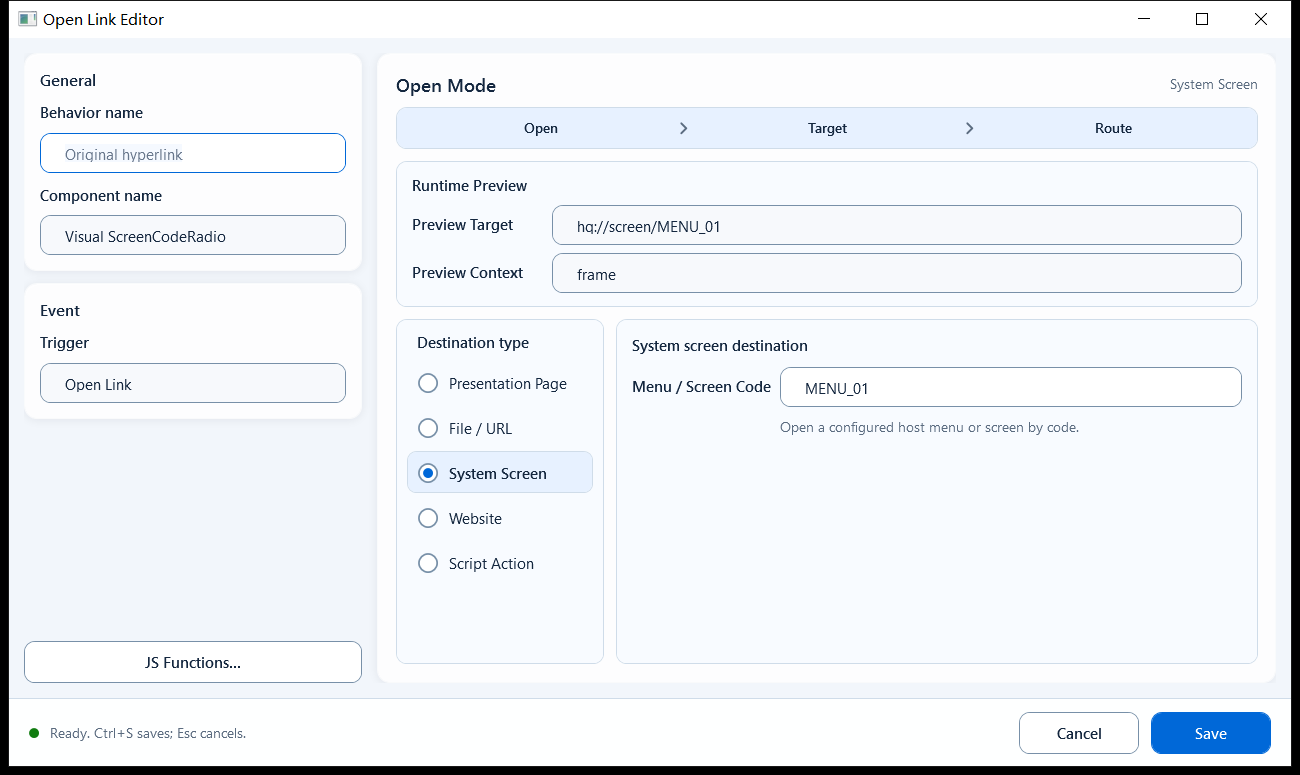
System Screen: enter a host-configured Menu / Screen Code for another host menu or screen package. The host owns this route.
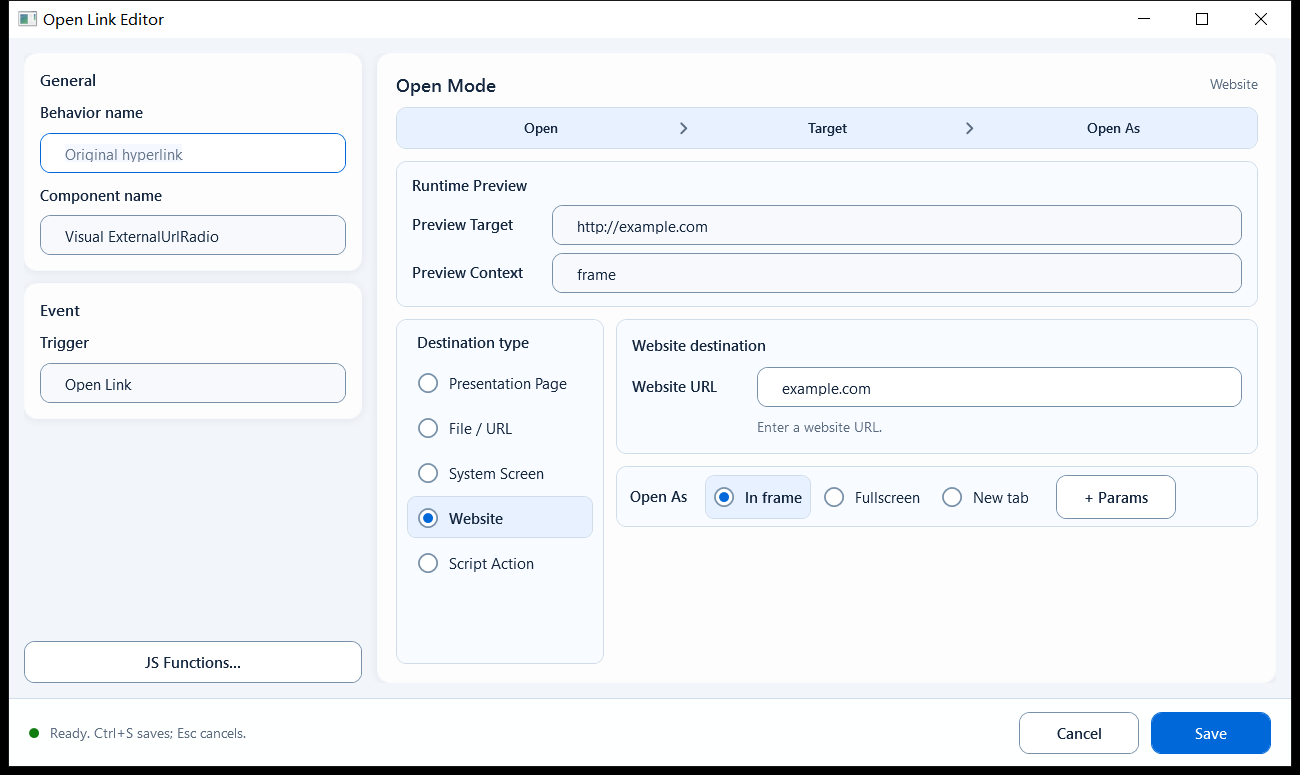
Website: enter a Website URL for an HTTP/HTTPS site or an intranet system reachable from the runtime terminal.
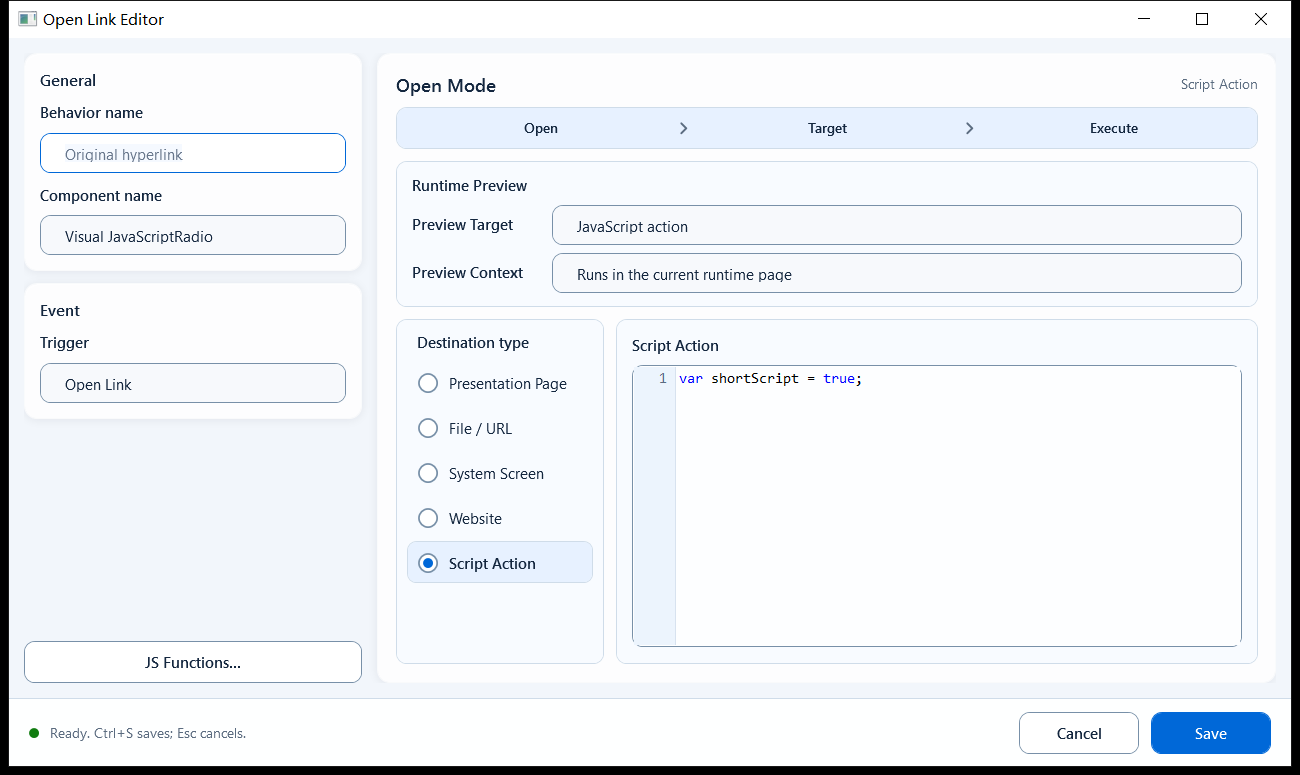
Script Action: enter JavaScript to run on click. Use it only when a fixed destination cannot express the dynamic or multi-step action.
Open As: Presentation Page, File / URL, and Website support In frame, Fullscreen, and New tab. System Screen and Script Action do not use this placement group.
Jump Parameters: Presentation Page, File / URL, and Website accept key/value parameters. System Screen and Script Action do not show this section. Empty keys are not saved and keys are case-sensitive.
// System Screen
Menu / Screen Code: P1Y1C1

// Script Action: choose a page by state
if (ReadTagBoolean("PLC_LINE01.PUMP01.FAULT", false)) {
  hqVisuDesigner.openPage("alarm_overview");
} else {
  hqVisuDesigner.openPage("production_overview");
}
Jump Parameters: send, types, and destination reads
Jump Parameters are appended to the destination URL query in the order entered. Values entered in the editor are text. A scripted openPage call may supply a string, number, boolean, or null, but the destination always reads strings. Repeated keys keep their original order and can represent multiple filters under one name.
Editor sender: add Key / Value rows; supported by Presentation Page, File / URL, and Website.
Script sender: hqVisuDesigner.openPage(pageCode, { frameTarget, parameters }); parameters must be an array, not a plain object.
Read the first value: GetPageParameter("PLC", "").
Read every repeated value: GetPageParameterValues("Area").
Read every parameter in original order: GetPageParameters().
The equivalent hqVisuDesigner.getPageParameter / getPageParameterValues / getPageParameters methods are also available.
// Source page: navigate within the package and pass context
hqVisuDesigner.openPage("device_details", {
  frameTarget: "frame",
  parameters: [
    { key: "PLC", value: "PLC_LINE01" },
    { key: "Device", value: "PUMP_01" },
    { key: "Area", value: "AREA01" },
    { key: "Area", value: "AREA02" }
  ]
});

// Destination Page Script
var plc = GetPageParameter("PLC", "");
var device = GetPageParameter("Device", "");
var areas = GetPageParameterValues("Area");
When to use it
Use it wherever a click should switch the page or open something:
A Pump Details button on the overview page: use Presentation Page and select the Pump slide.
A Line 1 button that opens the Line 2 package: use System Screen with the other package's Menu / Screen Code.
A Help, work-order, or reporting link: use Website with New tab to keep the current screen open.
A known local help page or file: use File / URL.
A destination computed from live state: use Script Action.
Boundaries and common mistakes
Troubleshoot by the five visible modes instead of asking maintainers to edit LinkType values. Presentation Page selects only a page from the current PPT; cross-package and host-menu navigation belongs in System Screen, not a relative path such as ../../other-screen/index.html; external sites belong in Website; File / URL covers files, relative pages, and legacy links. A legacy andon-page value loads as File / URL + Fullscreen and is no longer exposed as a separate mode.
Figure 1: Presentation Page
Choose a page from the current PowerPoint file and verify Page ID, Page No., Page Title, and Runtime File.
Figure 2: File / URL
Select a file or enter an exported page, relative file path, or URL.
Figure 3: System Screen
Use the host-configured Menu / Screen Code for cross-package and host-menu navigation.
Figure 4: Website
Enter the website target and choose In frame, Fullscreen, or New tab as needed.
Figure 5: Script Action
Use script mode only when the target is dynamic or the action must combine multiple steps.