Export & Publish: package contents, full export, and current page
Export & Publish is the final step that turns your PPT pages into a runnable screen package on the host. The Export group on the HQ VISU ribbon tab has three buttons: Export HTML (export the whole PPT as one screen package), Current Page (export only the current page, for small page-level updates), and Export History (manage the recent export folders on this machine). The output is a self-contained folder holding page HTML, per-page SVG graphics, JS page data and scripts, images, and runtime/export manifests. The official rule is one PPT equals one screen package: one business screen is one PPT and may contain one main page plus a few sub-pages in the same package. After export, upload the folder to HQControl, which manages and runs it by screen code (screenCode). The host is a different machine from your dev box, and you publish a screen package, not your local PPT file path.
Feature
Feature: Export & Publish: package contents, full export, and current page
Export your finished PPT into one HQ VISU screen package (HTML + SVG + JS + IMG), then upload it to the HQControl host to run. One PPT equals one screen package; replacing the whole package is the cleanest update.
What it is and what it is for
Export & Publish is the final step that turns your PPT pages into a runnable screen package on the host. The Export group on the HQ VISU ribbon tab has three buttons: Export HTML (export the whole PPT as one screen package), Current Page (export only the current page, for small page-level updates), and Export History (manage the recent export folders on this machine). The output is a self-contained folder holding page HTML, per-page SVG graphics, JS page data and scripts, images, and runtime/export manifests. The official rule is one PPT equals one screen package: one business screen is one PPT and may contain one main page plus a few sub-pages in the same package. After export, upload the folder to HQControl, which manages and runs it by screen code (screenCode). The host is a different machine from your dev box, and you publish a screen package, not your local PPT file path.
How to use it: the three buttons and package contents
Pick an export mode in the Export group; choose the target folder from history or create a new one. A typical exported package looks like this (HTML stays in the package root and generated scripts are kept in js/):
Export HTML: full-package export. Required whenever shared resources change, or pages are added/deleted/renamed, or navigation structure changes.
Current Page: exports only the current page's resources. Suitable only for page-level changes such as current-page graphics, Page Script, or component behaviors.
Export History: view recent export folders, delete a selected folder, or clear all history. It only cleans the local records and does not delete your real exported files on disk.
Package contents: <page>.html (pages; the first page follows the export file name configured in PPT), <page>.svg (per-page graphics), js/hq-pagemap.js (page map), js/<page>.js (page data and scripts), img/ (images), and runtime/export manifests.
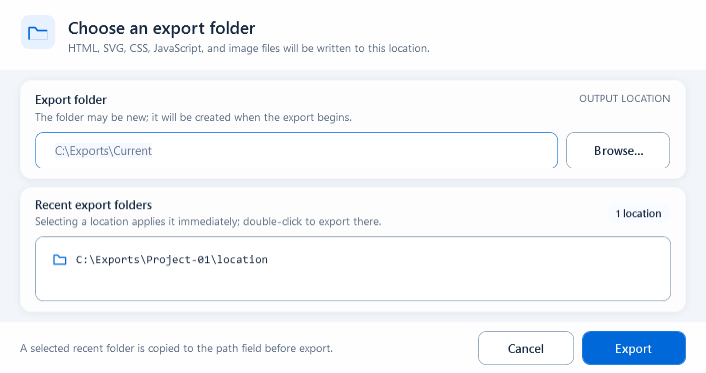
Save the presentation and click Export HTML. In Choose an export folder, enter an existing or new path, click Browse..., or select a Recent export folder. Click Export and wait for the progress window to finish. Open the target folder only after the final status reports completion.
The output folder may be new; it is created when export starts.
Selecting a recent path fills the field; Export starts the operation.
Read Export log for validation, page, script, and asset failures.
Cancel requests a stop at the next safe export checkpoint.
After completion, check screen.manifest.json and the export report.
Confirm Current Page scope before exporting
Activate the slide to update, confirm it is the current page, then click Current Page. Choose the directory of the matching existing screen package. Use this only when the page code and shared package structure have not changed. Switch to Export HTML for added, removed, or renamed pages, common assets, or page-map changes.
The current page name and Page Code are unchanged.
Only this page's shapes, behaviors, or scripts changed.
The target directory belongs to the same screen package.
Open and test the page after export; do not rely only on file timestamps.
Delete, undo, and save Export History changes
Open Export History. Use Delete selected to mark one entry for removal, Clear all for the full list, Undo changes to revert pending edits in this window, and Save changes to write the history. Cancel discards the pending history edits. None of these commands deletes a real folder or exported file.
Delete selected: remove one history entry.
Clear all: remove every local history entry.
Undo changes: restore unsaved changes in the window.
Save changes: write the edited history.
Delete a real package separately in the file system only after confirming the exact target.
When to use it
Choose the export mode by the scope of your change, then upload to HQControl:
Changed only one page's graphics/script/data in a screen: open that PPT, export with Current Page, and do a page-level replace.
Changed shared resources, or added/deleted/renamed a page or changed navigation: export with Export HTML (Current Page will not carry these changes).
Official publish: export the full package, upload to the host, let the host replace the package as a whole, and optionally keep one backup. The host manages by screenCode; do not pile loose files from different export dates into one folder over time.
Boundaries and common mistakes
A few real pitfalls:
If the PPT has unsaved changes, export shows a prompt; prefer Save and Export. Choosing Export Without Saving may produce files that do not match your latest edits.
Adding, deleting, or renaming pages is a package-level change: do not use Current Page, use a full export, otherwise the host keeps stale pages and links open removed pages.
Delete/Clear in Export History only clears local history records; it never removes the real export folder.
For official delivery, use hqVisuDesigner.openPage for same-package jumps and hqVisuDesigner.openScreen for cross-package jumps; do not use relative disk paths like ../../other-screen/index.html, because the host package path can change and relative paths break.
Figure 1: Export HTML
Choose the export folder or pick a recent location to export the whole PPT as one screen package.