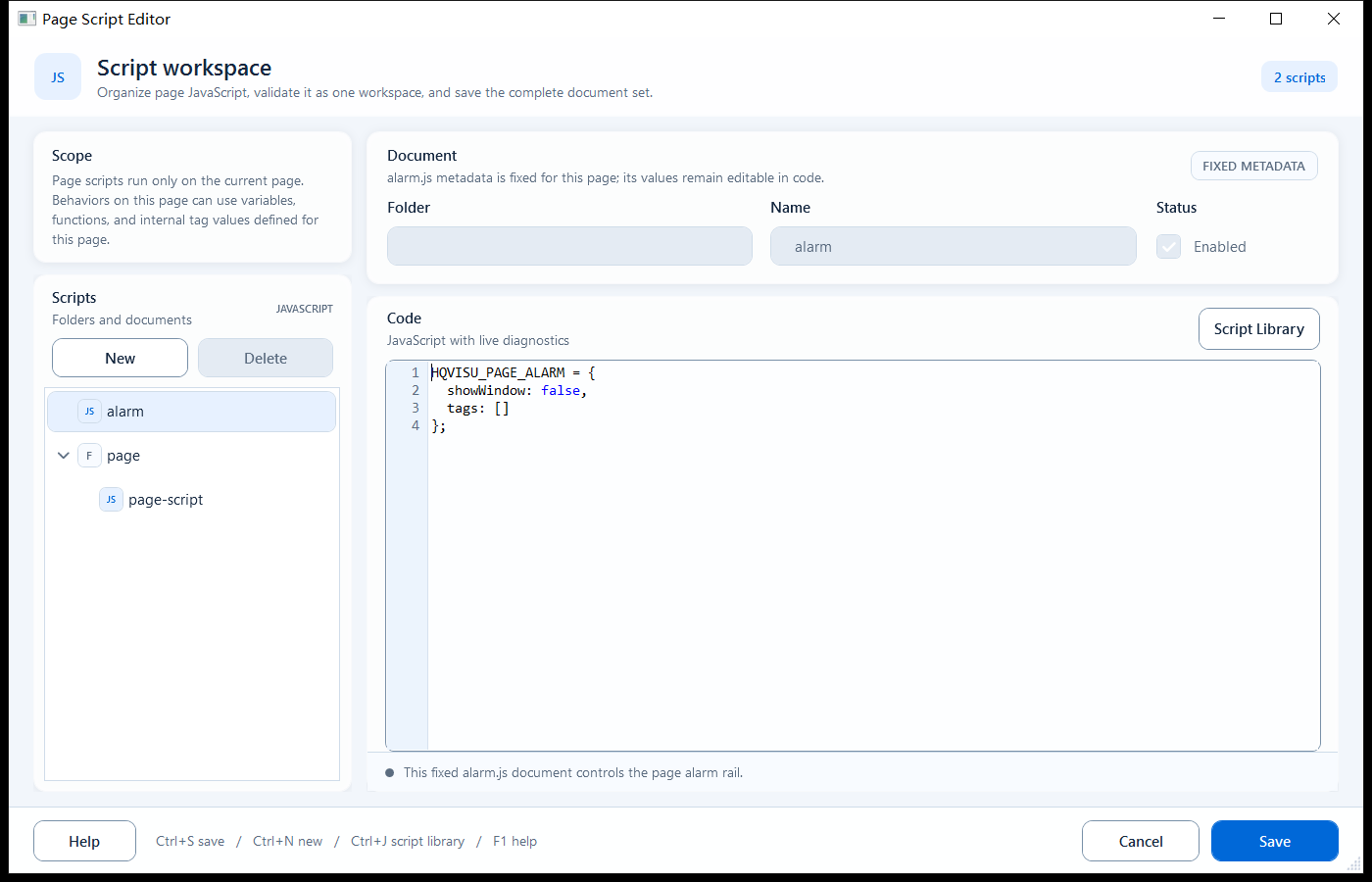
Add runtime logic to the current page with JavaScript. Top-level Page Script variables, constants, classes, and functions are available to every animation and expression on that page. Use ReadTag helpers for Tag values and hqVisuDesigner to drive components and navigation; hqVisuDesignerPageReady runs when the page is ready. Read one bit with the "TAGNAME[bit]" bracket syntax.
What it is and what it is for
Scripts add runtime logic to the current page, all in JavaScript. The plugin does not provide a Global Script document shared by the whole PowerPoint file. The Scripts group on the ribbon has one current-page entry point, Page Script; alarm.js is also a protected document for that page. Page Script top-level declarations are available to behaviors on the same page but do not automatically exist on other pages. ReadTag helpers read Tag values, while hqVisuDesigner changes component text, color, visibility, layout, and navigation. WriteTag helpers are allowed only during a real user click action, not in Page Script, Definition, or Hover Script. Behavior Definition / Condition / Value / Text fields use the same ECMAScript 2022 syntax boundary; expression fields must return one synchronous result.
Use Script Workspace from New to Save
Click Scripts -> Page Script. The Scripts tree on the left manages documents for the current page; the right side edits the selected document. Select a document, or click New and fill Folder and Name. Write JavaScript in Code, clear Enabled when the document should remain stored but not be exported, then click Save. Save validates and writes every enabled document in the current page workspace.
- Scope: confirm that the target page is active.
- New or Ctrl+N: create a script document.
- Folder: optional slash-separated path.
- Name: document name without the .js extension.
- Enabled: a disabled document is retained but not exported or validated on Save.
- Script Library or Ctrl+J: insert a method or template at the caret.
- Save or Ctrl+S: validate and save the complete workspace.
- Help or F1: open script help.
Delete documents and keep protected alarm.js
Select a custom document in the left tree, click Delete, and confirm. alarm.js is protected and cannot be deleted. To disable or change page alarm display, edit its page-alarm configuration instead of trying to remove the document.
- Before deleting, confirm no behavior or other document uses its functions or variables.
- Delete applies only to removable custom documents.
- alarm.js is protected; edit its configuration instead.
- Choose Cancel, not Save, when you want to discard all pending workspace edits.
How to use it: common methods and syntax
Pick the right field for the code, then use these runtime methods. For lifecycle initialization, assign window.hqVisuDesignerPageReady in Page Script; it is called once after the page runtime is ready.
- Read tags, ReadTag family: ReadTagBoolean / ReadTagInteger / ReadTagDouble / ReadTagString; the second argument is the fallback value used when the tag cannot be read
- Date/time helpers: GetCurrentDate() returns yyyy-MM-dd, GetCurrentDateTime() returns yyyy-MM-dd HH:mm:ss, and FormatDateTime(value, "yyyy/MM/dd HH:mm:ss") formats an existing date/time value; search keywords include time, date, datetime, 时间, 日期
- Read a single bit (key point): append a bracketed bit number to the complete tag name, for example "PLC_LINE01.PUMP01.STATUS[3]", and read it with ReadTagBoolean; the bit number is zero-based, range 0-31, with no spaces inside the brackets
- Tag quality: ReadTagQuality(name, "bad") returns the quality text, ReadTagQualityGood(name) tests whether it is good (quality is only good / bad, not the process value)
- Write tags, WriteTag family: use only in a real user-click script; the host still decides permission, confirmation, reason capture, and the final asynchronous outcome
- Drive components, hqVisuDesigner: setComponentText(nameOrId, value), setComponentFill, setComponentBorder, setComponentVisible, setComponentLayout, findComponent, getComponentData
- Navigation and variables, hqVisuDesigner: openPage("PageName"), openScreen("SCREEN_CODE"), openWebsite(url, openInNewWindow), writeVariable(name, value), and refreshView()
// Page Script: initialize when the page is ready
window.hqVisuDesignerPageReady = function (ctx) {
  // Read bit 0 from an integer tag (bracket syntax, no spaces)
  const pumpRun = ReadTagBoolean("PLC1.PUMP.STATUS[0]", false);
  hqVisuDesigner.setComponentText("Title 1", pumpRun ? "RUN" : "STOP");
  hqVisuDesigner.setComponentFill("Lamp 1", pumpRun ? "#22C55E" : "#EF4444");
  hqVisuDesigner.refreshView();
};
Common JS snippets: date/time, status text, and safe defaults
Use these snippets in Page Script, Click Script, or a behavior Definition area. Condition / Value / Text slots should contain only the final expression that returns immediately; longer checks and formatting belong in Definition or a script body.
- Ternary expression: condition ? trueValue : falseValue, useful for converting a boolean to text, color, or a numeric value.
- Safe defaults: the second argument of ReadTagBoolean / ReadTagDouble and similar helpers is the fallback when the tag cannot be read.
- Date/time text: use GetCurrentDate() for the current date, GetCurrentDateTime() for the current date-time, and FormatDateTime(...) for display formatting.
- Multiple conditions: use a ternary for simple cases; use if / else to prepare variables before writing to a component or returning a behavior value.
// date / time
const today = GetCurrentDate();                 // yyyy-MM-dd
const nowText = GetCurrentDateTime();           // yyyy-MM-dd HH:mm:ss
const displayTime = FormatDateTime(nowText, "yyyy/MM/dd HH:mm:ss");

// Boolean status to text
const currentValue = ReadTagBoolean("A1.Tset.1", false);
let text = currentValue ? "OK" : "Fault";

// Numeric banding
const speed = ReadTagDouble("Line01.MainMotor.SpeedPV", 0);
const levelText = speed >= 80 ? "High" : (speed >= 40 ? "Medium" : "Low");

// Quality guard: show communication fault first when quality is bad
if (!ReadTagQualityGood("Line01.MainMotor.SpeedPV")) {
  text = "Communication fault";
}

hqVisuDesigner.setComponentText("StatusText", `${text} / ${displayTime}`);
hqVisuDesigner.setComponentText("LevelText", levelText);
Common JS syntax: string concatenation, number formatting, arrays, and objects
Screen scripts usually do more value formatting than complex algorithms. Use string concatenation, template strings, number formatting, arrays, and object maps in Definition or Page Script, then write the final result to a component or return it from a behavior.
- String concatenation: use 'Speed: ' + speed for simple text; use template strings like
Speed: ${speed} when several values are involved.
- Number formatting: use Number(value).toFixed(1) to control decimal places.
- Arrays: keep status lists, alarm lists, or multiple component names in arrays, then loop through them.
- Objects: keep lookup tables such as state code to text, color, and priority.
// String concatenation and template strings
const speed = ReadTagDouble('Line01.MainMotor.SpeedPV', 0);
const unit = ' rpm';
const speedText = `Speed: ${Number(speed).toFixed(1)}${unit}`;
const timeText = `Updated: ${GetCurrentDateTime()}`;

// Object map: state code to text and color
const state = ReadTagInteger('Line01.MainMotor.State', 0);
const stateMap = {
  0: { text: 'Stopped', color: '#94A3B8' },
  1: { text: 'Running', color: '#22C55E' },
  2: { text: 'Fault', color: '#EF4444' }
};
const stateInfo = stateMap[state] ?? { text: 'Unknown', color: '#F59E0B' };

// Arrays: update several components
const targetNames = ['SpeedText', 'SpeedTextCopy'];
targetNames.forEach((name) => hqVisuDesigner.setComponentText(name, speedText));

hqVisuDesigner.setComponentText('StateText', `${stateInfo.text} / ${timeText}`);
hqVisuDesigner.setComponentFill('StateLamp', stateInfo.color);
When to use it
Two typical scenarios. First, when several animations or expressions on one page share conversion functions, constants, or a Tag prefix, declare them at the top level of that page's Page Script. Second, use hqVisuDesignerPageReady for page initialization and linked component state. For advanced reuse across pages, use the host runtime, your custom SDK, or a template. When a button or status lamp follows one boolean bit, use bracket bit-read to pull that bit from its parent integer Tag.
- Put same-page helpers, constants, and Tag prefixes in the current page's Page Script
- Use hqVisuDesigner.openPage(...) for same-package pages and hqVisuDesigner.openScreen(...) across packages; do not write disk-relative paths like ../../other-screen/index.html
Boundaries and common mistakes
A few real pitfalls: (1) Bit-read must use exact "TAGNAME[bit]" syntax with no spaces, and bit numbers are 0-31. Bit writes use the parent integer Tag plus BitIndex; never write TAGNAME[3] as an ordinary Tag. (2) WriteTag is allowed only during a real user click and is still subject to host permission, confirmation, reason capture, and asynchronous outcome. (3) Async APIs belong only in script-body fields; await must be inside an async function and top-level await is unsupported. (4) import/export are module syntax and are not supported by page documents or animation expressions; advanced modules belong in the custom SDK.