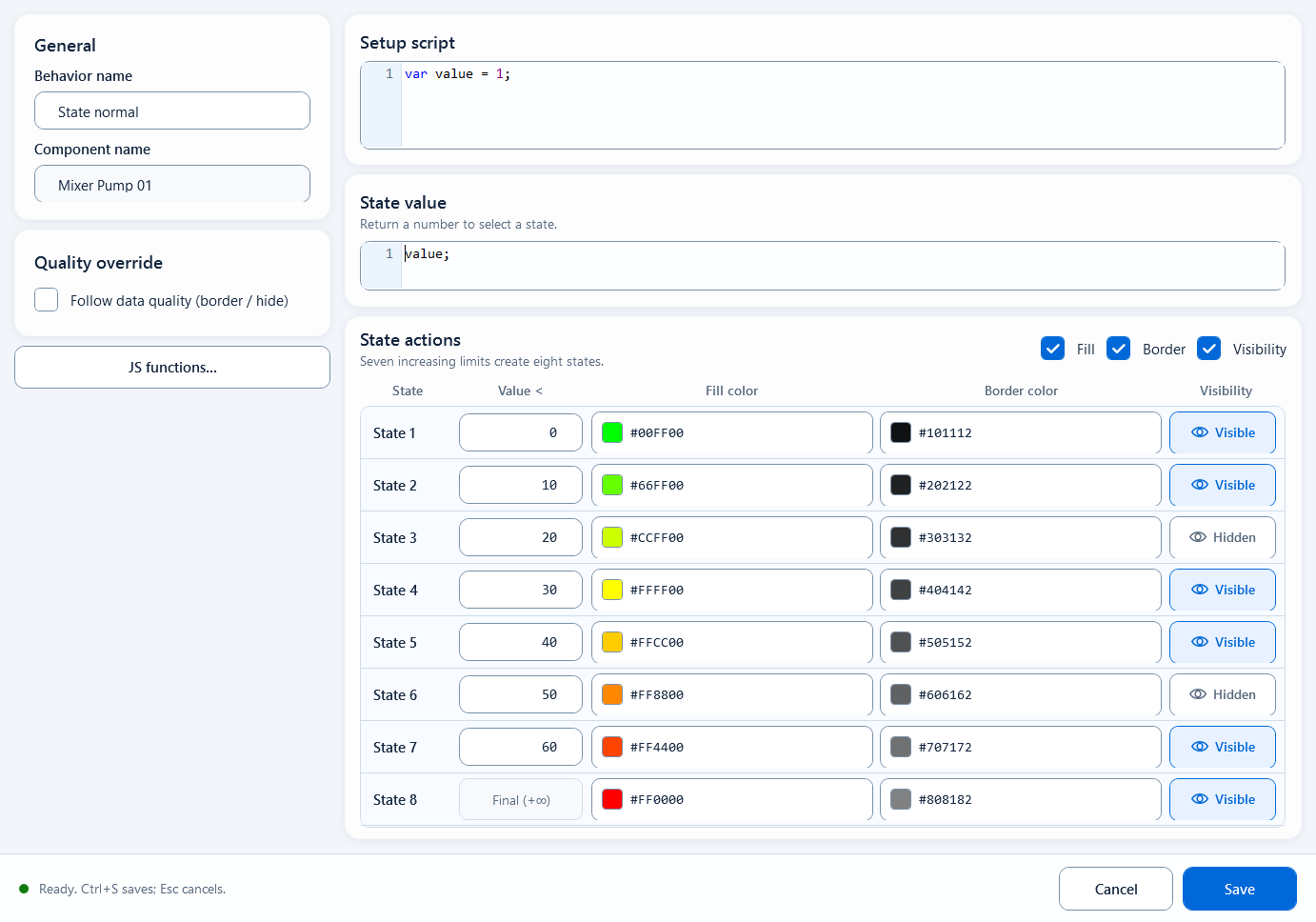
Discrete Color is a color behavior under Visual States. It takes a single numeric value your script produces, snaps it into one of 8 fixed states based on the limits you set, and renders the shape using that state's fill color, border color and visibility. Unlike Range Color (which is for continuous analog values like temperature or pressure), Discrete Color is for values that are already finite; one number means one state; such as device status codes 0/1/2/4, alarm levels, or bit combinations.
Colors
Colors: Discrete Color
Maps one numeric result onto 8 fixed states, each with its own fill, border and visibility; use it when a value has a limited set of meanings such as status codes or bit combinations.
What it is / what it's for
Discrete Color is a color behavior under Visual States. It takes a single numeric value your script produces, snaps it into one of 8 fixed states based on the limits you set, and renders the shape using that state's fill color, border color and visibility. Unlike Range Color (which is for continuous analog values like temperature or pressure), Discrete Color is for values that are already finite; one number means one state; such as device status codes 0/1/2/4, alarm levels, or bit combinations.
How to use it: fields in the editor
Add a Visual States behavior on the shape, choose Discrete Color, then fill in the fields below. The Rule must return a numeric result; which state it lands in is decided by the Condition Limits thresholds.
Definition (prep area): read tags, define variables, do intermediate calculations, e.g. read the status code.
Rule: return one numeric result; the system compares it against the limits. It must be a number, not true/false.
Condition Limits: an ascending list of boundaries that split the value into 8 states (default 0,1,2,4,8,16,32; 7 limits for 8 states).
Fill: a fill color per state (8 states); can be toggled on/off as a whole.
Border: a border color per state (8 states); can be toggled on/off as a whole.
Visibility: show or hide per state (8 states); can be toggled on/off as a whole.
Quality Border: when on, the border uses the GOOD color when communication quality is good and the BAD color when it's bad; can also hide the shape when quality is bad.
// Definition
var stateValue = ReadTagDouble("PLC_LINE01.PUMP01.MODE", 0);

// Rule (must return a number)
stateValue;
When to use it
Use it when a numeric value has a finite, discrete set of meanings and each value should map to one fixed appearance.
Device status code: 0=stopped (grey), 1=running (green), 2=fault (red), 4=maintenance (yellow), one color per code.
Alarm level or bit combination: map an integer state into a few fixed buckets, each with its own fill/border/visibility.
Pitfalls
A few boundaries people hit:
The Rule must return a number. A boolean (true/false) result won't map as expected; use State Color for two states.
8 states maximum. It can't express more than 8 states.
Don't confuse it with Range Color: use Range Color for continuous analog ranges; use Discrete Color only when values are finite and one number maps to one state.
Condition Limits are the boundaries that decide which state a value falls into; enter them in ascending order.
Quality Border reflects communication quality, not the process value itself; when quality is bad the shape should not keep rendering as if the value were valid.
Figure 1: Discrete Color editor
Snap one numeric value into up to 8 fixed states by limits, each with its own fill, border, and visibility.