Rotate is one of the Geometry behaviors, alongside Move and Scale, all of which change a component's own geometry. Use Rotate when you already have a current angle value (typically read from a PLC tag) and want the component to turn around a selected pivot by that angle. It does not do range-percentage mapping; it applies the angle you supply directly to the shape. Like color and text behaviors, it binds to a single component: in the Behavior Browser select the component in the left tree, then drag Rotate from the Geometry list onto that component node.
Geometry
Geometry: Rotate
One of the Geometry behaviors: applies an angle value (usually from a tag) to a component so it rotates around a chosen pivot. Use it for pointers, valves, fan blades, and anything that must turn by its current angle.
What it is / what it's for
Rotate is one of the Geometry behaviors, alongside Move and Scale, all of which change a component's own geometry. Use Rotate when you already have a current angle value (typically read from a PLC tag) and want the component to turn around a selected pivot by that angle. It does not do range-percentage mapping; it applies the angle you supply directly to the shape. Like color and text behaviors, it binds to a single component: in the Behavior Browser select the component in the left tree, then drag Rotate from the Geometry list onto that component node.
How to use it: every control in the editor
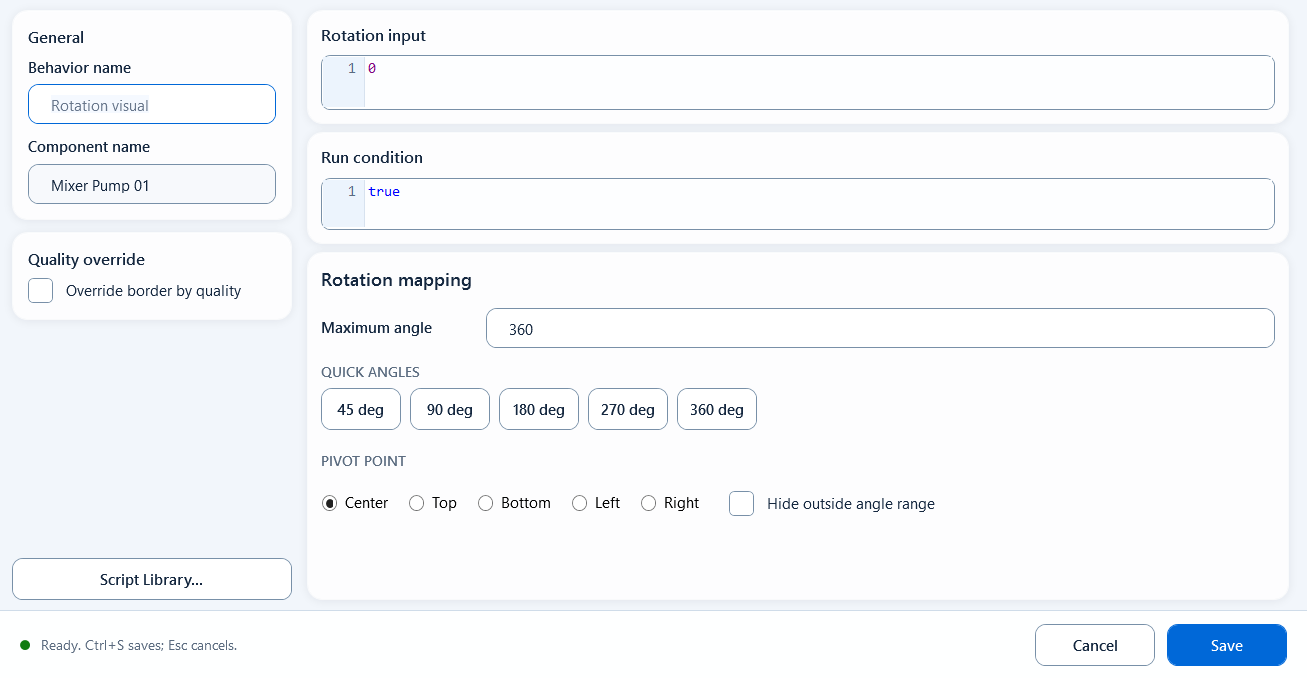
Double-click the Rotate behavior under the component to open the editor. Rotate does not use Source Min / Source Max range mapping. It takes Rotation Input as the angle, then rotates around the selected Pivot Point.
General / Behavior Name: the display name in the behavior tree; it does not change the target shape.
General / Component Name: the current component name, read-only. If it is wrong, go back to the Behavior Browser and select the right component.
Quality Override / Quality Border: enables the GOOD / BAD color swatches. GOOD defaults to #000000, BAD defaults to #FF8800.
Script functions button: opens the snippet picker and inserts into the focused expression box; with no focused field it defaults to Rotation Input.
Rotation Input: the angle expression to apply, in degrees, default 0. Use ReadTagDouble(...) for a tag angle, or an expression such as shape.rotation.
Condition: the run condition expression, default true; false skips this Rotate update.
Max Rotation: the maximum rotation angle expression, default 360. Quick Max buttons write 45 / 90 / 180 / 270 / 360 directly into this field.
Pivot Point: one of Center / Top / Bottom / Left / Right. If no valid value is loaded it defaults to Center; Center is saved internally as Centre.
Hide outside rotation range: hides the component when the angle exceeds the rotation range; leave it unchecked if you do not want hiding.
Bottom status / OK / Cancel: the status area shows live validation; OK saves only after validation passes, while Cancel or closing discards changes.
// Rotation Input
ReadTagDouble("PLC_LINE01.VALVE01.POSITION", 0)

// Max Rotation = 360
// Pivot Point = Center
When to use it
Reach for Rotate whenever a shape must turn by its current angle. Typical field cases:
Gauge pointer: read the angle for the pressure/temperature value and turn the needle around its center
Valve angle: rotate the valve icon by its opening angle, with the pivot on the real stem center
Fan / mixer blade: rotate the blade by its running angle to show motion
Boundaries and common mistakes
A few things that trip people up:
Rotation Input is an angle in degrees, not a percentage and not a range mapping; if you want "move proportionally to a measured range", that is Move/Scale, not Rotate
Match the pivot to the real mechanical center: use Center for a needle, and Top/Bottom/Left/Right for parts hinged at one end; the wrong pivot makes the shape swing instead of spin
Quick Max only changes Max Rotation; it does not change Rotation Input, so the angle source still comes from the top expression
If Condition is false the rotation does not apply, so check that expression first when nothing turns
Figure 1: Rotate editor
Apply an angle value to the component so it turns around the chosen pivot, with a max-rotation limit.