Click Script is a behavior in the Interactions category. After you drag it onto a component in the left tree, the script you write runs every time the user clicks that component at runtime. Unlike fixed behaviors such as Write Tag or Open Link, it is a free-form script entry point: in a single click you can confirm, read a tag, write a tag, recolor or relabel another component, or open a page. Inside the script you get the clicked element (object / objects / event) plus tag, page, presentation, shape, hqVisuDesigner, and globals. Reach for it when the built-in fixed interactions cannot express what you need.
Interactions
Interactions: Click Script
Attach a piece of JavaScript that runs when the user clicks a component; for confirm dialogs, reading/writing tags, changing component style, or navigating; with a Condition that gates whether the click runs.
What it is and what it's for
Click Script is a behavior in the Interactions category. After you drag it onto a component in the left tree, the script you write runs every time the user clicks that component at runtime. Unlike fixed behaviors such as Write Tag or Open Link, it is a free-form script entry point: in a single click you can confirm, read a tag, write a tag, recolor or relabel another component, or open a page. Inside the script you get the clicked element (object / objects / event) plus tag, page, presentation, shape, hqVisuDesigner, and globals. Reach for it when the built-in fixed interactions cannot express what you need.
How to use it: the editor fields
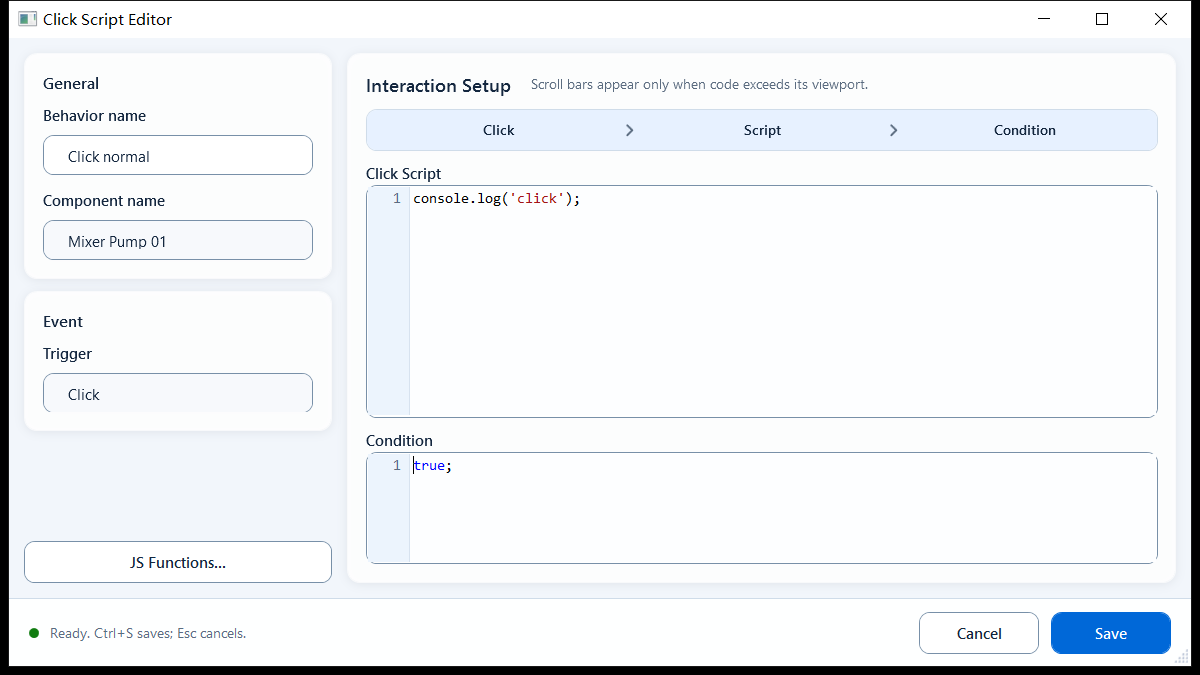
Double-click the behavior to open its editor. The top General box shows Behavior Name (editable) and Component Name (read-only); Event shows Trigger fixed to Click (read-only). What you actually fill in are the two code boxes under Interaction Setup:
Click Script: the script body that runs on click. It accepts multi-line logic (if, tag read/write, component updates, dialogs); if it is multi-line and needs to bail out early or return a value, end it with return.
Condition: an enable-gate expression, defaulting to true;. Put only a single expression that resolves immediately to true/false here, e.g. ReadTagBoolean(...) or a comparison; when false, that click does not run.
Tag helpers available: ReadTagBoolean/Integer/Double/String, and during this real click action WriteTagBoolean/Integer/Double/String. Components and navigation use hqVisuDesigner (setComponentFill / setComponentText / setComponentVisible / openPage / openScreen, etc.).
Async APIs (fetch, setTimeout, setInterval, ...) belong only in a script body like Click Script; never in Condition (a synchronous evaluation slot).
The script snippet button is context-aware: it offers full script snippets in Click Script and short expression snippets in Condition.
// Click Script
var v = prompt("Enter a value", "0");
if (v === null || v === "") { return; }
var n = parseInt(v, 10);
if (isNaN(n)) { alert("Please enter an integer."); return; }
WriteTagInteger("PLC1.PUMP.SETPOINT", n);

// Condition
ReadTagBoolean("PLC1.PUMP.ALLOW_OP", false)
When to use it
Best for clicks that chain several steps, or for things the fixed behaviors can't do:
Confirm-then-write: prompt/confirm the operator first, then WriteTagInteger/WriteTagBoolean.
Drive several components on one click: recolor, relabel, or show/hide multiple components in a single handler (hqVisuDesigner.setComponentFill / setComponentText / setComponentVisible).
A guarded action button: wire Condition to an allow/logged-in/manual-mode tag so the click simply does nothing when the precondition isn't met.
Boundaries and common mistakes
A few real pitfalls:
A write is not a guaranteed success: the host may require permission checks, a confirm dialog, a reason, or async handling; or reject it. Don't assume "called means written and immediate".
Condition is a synchronous expression slot: put only a value-returning expression there; never fetch() or other Promise-returning async, or the gate will misbehave.
End a multi-line Click Script with return, especially when you need an early exit (e.g. the user cancels).
Don't navigate with relative disk paths: use hqVisuDesigner.openPage("PageName") within the same package, hqVisuDesigner.openScreen("SCREEN_CODE") across packages, and a URL only for real external sites.
Figure 1: Click Script editor
Write the on-click script in the Click Script box and use Condition to gate whether the click runs.