Blink Color is a color behavior under Visual States that you bind to a shape. It drives a blink from one true/false condition: when the condition is true the shape auto-toggles between a Blink ON and a Blink OFF look (the rate is fixed by the system, nothing to set); when the condition is false the shape rests on a single static Condition-FALSE look. It is meant for binary states that need an attention-grabbing cue - alarm lamps, warning blocks, run/alarm indication. If you have two states but do not need blinking, use State Color instead; for numeric ranges or several priority conditions use Range Color or Multi-State Color.
Colors
Colors: Blink Color
Uses one true/false condition to make a shape blink between two looks - ideal for alarm lamps and warning blocks needing an eye-catching binary indication. When the condition is true it auto-toggles between a Blink ON and Blink OFF look; when false it rests on a static look.
What it is and what it is for
Blink Color is a color behavior under Visual States that you bind to a shape. It drives a blink from one true/false condition: when the condition is true the shape auto-toggles between a Blink ON and a Blink OFF look (the rate is fixed by the system, nothing to set); when the condition is false the shape rests on a single static Condition-FALSE look. It is meant for binary states that need an attention-grabbing cue - alarm lamps, warning blocks, run/alarm indication. If you have two states but do not need blinking, use State Color instead; for numeric ranges or several priority conditions use Range Color or Multi-State Color.
How to use it: the editor fields
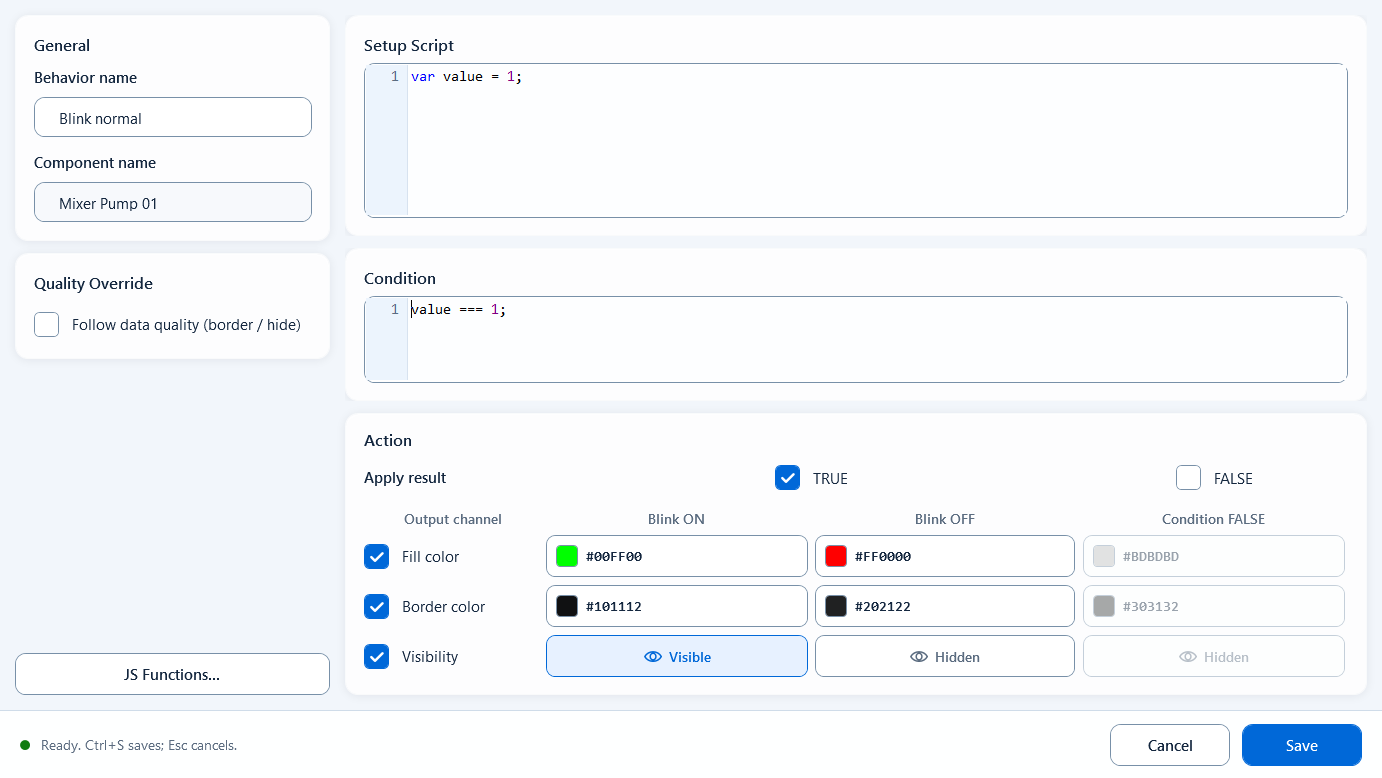
From the Behavior Browser, drag Blink Color onto the target shape, then fill in the editor sections below. The code shows a realistic Condition: blink when the alarm bit is true.
Behavior Name: a recognizable name for this behavior (Component Name is read-only and filled in for you).
Setup Script (this is the Definition): optional. Read tags, define variables, and compute intermediate values here for the Condition to use.
Condition: an expression returning true/false. true = blink, false = rest on the static look.
Action - first tick which states apply: TRUE (configures the blinking look) and FALSE (configures the static look when the condition is false), each toggled independently.
Output Channels: independently enable Fill Color, Border Color, and Visibility, in any combination.
Each enabled channel is configured across three columns: Blink ON, Blink OFF, and Condition FALSE - pick colors for fill/border, or visible/hidden for Visibility.
Quality Override: optional. Enable Quality Border to color the border with the comms-quality GOOD/BAD colors; you can also tick "Hide when quality is BAD" to hide the shape on bad quality.
Use it for a binary state that must be seen at a glance and move to demand attention.
Alarm lamp: blink the fill between red and dark red while the alarm bit is true; rest on a static gray after reset.
Run/warning block: blink the block while a device is faulted or needs action; keep a steady static color when normal.
Boundaries and common mistakes
A few easy traps:
The Condition should only return a true/false result; put tag reads and intermediate math in the Setup Script (Definition) and keep the output clean.
The blink rate is fixed by the system - there is no blink-interval field in the editor, so do not look for one.
The false look comes from the Condition FALSE column, not from freezing the blink on one frame - give it an explicit static color or visibility.
Quality Border uses comms quality (GOOD/BAD), not the process value; on bad quality the shape should stop blinking as if the tag were still valid, to avoid misleading the operator.
Figure 1: Blink Color editor
When the condition is true it toggles between Blink ON and Blink OFF; when false it rests on a static look, across fill, border, and visibility.