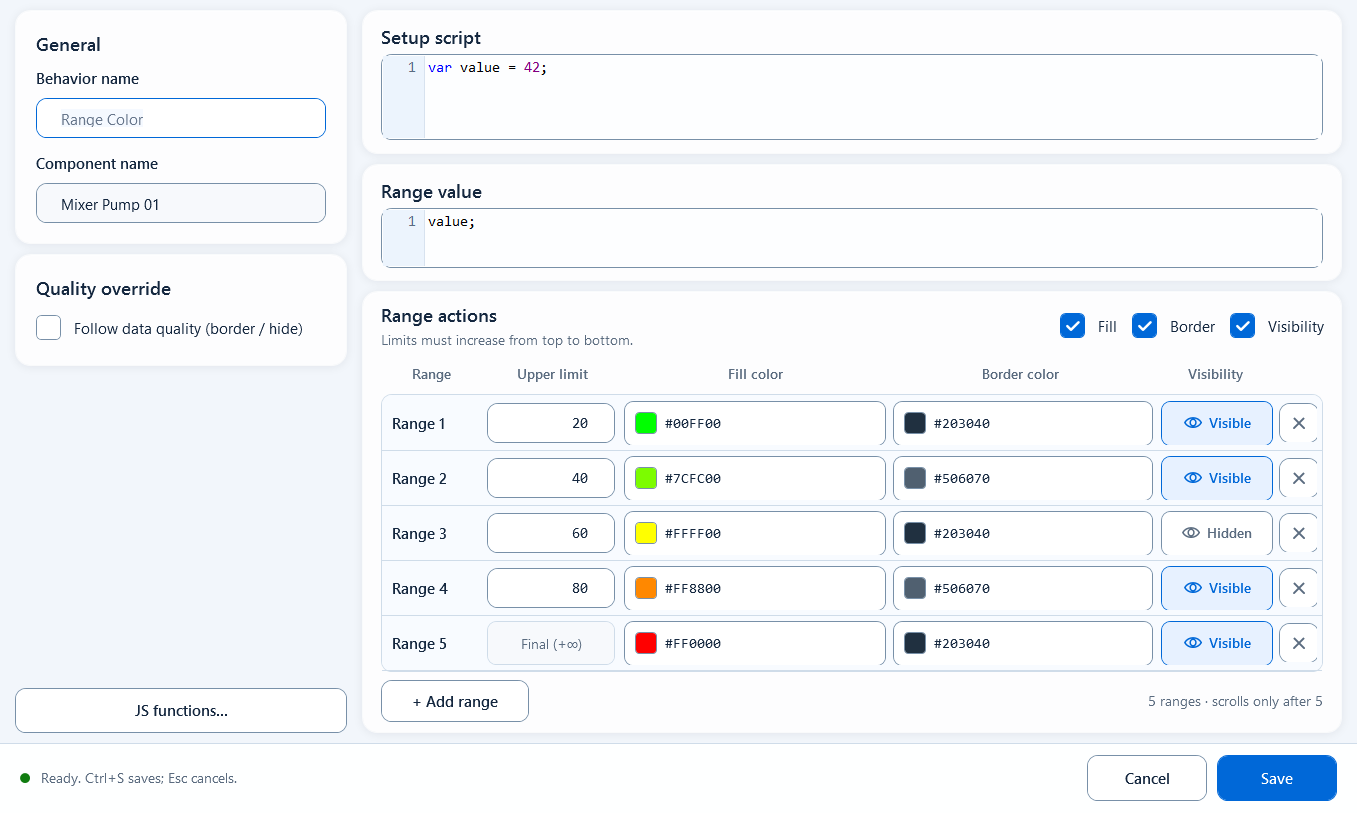
Range Color is a Visual States behavior that maps a numeric value into color ranges. You supply four limits, which split the value into five ranges at runtime; whichever range the value falls into decides the component's color (plus optional border and show/hide). It is best for continuous analog values: temperature, pressure, load, analog equipment status. For a simple true/false state use State Color; for a fixed list of discrete states use Discrete Color. The editor window is titled Color Range Editor.
Colors
Colors: Range Color
Maps one analog value into color bands: four limits split the value into five ranges, each with its own fill/border color or show/hide state. Best for continuous values like temperature, pressure, and load.
What it is and what it is for
Range Color is a Visual States behavior that maps a numeric value into color ranges. You supply four limits, which split the value into five ranges at runtime; whichever range the value falls into decides the component's color (plus optional border and show/hide). It is best for continuous analog values: temperature, pressure, load, analog equipment status. For a simple true/false state use State Color; for a fixed list of discrete states use Discrete Color. The editor window is titled Color Range Editor.
How to use it: the editor fields
After adding a Range Color behavior to a component, open the editor and fill in these fields:
Behavior Name: a name for this behavior, for easy management.
Component Name: auto-filled and read-only; confirms which component is bound.
Setup Script (the Definition / prep script): optional. Read tags, declare variables, do intermediate math; the result feeds Condition.
Condition: required, must return a number; that number decides which range applies. Default is 0;.
Range Limits: four numbers, entered low to high, forming <= L1 < L2 < L3 < L4 < Value, splitting the value into five ranges.
Fill Color: five swatches, one per range; defaults run green to red. Toggle the channel with its checkbox.
Border Color: optional, five swatches for per-range border color; active when checked.
Visibility: optional, five buttons that set each range to shown or hidden.
Quality Override: optional. Enable Quality Border to outline with the Good/Bad color by communication quality; check Hide When Quality Bad to hide the component when quality is bad.
// Setup Script
var temp = ReadTagDouble("Device.TEMP", 0.0);

// Condition (return a number to choose the range)
temp
When to use it
Use it when you have a continuous value and want color to show, at a glance, which band it is in. Two common cases:
Temperature monitoring: limits 60 / 80 / 95 / 110 give green for <=60 (normal), yellow for 80-95 (high), red for >110 (over-temp alarm).
Pump load / pressure: split the load percentage into low, normal, high, very high, and over-limit so an operator reads the band instantly without reading the exact number.
Boundaries and common mistakes
A few things to watch:
Four limits make five ranges, not five limits. The boundary rule is fixed: the first range is value <= L1, the last is value > L4, joined by < in between.
Enter limits low to high. Condition must return a number (not a color string); to return a color, use Script Color instead.
A blank or non-numeric limit box is treated as 0, which can shift the ranges; confirm all four boxes hold the right numbers before saving.
On save, only the Setup Script and Condition JS syntax is validated; a syntax error pops a warning and blocks OK. Colors and limits themselves are not syntax-checked.
Quality means communication quality, not the value; when quality is bad the color should not keep tracking the stale value, so handle it with Quality Override.
Figure 1: Range Color editor
Four limits split the value into five bands, each with its own fill/border color or show/hide.