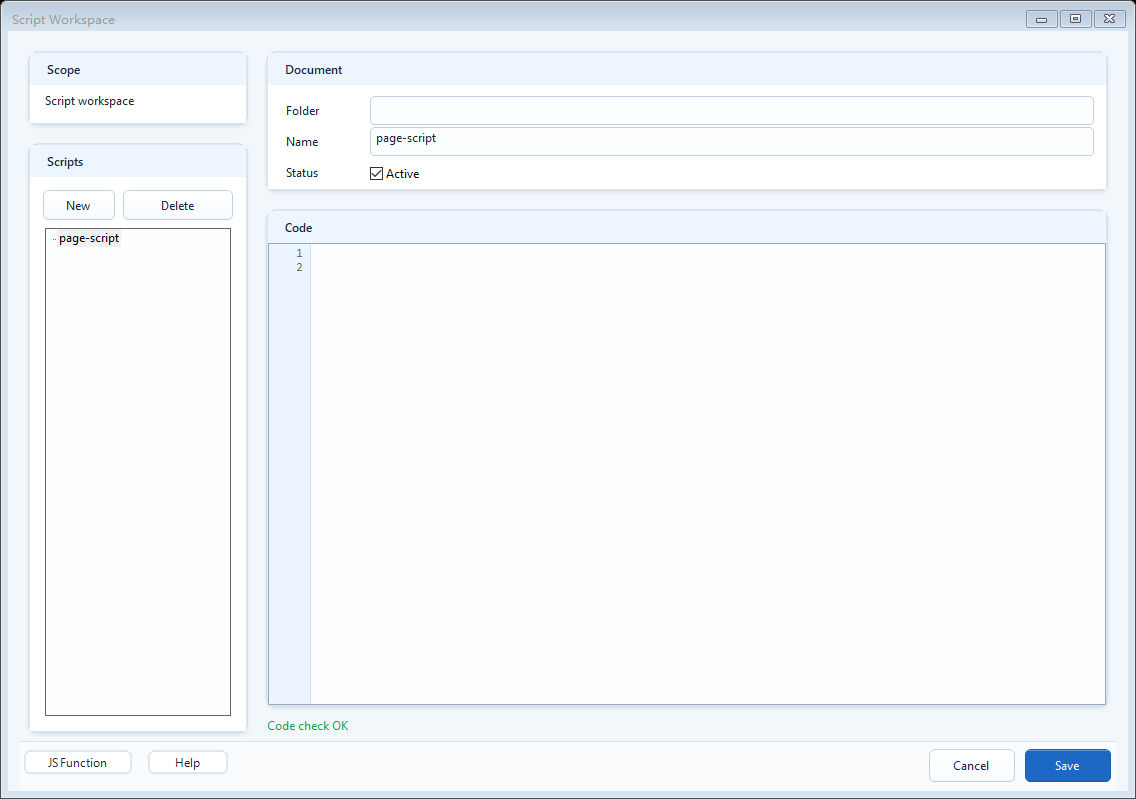
Add runtime logic to a screen with JavaScript: Global Script holds variables and functions shared across the whole PPT, Page Script holds logic for the current page only. At runtime use the ReadTag family to read PLC tags, date/time helpers to build current time text, and the qtedit.* object to drive components and navigate; qteditPageReady runs once when the page is ready. Read a single bit with the "TAGNAME[bit]" bracket syntax.
What it is and what it is for
Scripts are where you add runtime logic to a screen package, all in JavaScript. The Scripts group on the ribbon has two entry points: Global Script edits the script shared by the whole PPT (put cross-page variables and functions here; after export it runs on the browser side and is available to every page), and Page Script edits the script for the current page only (logic that belongs to this page). Each entry point can also carry a JSON document for config data (global exports to json/global.json, per-page to json/pages/<page>.json). At runtime your script gets a set of ready helpers: the ReadTag family reads PLC tag values, the WriteTag family writes them, and the qtedit.* runtime object changes a component's text/color/visibility, navigates between pages, writes runtime variables, and force-refreshes the view. These are the same runtime used by the Definition / Condition / Value / Text expressions in behaviors; the only difference is that script areas hold a block of logic while expression slots return a single result value.
How to use it: common methods and syntax
Pick the right entry point for the position, then use these runtime methods. Lifecycle: hook window.qteditPageReady in the page script (runs once when the page is ready) and window.qteditGlobalReady in the global script (runs once when the package is ready) for initialization.
- Read tags, ReadTag family: ReadTagBoolean / ReadTagInteger / ReadTagDouble / ReadTagString; the second argument is the fallback value used when the tag cannot be read
- Date/time helpers: GetCurrentDate() returns yyyy-MM-dd, GetCurrentDateTime() returns yyyy-MM-dd HH:mm:ss, and FormatDateTime(value, "yyyy/MM/dd HH:mm:ss") formats an existing date/time value; search keywords include time, date, datetime, 时间, 日期
- Read a single bit (key point): append a bracketed bit number to the tag name, "Device.TAGNAME[bit]", and read it with ReadTagBoolean; the bit number is zero-based, range 0-31, with no spaces inside the brackets
- Tag quality: ReadTagQuality(name, "bad") returns the quality text, ReadTagQualityGood(name) tests whether it is good (quality is only good / bad, not the process value)
- Write tags, WriteTag family: WriteTagBoolean / WriteTagInteger / WriteTagDouble / WriteTagString (whether the write succeeds is decided by the host: permission, confirm, reason, async)
- Drive components, qtedit.*: setComponentText(nameOrId, value), setComponentFill, setComponentBorder, setComponentVisible, setComponentLayout, findComponent, getComponentData
- Navigation and variables, qtedit.*: openPage("PageName") same-package page, openScreen("SCREEN_CODE") another package, openWebsite(url, openInNewWindow) external site, writeVariable(name, value) runtime variable, refreshView() re-apply state
// Page Script: initialize when the page is ready
window.qteditPageReady = function (ctx) {
  // Read bit 0 from an integer tag (bracket syntax, no spaces)
  var pumpRun = ReadTagBoolean("PLC1.PUMP.STATUS[0]", false);
  qtedit.setComponentText("Title 1", pumpRun ? "RUN" : "STOP");
  qtedit.setComponentFill("Lamp 1", pumpRun ? "#22C55E" : "#EF4444");
  qtedit.refreshView();
};
Common JS snippets: date/time, status text, and safe defaults
Use these snippets in Page Script, Global Script, Click Script, or a behavior Definition area. Condition / Value / Text slots should usually contain only the final expression that returns immediately; longer checks and formatting belong in Definition or a script body.
- Ternary expression: condition ? trueValue : falseValue, useful for converting a boolean to text, color, or a numeric value.
- Safe defaults: the second argument of ReadTagBoolean / ReadTagDouble and similar helpers is the fallback when the tag cannot be read.
- Date/time text: use GetCurrentDate() for the current date, GetCurrentDateTime() for the current date-time, and FormatDateTime(...) for display formatting.
- Multiple conditions: use a ternary for simple cases; use if / else to prepare variables before writing to a component or returning a behavior value.
// date / time
var today = GetCurrentDate();                 // yyyy-MM-dd
var nowText = GetCurrentDateTime();           // yyyy-MM-dd HH:mm:ss
var displayTime = FormatDateTime(nowText, "yyyy/MM/dd HH:mm:ss");

// Boolean status to text
var currentValue = ReadTagBoolean("A1.Tset.1", false);
var text = currentValue ? "OK" : "Fault";

// Numeric banding
var speed = ReadTagDouble("Line01.MainMotor.SpeedPV", 0);
var levelText = speed >= 80 ? "High" : (speed >= 40 ? "Medium" : "Low");

// Quality guard: show communication fault first when quality is bad
if (!ReadTagQualityGood("Line01.MainMotor.SpeedPV")) {
  text = "Communication fault";
}

qtedit.setComponentText("StatusText", text + " / " + displayTime);
qtedit.setComponentText("LevelText", levelText);
Common JS syntax: string concatenation, number formatting, arrays, and objects
Screen scripts usually do more value formatting than complex algorithms. Use string concatenation, template strings, number formatting, arrays, and object maps in Definition, Page Script, or Global Script, then write the final result to a component or return it from a behavior.
- String concatenation: use 'Speed: ' + speed for simple text; use template strings like
Speed: ${speed} when several values are involved.
- Number formatting: use Number(value).toFixed(1) to control decimal places.
- Arrays: keep status lists, alarm lists, or multiple component names in arrays, then loop through them.
- Objects: keep lookup tables such as state code to text, color, and priority.
// String concatenation and template strings
var speed = ReadTagDouble('Line01.MainMotor.SpeedPV', 0);
var unit = ' rpm';
var speedText = 'Speed: ' + Number(speed).toFixed(1) + unit;
var timeText = `Updated: ${GetCurrentDateTime()}`;

// Object map: state code to text and color
var state = ReadTagInteger('Line01.MainMotor.State', 0);
var stateMap = {
  0: { text: 'Stopped', color: '#94A3B8' },
  1: { text: 'Running', color: '#22C55E' },
  2: { text: 'Fault', color: '#EF4444' }
};
var stateInfo = stateMap[state] || { text: 'Unknown', color: '#F59E0B' };

// Arrays and loops: update several components
var targetNames = ['SpeedText', 'SpeedTextCopy'];
for (var i = 0; i < targetNames.length; i++) {
  qtedit.setComponentText(targetNames[i], speedText);
}

qtedit.setComponentText('StateText', `${stateInfo.text} / ${timeText}`);
qtedit.setComponentFill('StateLamp', stateInfo.color);
When to use it
Two typical scenarios. First, when a piece of logic or config must be shared across pages: put functions, constants, and recipe names in the global script and call them from any page instead of repeating them. Second, for per-page initialization or linked logic: in the page script's qteditPageReady read tags, build text, and set initial component colors/visibility, or in a click script read the current value and write it back (for example read then add 10). When a button or status lamp should follow a single boolean bit, use bracket bit-read to pull one bit out of an integer tag and drive the display.
- Put shared methods and config in the global script; put page-only logic in the page script
- Use qtedit.openPage(...) for same-package pages and qtedit.openScreen(...) across packages; do not write disk-relative paths like ../../xxx.html
Boundaries and common mistakes
A few real pitfalls: (1) Bit-read must use the exact "TAGNAME[bit]" bracket syntax with no spaces inside the brackets, and the bit number only supports 0-31; out of range or malformed reads nothing (falls back to the fallback value); bit-read pulls one bit from an integer tag, so the source tag must be an integer. (2) Do not assume a write is immediate or always succeeds; the host may add permission checks, a confirm dialog, reason input, or async handling, and write handlers may return a Promise. (3) Async methods (fetch, setTimeout, setInterval, requestAnimationFrame) belong only in script-body positions (Global Script, Page Script, Click Script, Hover Script); do not put them in synchronous expression slots like Condition, Move, Rotate, Scale, or Script Color that must return an immediate value. (4) If you change the global script or global JSON, you must re-export the whole package; a current-page-only export will not carry those changes.