Install the PowerPoint add-in first, then confirm the ribbon, license state, and export entry are available.
Install
Install: Windows installation and first launch
Install the PowerPoint add-in first, then confirm the ribbon, license state, and export entry are available.
Supported installation environment
The plugin runs in Microsoft PowerPoint 2016 or later for Windows desktop, including Microsoft 365 desktop PowerPoint. PowerPoint for Mac, the web, and mobile devices are outside the installation scope.
The plugin installs for the current Windows user and supports 32-bit (x86) and 64-bit (x64) PowerPoint. Bitness refers to the PowerPoint application. After installation, confirm that the ribbon, Behavior Browser, and editors open correctly.
Configure industrial animation in the plugin behavior editors. Native PowerPoint animations and slide transitions are outside the current screen-package export scope.
Official release package
Obtain the versioned HQVISU.Designer-<version>.zip package, extract it, and run HQVISU.DesignerInstaller.exe. Keep the SHA-256 checksum file, package manifest, third-party notices, and license files. Microsoft PowerPoint must be installed and licensed separately.
Install the add-in
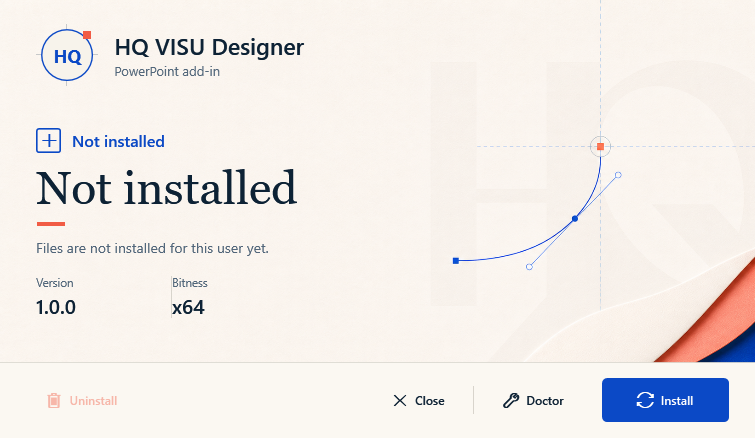
Close PowerPoint and run HQVISU.DesignerInstaller.exe as the Windows user who will use the plugin. Select Install for a first installation or Reinstall for an upgrade or repair, then restart PowerPoint. Doctor diagnoses the environment; Uninstall removes the plugin.
Check the ribbon
Confirm the MX Design ribbon tab is visible, behavior tools can open, and export commands are available.
Check licensing
Open License Center for online activation or to export an offline request and import the issued certificate. Confirm the license state in Status before using licensed features.
If the add-in stops responding
Close and reopen PowerPoint, then use Doctor in the installer to check the add-in environment. If the issue persists, record the plugin and PowerPoint versions shown in Status.
Figure 1: PowerPoint installer
The installer installs, repairs, uninstalls, and diagnoses the add-in for the current Windows user. Restart PowerPoint after installation.