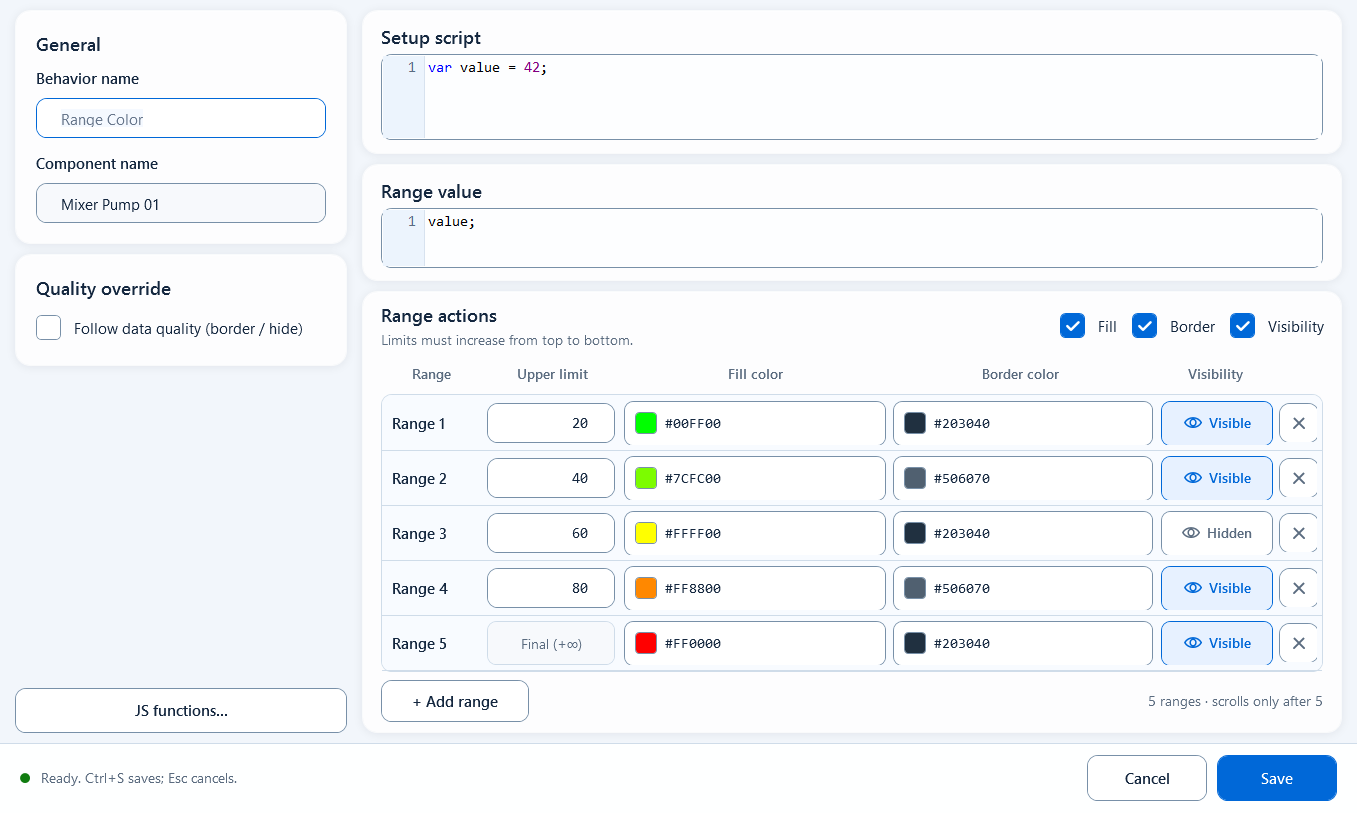
Map a continuous value to ranges with their own fill, border, and visibility. The default configuration has five ranges; add or remove ranges as needed, from 1 to 24.
ColorsDocumentation revised: 2026-10-21
Colors: Range Color
Map a continuous value to ranges with their own fill, border, and visibility. The default configuration has five ranges; add or remove ranges as needed, from 1 to 24.
Overview
Use Range Color for temperature, pressure, level, or load bands. Four upper limits create five default ranges. Use + Add range or delete rows to configure 1–24 ranges. Enter increasing upper limits and configure an appearance for each range.
Field configuration
Prepare data in Setup script and return a number from Range value. Each Range actions row represents a range, with Final (+∞) as the last row. Enter each part of the example in its indicated field.
Behavior name is editable; Component name is read-only.
Setup script (Setup Script): optional numeric preparation for this behavior.
Range value: a numeric expression, not a literal Tag name or color string.
Upper limit: enter finite, increasing numbers for all rows except the final range.
Fill / Border / Visibility: enable the required channels and configure each row.
+ Add range inserts a range; recheck adjacent boundaries after deleting a row.
Quality override: Follow data quality (border / hide) configures Good / Bad and hiding on bad quality. An explicit range border takes precedence over Good.
Save validates scripts and numeric limits. Blank, non-numeric, non-finite, or non-increasing limits block saving.
JavaScriptJavaScript
// Setup scriptvar temperature = ReadTagDouble("PLC_LINE01.OVEN01.TEMPERATURE", 0);// Range valuetemperature// Upper limit: 60, 80, 95, 110// Final (+∞): values above 110
When to use it
Use color to distinguish numeric bands, for example:
Temperature example: ≤60, (60,80], (80,95], (95,110], and >110. Configure colors according to the process specification.
Load bands can indicate low, normal, high, and over-limit values. A range color does not create a host alarm event.
Limitations and troubleshooting
Range boundaries and publishing checks:
Four limits L1 < L2 < L3 < L4 create five bands: value ≤ L1, L1 < value ≤ L2, L2 < value ≤ L3, L3 < value ≤ L4, and value > L4.
An upper limit belongs to its range. This differs from the strict Value < comparison in Discrete Color.
N ranges use N−1 increasing upper limits. A single range has no upper limits and applies to every valid numeric value.
For projects using an older runtime, update the plugin and host, then export and publish the project again. After adding or removing ranges, verify fill, border, and visibility at every upper limit and in the final range.
Check finite values, increasing order, and output channels before saving. Invalid limits are not silently saved as 0.
Quality override represents data reliability; process alarms require separate host configuration.
Figure 1: Range Color editor
Four limits split the value into five bands, each with its own fill/border color or show/hide.