
What it is and what it's for
Open Link runs when a user clicks its component at runtime. Choose Internal page, External URL, System menu, or Run script under Destination.
Configure a component to open a page, URL, system menu, or scripted destination on click. Select Destination first, then enter the fields for that type.
Open Link runs when a user clicks its component at runtime. Choose Internal page, External URL, System menu, or Run script under Destination.
Drag Open Link onto the target component, open the editor, and choose Destination. Fill the fields for the selected target type:
// Run script: choose a page by state
if (ReadTagBoolean("PLC_LINE01.PUMP01.FAULT", false)) {
  hqVisuDesigner.openPage("alarm_overview");
} else {
  hqVisuDesigner.openPage("production_overview");
}For Internal page, add Key / Value rows under Parameters when the destination needs context. A scripted openPage call may supply strings, numbers, booleans, or null; the destination reads text values. Repeated keys keep their original order.
// Source page: navigate within the package and pass context
hqVisuDesigner.openPage("device_details", {
  frameTarget: "frame",
  parameters: [
    { key: "PLC", value: "PLC_LINE01" },
    { key: "Device", value: "PUMP_01" },
    { key: "Area", value: "AREA01" },
    { key: "Area", value: "AREA02" }
  ]
});

// Destination Page Script
var plc = GetPageParameter("PLC", "");
var device = GetPageParameter("Device", "");
var areas = GetPageParameterValues("Area");Use it to switch pages or open content, for example:
An Internal page relative address must stay inside the current package's asset directory. Use a screen code for another package or System menu for a host menu. Do not use a path such as ../../other-screen/index.html to navigate between packages.
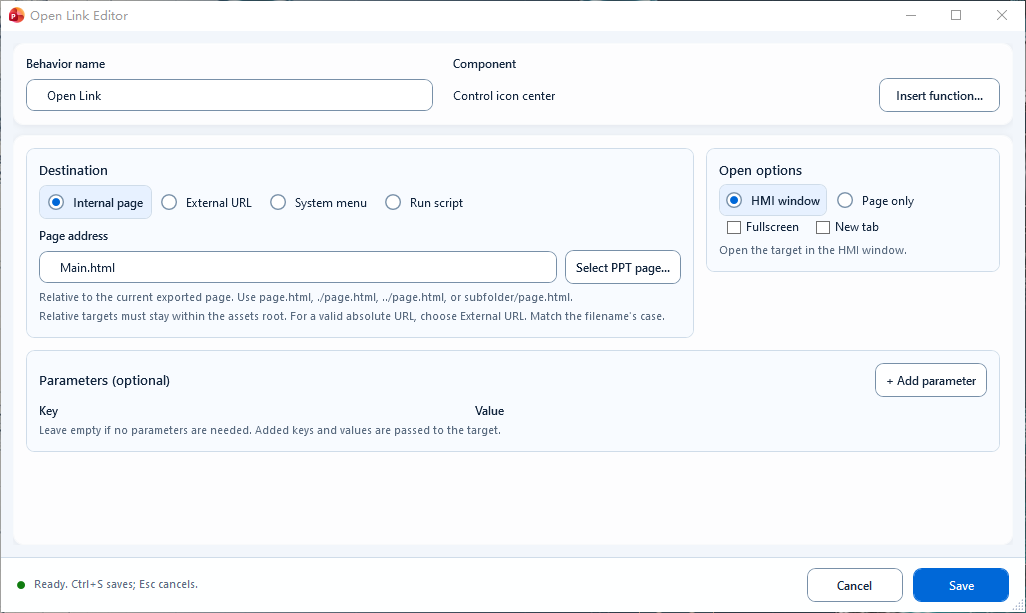
For Internal page, enter Page address, select a presentation page, and configure Open options and Parameters.