Map a number to a horizontal or vertical offset from the original position, for sliders, level markers and indicators.
GeometryDocumentation revised: 2026-10-21
Geometry: Move
Map a number to a horizontal or vertical offset from the original position, for sliders, level markers and indicators.
Overview
Move is a Geometry behavior for numeric single-axis motion. Use Rotate for angles and Scale for size changes.
How to use it: every control in the editor
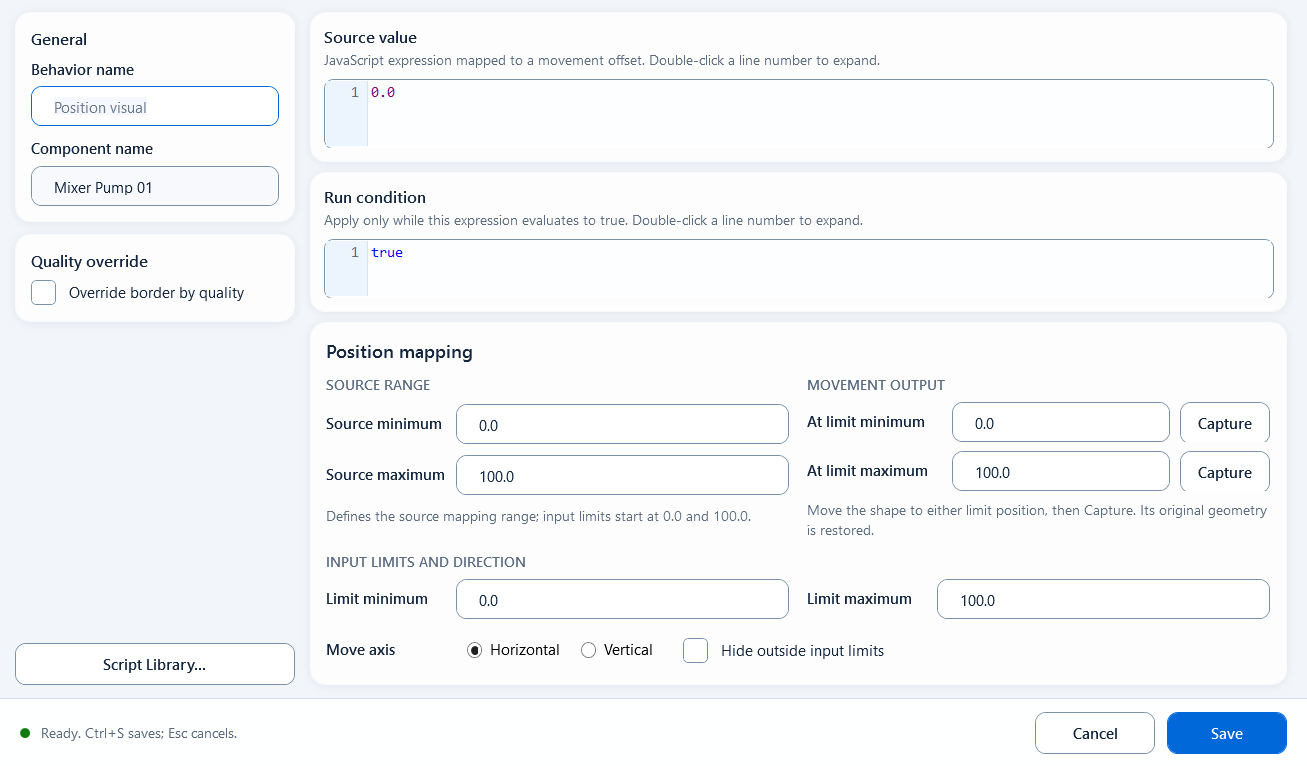
Move clamps Source value to Limit minimum / Limit maximum and maps that interval to At limit minimum / At limit maximum. The output is a canvas distance relative to the original component position. Source minimum / Source maximum are available as ValueMin / ValueMax aliases. Changing the source range alone does not update the input limits.
Behavior name is editable; Component name is read-only.
Quality override / Override border by quality configures Good and Bad borders for data quality, separately from process limits.
JS functions... inserts a method into the focused expression field.
Source value returns a number, for example ReadTagDouble("PLC_LINE01.TANK01.LEVEL", 0). Condition returns a boolean; false skips the behavior and does not hide the component.
Source minimum / Source maximum default to 0 / 100 and supply the ValueMin / ValueMax expression aliases.
At limit minimum / At limit maximum specify movement offsets, initially 0 / 120 for a new Move behavior, at the input-limit endpoints. Capture calculates an endpoint from the component geometry.
Limit minimum / Limit maximum start as independent values 0 / 100 and control clamping and normalization. Enter ValueMin / ValueMax to follow the source range.
Move axis: Horizontal or Vertical. Hide outside input limits controls visibility on an out-of-range input.
Save / Ctrl+S validates and saves; Cancel / Esc discards the edit.
Capture beside At limit minimum / At limit maximum calculates the offset from the same component in PowerPoint. The editor records the original geometry, writes the difference between target and original coordinates, and then attempts to restore the original position.
Choose Move axis first: Horizontal uses the Left difference and Vertical uses the Top difference.
Move the component to the desired endpoint, then use Capture beside that endpoint.
The offset uses 0.### formatting and can be replaced with a numeric expression.
The same component must remain selected. Unavailable original or current geometry produces an error.
If restoration fails, the saved offset remains; restore the component before continuing.
When to use it
Use a measured value to drive linear motion, for example:
Tank level: map the level percentage into a vertical offset so the liquid block floats up and down with the level
Slider / horizontal indicator: map a 0-100 value into a horizontal offset to produce slider or horizontal indicator bar motion
Limitations and troubleshooting
Check these settings:
Movement outputs use canvas distance. Use shape.width for one component width; 100 means 100 canvas units.
Limit minimum / Limit maximum controls the actual mapping, with out-of-range visibility controlled separately.
Check the movement axis before Capture to avoid recording the wrong coordinate difference.
After changing the source range, update input limits or enter ValueMin / ValueMax to follow it.
Figure 1: Move editor
Set the source range, offset range, and axis to map a value proportionally into a single-axis offset.