An Interactions click behavior: when the user clicks the shape, it asks the Mingcedar host to open its device diagnosis popup, jumping from the screen to that device's live diagnosis view.
InteractionsDocumentation revised: 2026-10-21
Interactions: Open Diagnosis
An Interactions click behavior: when the user clicks the shape, it asks the Mingcedar host to open its device diagnosis popup, jumping from the screen to that device's live diagnosis view.
What it is and what it's for
Open Diagnosis is an Interactions-category behavior that runs only on the exported, running page when the user clicks the shape. It asks the Mingcedar host to open its device diagnosis popup, so an operator can click a device icon on a screen and bring up that device's diagnosis/status window. The behavior does not draw a window itself; it hands a small payload to the host, and the host opens the diagnosis view using its own popup template. Note: it relies on the host popup protocol, so it only works when the page runs inside the Mingcedar host. Opening the exported file directly in a plain browser will not show the diagnosis popup.
Field configuration
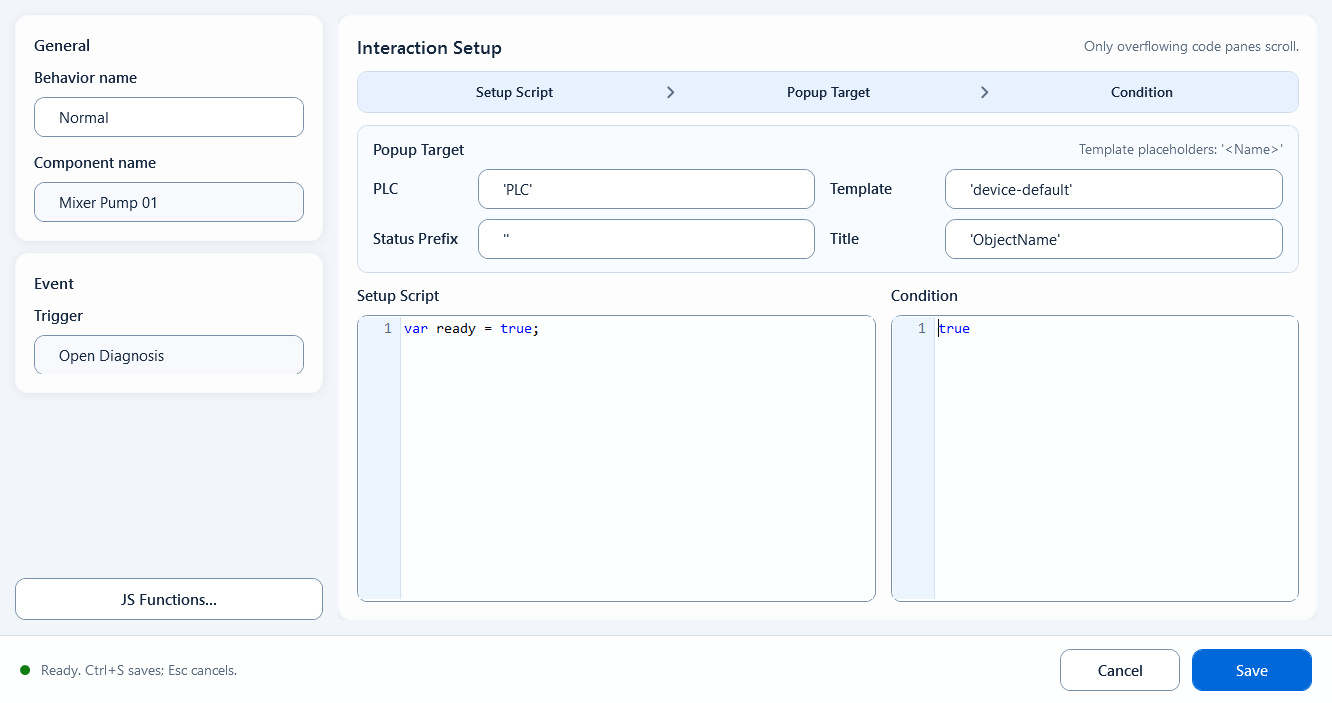
In the behavior editor, besides the shared Setup Script and Condition, you fill in the Popup Target group. These four target fields are JavaScript string expressions (use a literal, or build a value dynamically). The labels shown in the editor map to the payload field names the host receives as follows:
Setup Script: setup logic. Read tags or define variables here for the fields below to use (e.g. var dev = 'F01';).
PLC: the target PLC / station name (payload PLC). Default 'PLC'.
Template (payload ID): the host diagnosis template code, which selects the template to load. Default 'device-default'.
Status Prefix (payload DiagnosisControl): the status Tag prefix, combined with the PLC and template suffix to form full Tag names. Default '' (empty).
Title (payload GroupRightIndex): the displayed device name or popup title; it is not used to build the status Tag prefix. Default 'ObjectName'.
Condition (payload Enabled): the run gate; true runs the behavior, false means a click does nothing. Default true.
Template instances may use string placeholders such as '<PLC>', '<DIAGNOSIS_TEMPLATE>', '<STATUS_PREFIX>', and '<TITLE>'; the instance replaces them during export.
JavaScriptJavaScript
// Setup Scriptvar deviceId = 'PUMP_01';// Target fields (string expressions)PLC: 'PLC_LINE01'Template(ID): 'device-default'Status Prefix(DiagnosisControl): 'AREA01.PUMP01' // status Tag prefixTitle(GroupRightIndex): deviceId // title shows PUMP_01Condition(Enabled): true// At runtime this is equivalent to:hqVisuDesigner.openDiagnosis({ PLC: 'PLC_LINE01', ID: 'device-default', DiagnosisControl: 'AREA01.PUMP01', GroupRightIndex: 'PUMP_01'});
When to use it
Typical case: on a device-overview or process screen, bind Open Diagnosis to each pump, valve, or motor icon so an operator can click an icon and pop up that device's diagnosis/status window to check live bits, alarms, and parameters without switching to a dedicated diagnosis page. You can also drive the target dynamically from Setup Script, e.g. build the ID and prefix from the currently selected device number so one template serves many devices.
Limitations and troubleshooting
A few things to watch for:
Status Prefix / DiagnosisControl is the status Tag prefix. With PLC set to PLC_LINE01, Status Prefix set to AREA01.PUMP01, and a template suffix of RUN, the full Tag is PLC_LINE01.AREA01.PUMP01.RUN. Title / GroupRightIndex supplies the displayed device name.
The editor labels (Template / Status Prefix / Title) are not the same words as the payload names (ID / DiagnosisControl / GroupRightIndex); use the mapping above when debugging.
The four target fields are string expressions: quote literals (e.g. 'PLC1'); only use a bare name for a variable (e.g. dev).
If Condition / Enabled is false, a click does nothing; check it first when 'clicking opens no popup'.
The popup is opened by the host, so it only works if the host has the matching diagnosis template (Template / ID) configured; it has no effect outside the Mingcedar host.
Figure 1: Open Diagnosis editor
Fill the target fields - PLC, Template, Status Prefix, Title - so a click asks the host to open the device diagnosis popup.