Behavior Browser: How to Bind a Behavior to a Component
Manage pages, components and behaviors. Drag from Behaviors onto a component node, then double-click the bound behavior to edit it.
FeatureDocumentation revised: 2026-10-21
Feature: Behavior Browser: How to Bind a Behavior to a Component
Manage pages, components and behaviors. Drag from Behaviors onto a component node, then double-click the bound behavior to edit it.
Overview
Open MX Design → Behaviors → Browse. Pages / Components shows bindings on the left, Behaviors lists categories on the right, and Behavior Details describes the selected node below.
Behavior catalog
Behaviors are organized into these categories; see each chapter for fields and examples.
Visual States: Blink Color, Range Color, Script Color, Discrete Color, State Color, Multi-State Color.
Geometry: Move, Rotate, Scale.
Interactions: Set Variable on Click, Open Diagnosis, Open Link, Open Page as Popup, Close Current Popup, Write Tag, Write Tag Bit, Click Script, Hover Script, Press/Release Script.
Text: Script Text, Tag Text, Localized Text.
How to use it: drag to bind + right-click menu + editor fields
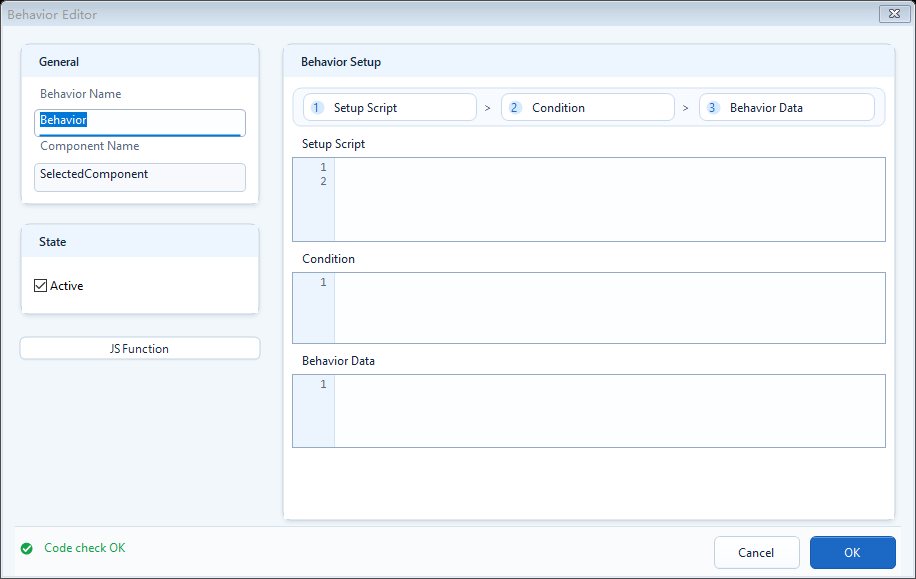
Drag a behavior from the right catalog onto a component node on the left; double-click the binding to edit. Double-clicking the catalog only shows a drag hint. Fields and context commands are listed below:
Binding steps: select the component on the left -> drag a behavior onto that component node -> release the mouse.
Double-clicking a behavior on the right does not bind; double-clicking a bound behavior node on the left opens its editor.
// State Color: enter each part in its indicated field// Setup Scriptvar running = ReadTagBoolean("PLC_LINE01.PUMP01.RUN", false);// Conditionrunning// Action: enable TRUE, FALSE, and Fill color// TRUE state: #22C55E (running)// FALSE state: #94A3B8 (stopped)
Use the component-tree toolbar
The Components tree has five toolbar buttons. Refresh rereads the current presentation. Collapse all and Expand all control the tree. Zoom out and Zoom in adjust tree text and row size. Selecting a page or component node also selects the matching object in PowerPoint.
The tree is behind PowerPoint: click Refresh.
There are too many open nodes: Collapse all, then open only the target page.
You need to review every behavior on the page: Expand all.
Names are clipped or the list is too dense: use Zoom out / Zoom in.
After selecting a component node, confirm the same object is selected on the slide.
Read the Bound, Unbound, Behavior, and Current legend
Bound means attached; Unbound means not attached to this component. Behavior identifies a behavior node and Current marks the active node. Confirm a binding by its presence under the component.
After a drag, confirm that a new behavior node appears under the component.
Double-click the new node and confirm that its editor opens.
Save, refresh once, and confirm that it still appears as Bound.
Use the context menu and keyboard shortcuts
Right-clicking a page, component, group, template, or behavior shows commands valid for that node: Locate in PowerPoint, Edit Template, Ungroup, Rename Component, Edit Behavior, Copy Behavior, Paste Behavior, and Remove Behavior.
Ctrl+C: copy the selected behavior.
Ctrl+V: paste the copied behavior onto the current compatible component.
Delete: remove the selected behavior after confirmation.
After a paste, recheck Target Tag, page targets, component names, and template variables.
If a command is disabled, confirm the type of node currently selected.
Understand cancel rollback and text-target restrictions
Dragging a behavior opens its editor. Cancel removes a new binding but only discards edits to an existing one. Text behaviors require text-capable components.
Keep a new behavior: fill required fields and choose Save / OK.
Discard a new behavior: choose Cancel and confirm no behavior node remains.
Discard edits to an existing behavior: choose Cancel; the old configuration remains.
A Text behavior is rejected: select a text box, text-capable shape, or supported template object.
Tree and PowerPoint selection differ: Refresh, then use Locate in PowerPoint.
When to use it
Use it for data-driven appearance and click or hover actions:
Run-state lamp: find the pump/valve shape in the left tree, drag State Color or Blink Color onto it, then read the tag in Setup Script and set the color in the output.
Click action: drag Write Tag / Write Tag Bit / Open Link onto a button shape, set the tag or the navigation target, and it works on click in the host after export.
Common mistakes
Drop onto a component node, not a page node. If a page, template or selection change is missing from the tree, use Tools → Refresh or the browser refresh button.
Figure 1: Behavior Browser
The left tree lists pages, components, and bound behaviors; drag a behavior from the right catalog onto a component node to bind it, with details below.