
Overview
Open Page as Popup opens another Page Code above the current page, for device details, confirmations and parameter panels. The underlying page remains in place.
Open another exported page from this PowerPoint file as a popup without navigating away from the underlying page; the popup keeps its own HTML, SVG, JavaScript, and image assets.
Open Page as Popup opens another Page Code above the current page, for device details, confirmations and parameter panels. The underlying page remains in place.
Bind it to the opener, configure Popup page, Appearance and Interaction, and select Enabled:
Select a fixed destination in Popup page. For a dynamic destination, parameters, or background options, expand Advanced options:
{"PLC":"PLC_LINE01","Device":"PUMP_01"}. A top-level array is invalid.// Fixed page + static parameters
Page Code: device_details
Page parameters: {"PLC": "PLC_LINE01", "Device": "PUMP_01", "active": true}
// Dynamic page example
selectedDeviceType === "pump" ? "pump_details" : "valve_details"The static popup input requires a JSON object and cannot represent repeated keys. Dynamic parameter expressions can return an ordered array of { key, value } entries to preserve repeated keys. For consistent host and local-fallback behavior, use string, number, boolean, or null values. The popup destination still reads them with GetPageParameter, GetPageParameterValues, or GetPageParameters and treats the result as text.
// Popup Page Script
var plc = GetPageParameter("PLC", "");
var device = GetPageParameter("Device", "");
var activeText = GetPageParameter("active", "false");
var active = activeText === "true";The target must be an exported page in the package. Adding, removing or renaming popup pages, or changing shared assets, requires a full export. Select from the page list to match Page Code to the manifest; do not emulate popups with Open Link.
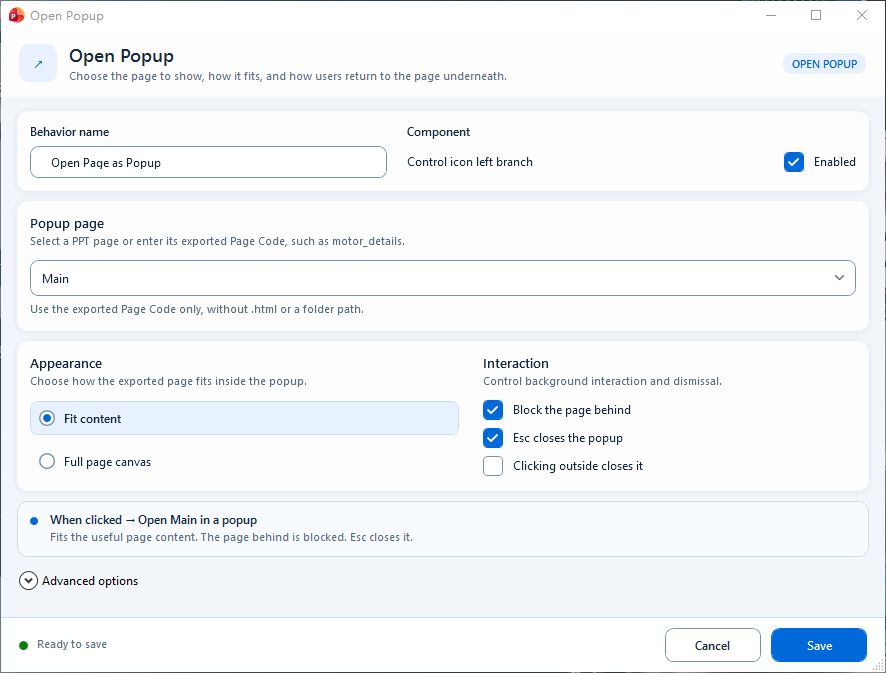
Choose the popup page, Fit content or Full page canvas, and dismissal controls. Advanced options is collapsed in this image.