Click to update a current-page JavaScript variable for selection or linked displays. This does not write a PLC Tag.
InteractionsDocumentation revised: 2026-10-21
Interactions: Set Variable on Click
Click to update a current-page JavaScript variable for selection or linked displays. This does not write a PLC Tag.
Overview
Set Variable on Click updates a current-page variable when clicked. Use it to store a selection, switch views or update component displays. Declare the variable in Page Script first. Use Write Tag or Write Tag Bit for device writes.
Field configuration
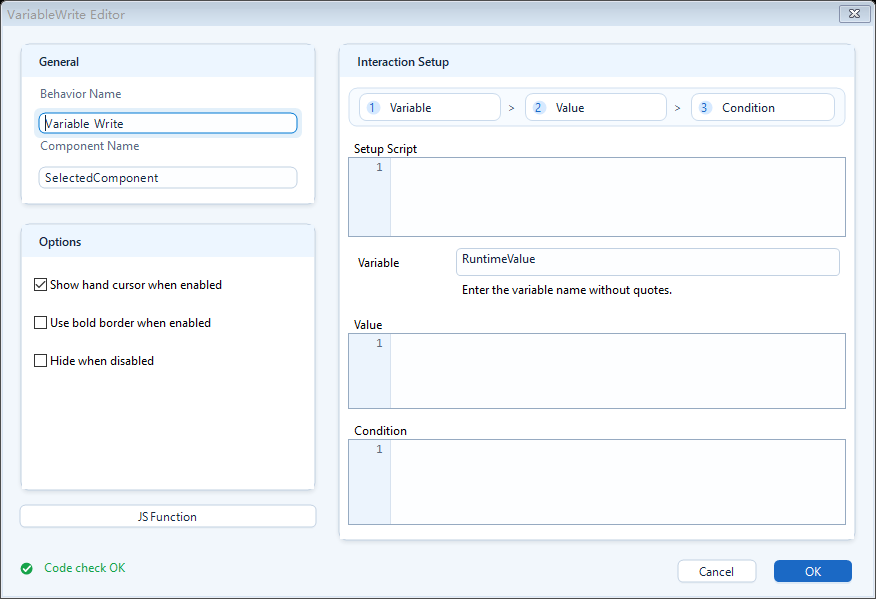
Drag Set Variable on Click onto the target component, configure the fields below and save. Place each example part in Page Script or its labeled behavior field. Leave Setup Script empty.
Setup Script: preparation area. Read tags, define intermediate variables, do calculations for Value here. May be left empty.
Variable: the name of the variable to write; the name only, no quotes (e.g. enter pumpStart, not "pumpStart").
Value: the value to write. It may be a single expression or full JavaScript; if you write multi-line script, you must end it with return.
Condition: true allows the assignment; false skips it.
(Optional appearance feedback) show hand cursor when enabled, thicker stroke when enabled, hide when not enabled; visual hints for clickable / not clickable.
JavaScriptJavaScript
// Page Scriptvar pumpStart = false;// Set Variable on Click → VariablepumpStart// Value!pumpStart// Conditiontrue
When to use it
Best when a click should remember a value inside the page and make other elements react to it.
Page state toggle: switch pumpStart between true and false on each click and bind the indicator to that variable.
In-page view switching: different buttons write viewMode (e.g. 1/2/3), and several layers use visibility behaviors to show or hide based on viewMode.
Remember a selection: write the currently selected device id into a variable for page text, navigation, or scripts to read.
Limitations and troubleshooting
Do not confuse it with Write Tag: this writes a runtime variable and never reaches the PLC; use Write Tag / Write Tag Bit for the PLC.
Do not quote the variable name: Variable takes the bare name (pumpStart); quotes or expressions will fail.
Multi-line Value must return: a single-line expression needs no return, but multi-line logic without return yields no result.
To make other elements react: writing only refreshes linked behavior state; other elements must bind to and read the same variable name (the variable space is readable via hqVisuDesigner.globals).
If a click has no effect, check Condition and the variable name, then confirm the configuration was saved and exported.
Figure 1: Set Variable on Click editor
Enter the variable name and the value to write; a click writes it to a page runtime variable for other behaviors to react to.