Create reusable templates and configure placeholders, instance values, Input, alarms and page parameters.
TemplatesDocumentation revised: 2026-10-21
Templates: Template authoring and parameter passing
Create reusable templates and configure placeholders, instance values, Input, alarms and page parameters.
Choose the value mechanism before authoring
Choose by when the value is known: template variables for instance addresses, Input or Runtime Variable for temporary page input, and page parameters for navigation context.
Template instance variable: filled after insertion, such as <PLC> or <RUN_TAG>.
Input template value: entered at runtime and read with template.getValue("instance name").
Runtime Variable: temporary state shared inside the current runtime page.
Page or popup parameter: sent while opening the destination and read with GetPageParameter*.
PLC Tag: device data binding. Shared access from several pages is not page-parameter passing.
Draw and configure the components, then group them for reuse. Replace per-instance differences with angle-bracket placeholders in text, Tag fields or script strings. In scripts, keep placeholders inside string literals.
Wrap each variable in one pair of angle brackets. Use short ASCII uppercase names such as <PLC>, <DEVICE_NO>, and <RUN_TAG> in shared templates. Names may also contain non-ASCII letters, but cannot contain dots, hyphens, or spaces. Build Tag paths from variables and fixed separators.
Valid names include <PLC>, <DB_01>, and <DEVICE_NO>.
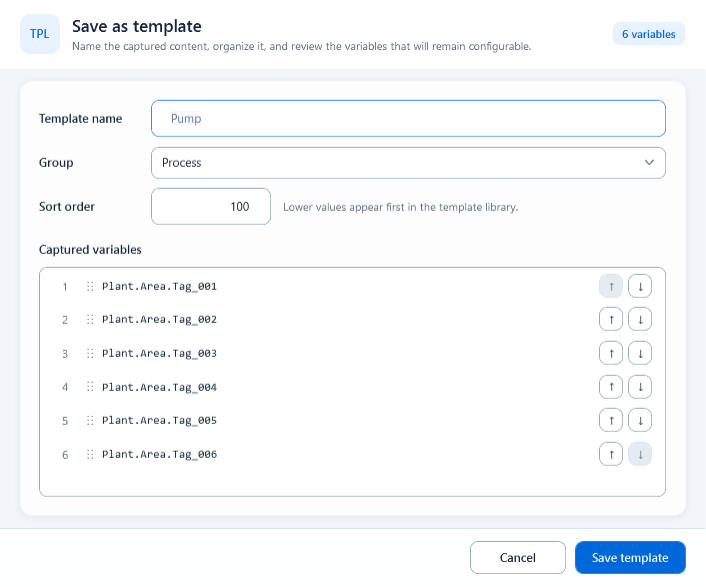
Select the group, save it in Templates and fill its name, group and order. Check Captured variables: fix missing or case-duplicated names in the source. Their order controls Template Edit field order.
Template name: identify the device or purpose, for example Pump faceplate.
Group: organize by process, equipment, or project.
Sort order: lower values appear earlier in the library.
Captured variables: verify every name, count, and order.
After saving, insert a fresh instance from the library and test it.
4. Insert an instance and fill its variables
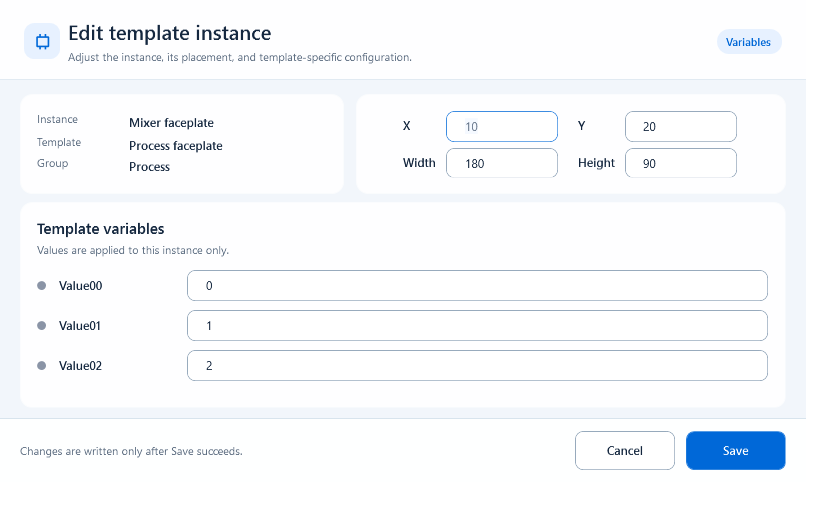
Insert a template, select its root group and open Templates → Edit Instance. Check identity and position, then fill Template variables. Values affect this instance only and copy with it.
Select the instance root, not a child shape inside it.
Enter replacement values without angle brackets, for example LINE01 for PLC.
The same placeholder in text, behavior tags, and script strings receives one instance value.
A blank can be saved during editing, but tag placeholders must be resolved before final export.
Reopen Template Edit and confirm values, position, and size after saving.
Use Input for runtime entry. Read Plain Input with template.getValue("input instance name"); use Runtime Variable for same-page state. Pass device code or mode through navigation parameters, then read with GetPageParameter and explicitly convert numbers or booleans.
Plain Input: the value stays on that Input instance until a script reads it.
Runtime Variable: temporary same-page linkage; do not treat it as durable cross-page state.
PLC Tag mode: confirmation submits according to host permission and write rules.
Page parameters: a contract between the opening page and the destination.
For complete open-and-receive examples, continue to Script scope and parameter passing.
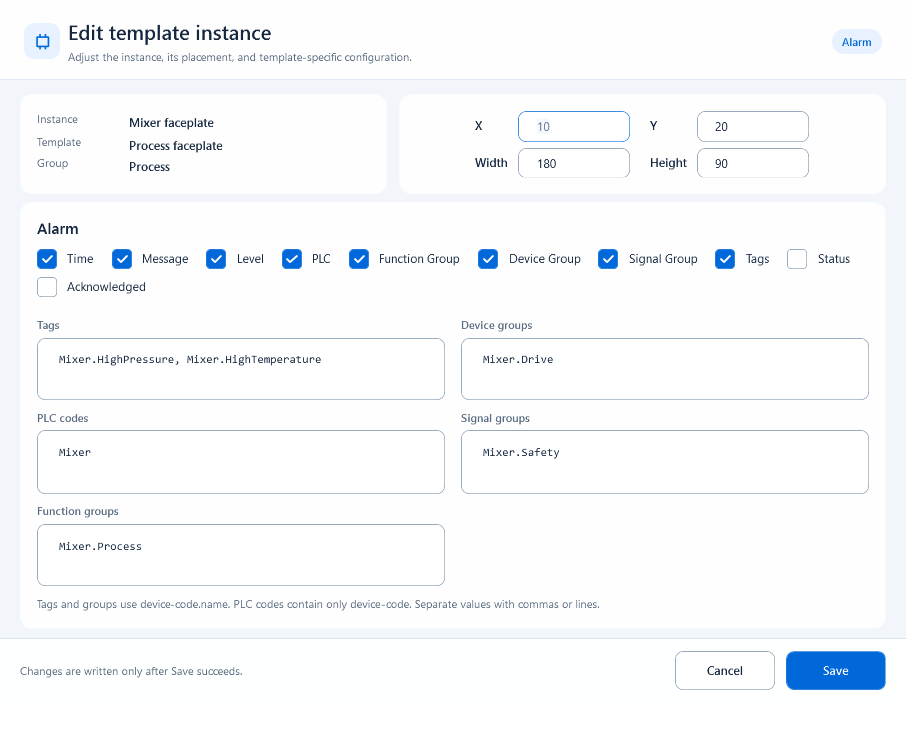
An Alarm template controls both the visible columns and the alarm scope. Select only the required columns from Time, Message, Level, PLC, Function Group, Device Group, Signal Group, Tags, Status, and Acknowledged. Then enter project codes in the relevant filters. Separate several values with commas or lines and use codes rather than display names.
Tags: full device-code.tag-code, for example <PLC>.<ALARM_TAG>.
PLC codes: device-code only, for example <PLC>.
Function groups: device-code.group-code.
Device groups: device-code.group-code.
Signal groups: device-code.group-code.
An empty filter dimension adds no extra restriction; test with a known active alarm after export.
7. Test active alarms in template scripts
Alarm helpers return whether an active alarm matches the scope, for driving icons, colors or text. They accept arrays or comma/newline-separated text; they do not query history or acknowledge alarms.
GetAlarmTags(values): match full tag codes.
GetAlarmPlcCodes(values): match PLC or device codes.
GetAlarmFunctionGroupCodes(values): match function-group codes.
GetAlarmDeviceGroupCodes(values): match device-group codes.
GetAlarmSignalGroupCodes(values): match signal-group codes.
Insert at least two instances with different values and verify that their text, tags, alarm scope, and interactions remain independent. Check where Input values are stored and verify page-parameter field names and destination defaults. If export reports an unresolved variable, fill the instance or correct the source template instead of hiding the issue with fixed text.
Unresolved <variable>: check for an empty instance field or an unsupported placement.
Missing Captured variable: check whether a dot, hyphen, space, or bit index was put inside the name.
Placeholder unchanged in a script: keep it inside a JavaScript string literal.
Value lost after navigation: it may need a page parameter instead of a Runtime Variable.
Wrong alarm scope: distinguish full tags, PLC codes, and the three group-code fields.
After updating a template, validate a newly inserted instance.
Figure 1: Save and review a template
Current Save as template UI: verify identity, grouping, ordering, and Captured variables before saving.
Figure 2: Fill instance variables
Template Edit changes only the selected instance. Verify its source and geometry before filling values.
Figure 3: Configure an Alarm template
Choose the required alarm columns and limit scope by tag, PLC, function group, device group, or signal group.