Use Page Ratio to select one canvas ratio for every slide in the current presentation. Use Nav Path to maintain each page's Page Code, breadcrumb level, default text, language key, and background. Both are in the Page ribbon group.
FeatureDocumentation revised: 2026-10-21
Feature: Page Settings & Nav Path
Use Page Ratio to select one canvas ratio for every slide in the current presentation. Use Nav Path to maintain each page's Page Code, breadcrumb level, default text, language key, and background. Both are in the Page ribbon group.
What it is and what it's for
Page Ratio sets all slides’ aspect ratio; Nav Path manages Page Codes and breadcrumbs. Set the ratio before layout, then configure navigation once pages and links are stable.
Page Ratio steps
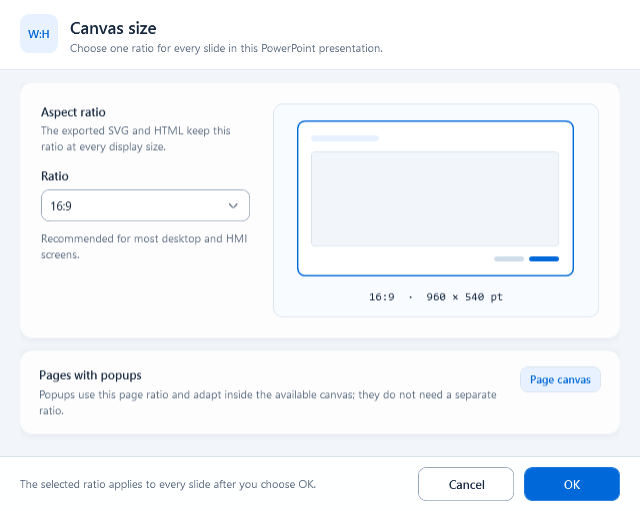
Open Page → Page Ratio, choose 16:9, 16:10, 4:3, 3:2 or 21:9, check the preview and click OK. The ratio applies to all slides.
16:9: recommended for most desktop and HMI screens.
16:10: adds vertical room for dense process information.
4:3: traditional operator panels and legacy displays.
3:2: balanced compact industrial displays.
21:9: ultra-wide control-room and wall displays.
A ratio change expands the canvas to keep existing coordinates visible instead of cropping them.
Pages with popups explains how popups adapt; an existing host side-panel setting remains independent.
Fill every Nav Path column
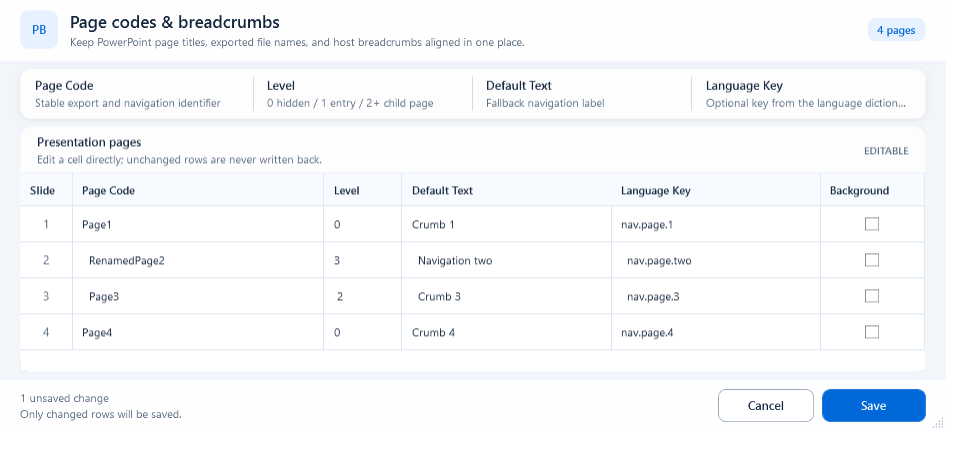
Open Page → Nav Path and edit each slide’s row in Presentation pages. Save validates the whole table and writes only changed rows.
Slide: read-only slide number used to locate the row.
Page Code: required stable export and navigation identifier. Start with an English letter, then use only English letters, digits, underscores, or hyphens.
Level: a whole number of 0 or greater. 0 hides the page, 1 is an entry page, and 2 or higher is a deeper child page.
Default Text: fallback breadcrumb label when Language Key is empty or has no translation.
Language Key: optional key from the existing language dictionary; it changes display text only.
Background: checked uses the PowerPoint slide background; unchecked keeps the exported page transparent.
TextText
Example:Page Code = line01_overviewLevel = 1Default Text = Production Line 1 OverviewLanguage Key = navigation.line01_overviewBackground = checked
Configure a presentation from ratio to navigation
Start with Page Ratio and confirm one ratio for every slide. Plan one unique Page Code per page, then fill Level, Default Text, Language Key, and Background in Nav Path. Run Export HTML for the full package and test every breadcrumb level in Mingcedar.
Choose one presentation ratio.
Plan stable, unique Page Codes.
Fill Level in slide order.
For multilingual navigation, fill both Default Text and Language Key.
After full export, test entry pages, child pages, hidden popup pages, and back navigation.
When to use it
Use one Page Ratio when main pages, detail pages, and popup pages share a screen package. Mark entry pages Level 1, deeper detail pages Level 2 or higher, and pure popup pages Level 0. For multilingual navigation, Default Text keeps the fallback readable and Language Key supplies the translation.
Limitations and troubleshooting
Check these settings:
Nav Path covers only navigation level and name, not alarm scope. The breadcrumb node's alarm/fault state and the page's right-side alarm window share HQVISU_PAGE_ALARM from the current page's alarm.js document (read through getPageAlarm() at runtime; do not configure it twice)
Page Ratio changes every slide in the presentation. It is not current-page only, and it has no custom width/height fields.
Page Code is a stable identifier, not a free-form display label. Follow its character rules.
Do not treat Level as a global site level; it is relative within the current screen package.
The host infers parent/child from export order plus level: the nearest preceding page with a lower Level becomes the parent, so keep the exported page order stable
Changing navigation structure (level, display name, adding/deleting/renaming pages) is a whole-package change and requires a full Export HTML, not a current-page-only export
Figure 1: Page Ratio
Choose 16:9, 16:10, 4:3, 3:2, or 21:9 and apply the ratio to every slide in the current presentation.
Figure 2: Nav Path
Set each page's breadcrumb level and display name to control how it appears in the host navigation.