What Mingcedar Studio Is: Product Positioning and End-to-End Flow
Use Mingcedar Studio in PowerPoint to create industrial screens, configure data and interactions, and export packages for Mingcedar.
OverviewDocumentation revised: 2026-10-21
Overview: What Mingcedar Studio Is: Product Positioning and End-to-End Flow
Use Mingcedar Studio in PowerPoint to create industrial screens, configure data and interactions, and export packages for Mingcedar.
What it is and what it gives you
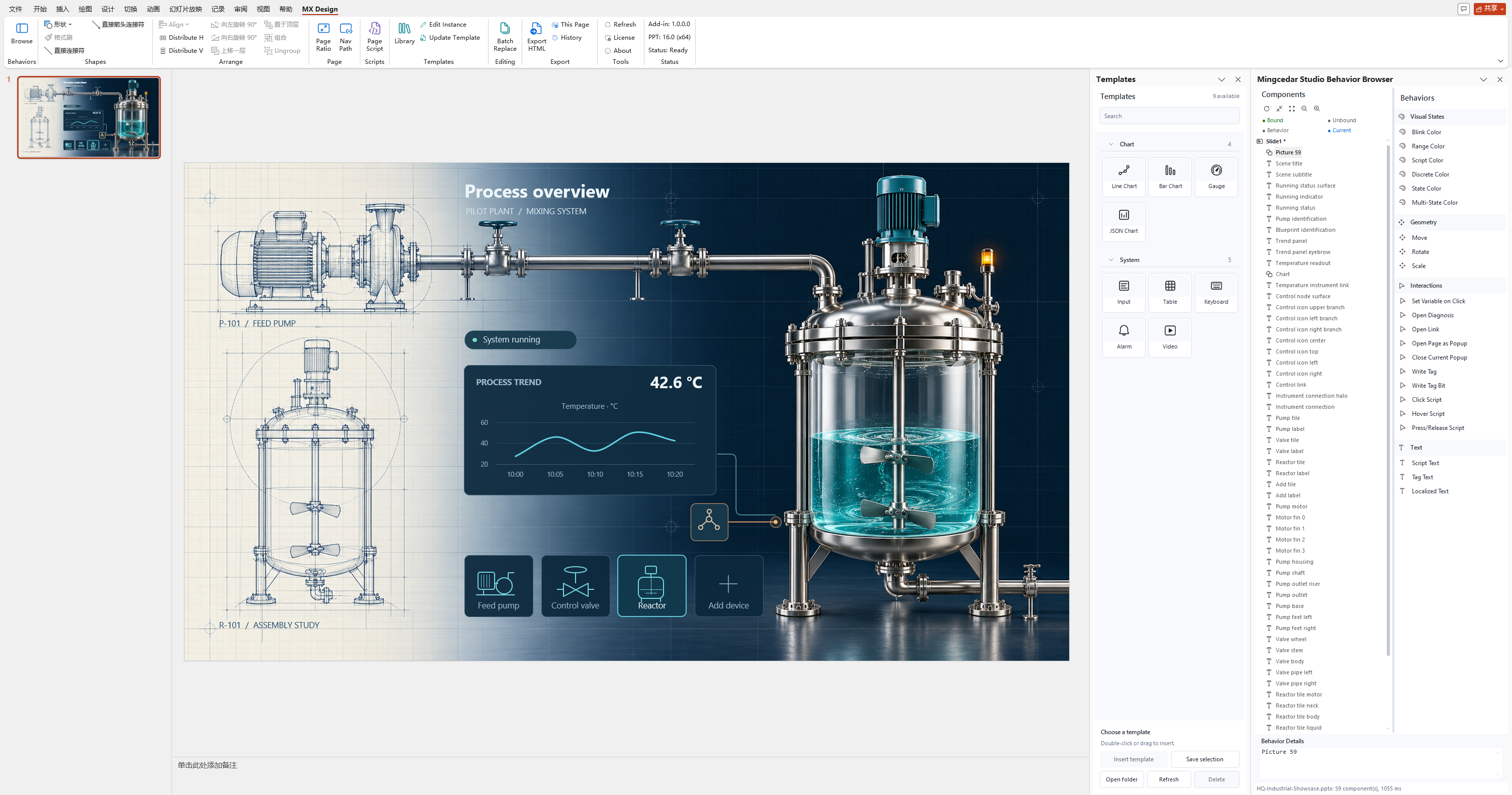
Use MX Design to draw pages, Behavior Browser to configure components, and templates to reuse device designs. Export HTML, SVG, JavaScript and images as a screen package. Mingcedar runs the package and manages data, navigation, permissions and deployment; Mingcedar Scan prepares TIA / PLC point lists.
Author and publish a screen
1) Draw the page and set Page Ratio.
2) Drag behaviors onto components in Behavior Browser, configure fields, and add Page Script as needed.
3) Use Export HTML to export the presentation.
4) Publish to Mingcedar and verify runtime behavior.
Behavior fields are grouped by purpose:
Setup Script: read Tags, define variables, or calculate intermediate values (for example, var running = ReadTagInteger(...)).
Condition / Value / Display Text: provide the condition, write value, or displayed text used by the behavior.
Fill / Border / Visibility: fill color, stroke color, show/hide (visual behaviors such as Script Color)
Tag Expression / Default / Invert: read-only fields for displaying tags and text; write behaviors use Target Tag, Value, Bit Index, and Action.
Variable / Value: write a runtime variable on click (Set Variable on Click; do not quote the variable name)
Targets: Keypad requires an Input template on the current page; Open Diagnosis requires a diagnosis target.
JavaScriptJavaScript
// Setup Script (prep)var running = ReadTagInteger("PLC_LINE01.PUMP01.RUN", 0);var alarm = ReadTagBoolean("PLC_LINE01.PUMP01.ALARM", false);// Condition (output; State Color etc. use it for true/false)running === 1 && !alarm
When to use it
Use it for industrial monitoring screens driven by PLC data, for example:
Device-status screen: draw pump or valve shapes, bind State Color or Blink Color, read run and alarm Tags, and verify live status in Mingcedar.
Operator area: bind an Input template to a runtime variable or PLC Tag, then connect a Keypad template to that Input. Verify permissions and results for device writes.
Before you begin
Check these configuration and publishing requirements:
You can only bind a behavior by dragging it onto a component node on the left; double-clicking an item in the right-hand catalog does not bind; it only shows: Drag a behavior onto a component node to bind it.
One presentation exports as one screen package. Re-export the full package when shared resources, page structure, or navigation change. Use This Page only for page-level changes.
Tag writes may require authorization, confirmation, or an audit reason. Check the actual result in Mingcedar after submitting a write.
For cross-package navigation use screen-code (hqVisuDesigner.openScreen(...)) and for same-package use hqVisuDesigner.openPage(...); do not use relative disk paths like ../../other-screen/index.html as the official jump rule.
Figure 1: MX Design workspace
The MX Design ribbon exposes Browse Behaviors, Page Ratio, Page Script, Templates, Batch Replace, and Export HTML beside the Templates and Behavior Browser panes.