
Bind Tag Text to a text component and set its target and optional prefix/suffix. Use Script Text for calculations or combined values.
Manual
Choose Tag Text, Script Text, or Localized Text | Mingcedar Studio
Display one Tag value with an optional fallback, prefix, suffix and quality border.
Choose Tag Text, Script Text, or Localized Text
Display one Tag value with an optional fallback, prefix, suffix and quality border.
Open Tag Text and configure these fields:
- Target tag: enter the full name PLC_LINE01.OVEN01.TEMPERATURE directly. Quoted names, name-string variables, and =bindingConfig.temperatureTag are also supported. The target must be a name string; no read method is required.
- Fallback value: the fallback text shown when the tag has no value; defaults to an empty string.
- Prefix: text placed before the value, e.g. "Temperature: ".
- Suffix: text placed after the value, e.g. " °C".
- Use quality outline colors: enable a quality border. Good communication quality uses the Good color (default #000000); bad quality uses the Bad color (default #FF8800).
Target tag: PLC_LINE01.OVEN01.TEMPERATURE
Fallback value:  "--"
Prefix:         "Temperature: "
Suffix:         " °C"
// Display example: Temperature: 36.5 °CUse for a direct single-Tag display, for example:
- Show a measured value (temperature, pressure, level, flow) with its unit directly on the screen.
- Display a string tag such as a device operating-mode name or batch number.
- If the text needs multiple tags, conditional logic, or formatting, use Script Text instead.
A fixed full name in Target tag does not require quotes. Use =bindingConfig.temperatureTag for an object property. Fallback value, Prefix, and Suffix are string expressions: quote literal text. Use Script Text for numeric variables, formatted results, or calculated Tags. Quality Border indicates data quality, not equipment state or alarms.
Script Text is under Behaviors → Text. Bind it to a text box or text-capable shape; Display Text determines the content. Use Tag Text to display a single Tag.
Setup Script prepares data, Display Text returns the string and Condition controls execution. Place each example part in its labeled field. Clear the default Setup Script if no preparation is needed.
- Setup Script: preparation area. Read tags, define variables, compute intermediate values (can be multi-line).
- Display Text: return the string to display.
- Condition: true applies the text; false skips the behavior.
- Use quality outline colors: apply the Good or Bad border color according to communication quality. The border does not represent the process value or alarm state.
// Setup Script
var pressure = ReadTagDouble("PLC_LINE01.AIR01.PRESSURE", 0.0);

// Display Text
"Pressure: " + pressure.toFixed(1) + " bar"Use for formatted or combined dynamic information.
- Show a measurement with units and fixed decimals, e.g. "Pressure: 3.2 bar".
- Combine several tags into one line, e.g. "Pump1 RUN / Speed 1450 rpm".
- Output different wording by condition, e.g. "Running" when on, "Stopped" when off.
The Display Text field is an expression position that returns a single value, not a full script.
- Do not put fetch, setTimeout, or other async code in Display Text; it needs an immediate value; put such logic in a script body like Page Script/Click Script.
- Keep heavy reads and calculations in Setup Script; let Display Text only do the final assembly.
- Always read tags with a quoted tag name and a fallback, e.g. ReadTagDouble("PLC_LINE01.AIR01.PRESSURE", 0.0); avoid bare tag-like text.
- The quality border represents communication quality (good/bad), not the process state.
Bind Localized Text to a text component to look up its key in the global translation table. Host language changes update the display automatically, without separate pages per language.
In Behavior Browser, add Localized Text to a text-capable component and enter Text key and Fallback text. This mode has no script or quality override settings.
- Text key (Text ID): enter the language-catalog key, for example pump.start.
- Fallback text (Default Text): readable text used when no translation is found.
- Fallback order: 1) translation from the current language pack, 2) Default Text, 3) the key itself (meaning no translation matched).
- Export note: the editor warns that text is flattened to one line, so multi-line content is collapsed.
Text key: pump.start
Fallback text: Start pumpUse it for multilingual screen text, for example:
- A Start button bound to one Text Key (e.g. pump.start): shows 'Start' in English, '启动' in Chinese, from the same shape.
- Screen titles, device-status text, and navigation menu items all driven by language keys, so switching the runtime language updates them all at once.
The host controls the active language; use hqVisuDesigner.useLanguage(...) to switch it from script. Missing translations display the configured fallback, then the key.
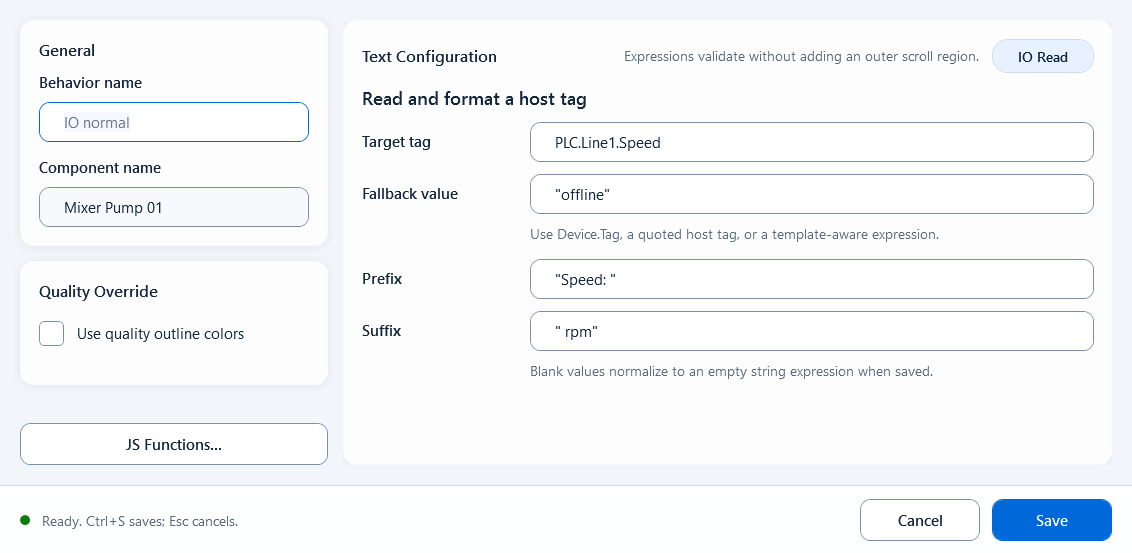
Fill the tag expression, default value, and optional prefix/suffix to show a single tag's value as text.
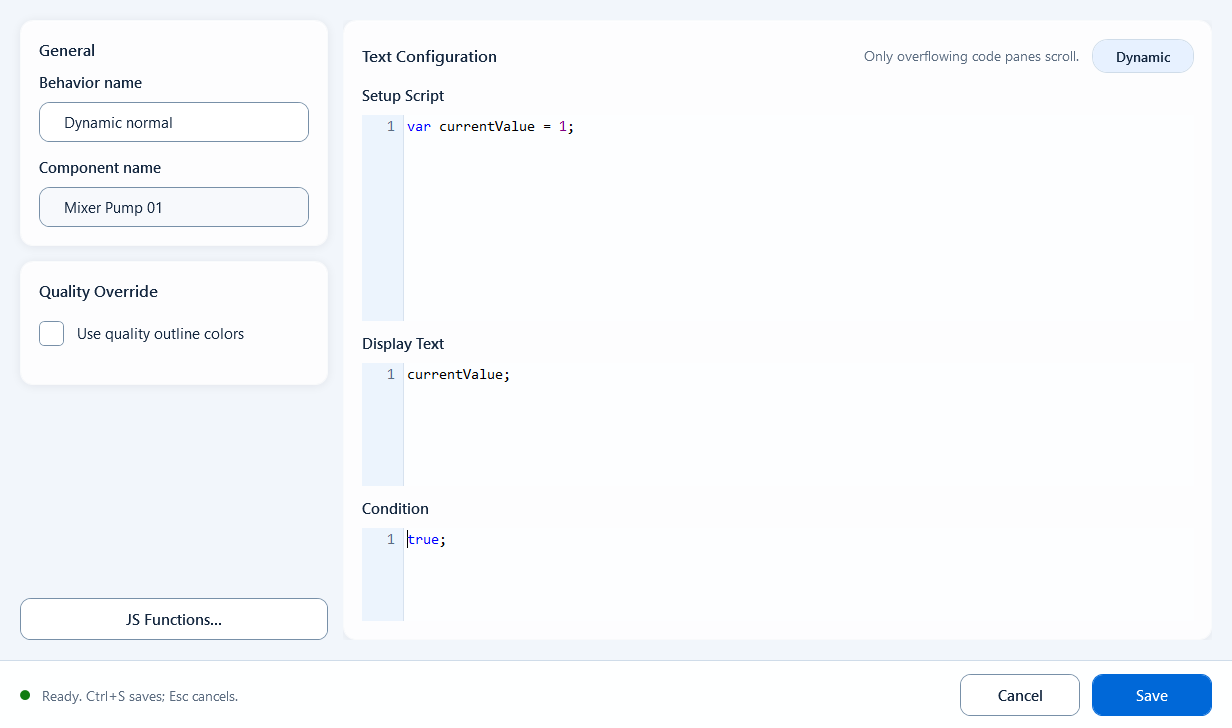
Read tags and compute in Setup Script, then return the final string to display in Display Text.
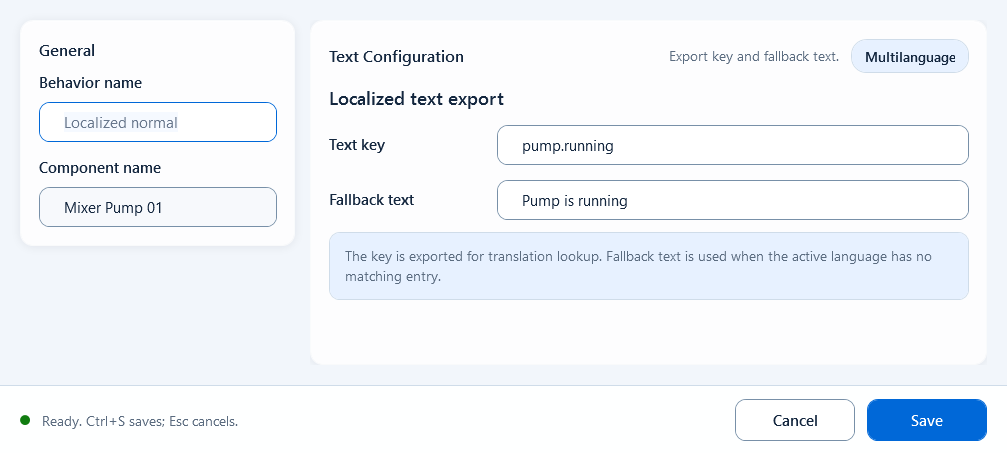
Bind a text shape to a language key so the runtime shows the translation for the current language, falling back when not found.