
State Color is in Visual States. Condition selects TRUE state or FALSE state, and only states enabled in Apply result apply their fill, border, and visibility. A false condition does not inherently stop display or hide the component. Use Range Color or Discrete Color for numeric bands, and Multi-State Color for prioritized conditions.
Manual
State colors and text | Mingcedar Studio
Choose a color or text behavior for the required state, keep Tag quality separate from process state, and combine readable text with visual cues.
Before Use
Choose a color or text behavior for the required state, keep Tag quality separate from process state, and combine readable text with visual cues.
Choose a state color behavior
Select a TRUE or FALSE appearance from a boolean condition to control fill, border, and visibility. Enable the corresponding state in Apply result. Use it for running/stopped, open/closed, or auto/manual components.
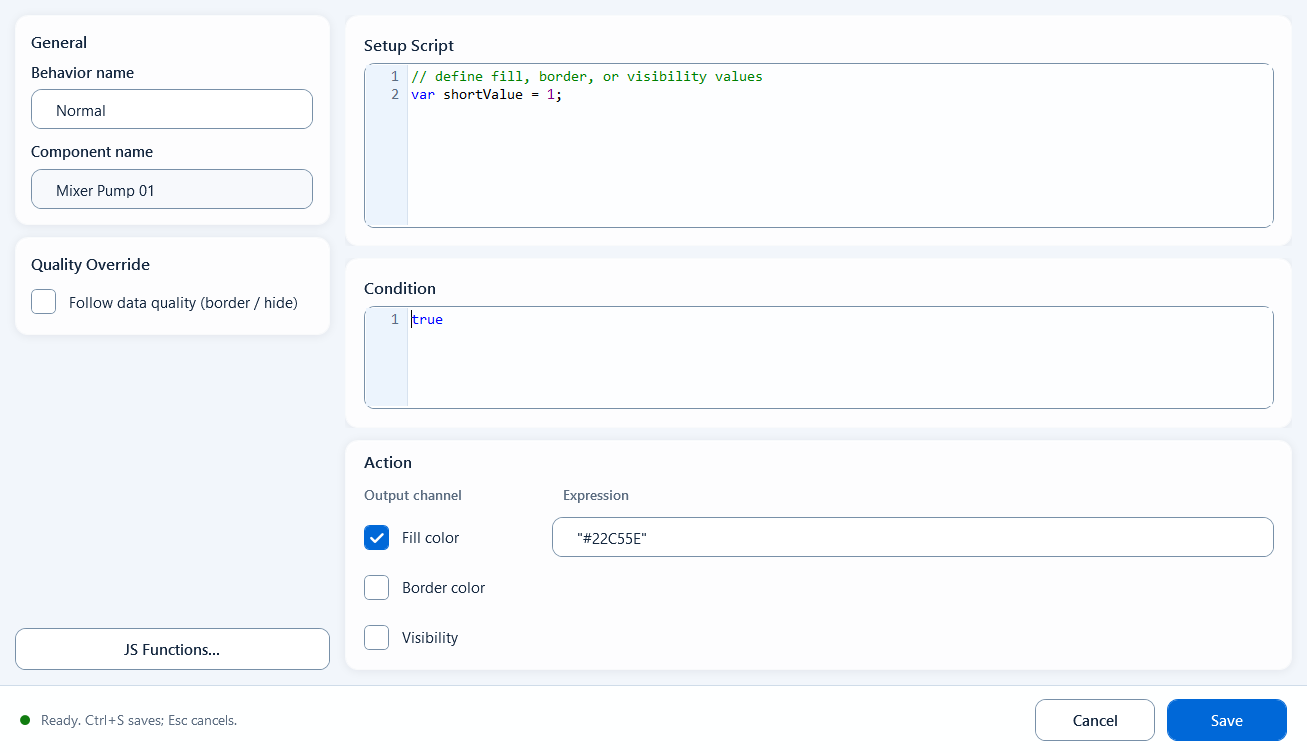
Bind State Color to the component and open its editor. Prepare data in Setup Script and return a boolean from Condition. In Action, enable the required states and output channels. Enter each part of the example in its indicated field.
- Setup Script: optional variables and intermediate results for this behavior.
- Condition: a boolean expression, such as ReadTagBoolean("PLC_LINE01.PUMP01.RUN", false), or running from Setup Script.
- Apply result: TRUE is enabled by default. Enable FALSE to apply a static appearance when the condition is false.
- Output channel: enable Fill color, Border color, or Visibility and configure TRUE state and FALSE state.
- Quality Override: enable Follow data quality (border / hide), configure Good and Bad, and optionally enable Hide when quality is bad.
- Save / Ctrl+S validates and saves. Cancel / Esc discards this edit.
// Setup Script
var running = ReadTagBoolean("PLC_LINE01.PUMP01.RUN", false);

// Condition
running

// Action: enable TRUE, FALSE, and Fill color
// TRUE state: #22C55E
// FALSE state: #94A3B8Use it to distinguish two states by color or visibility.
- Pump/motor run lamp: running = green, stopped = grey/orange
- Valve open/close state: open = green, closed = red
- Auto/manual or local/remote two-state markers
- A boolean alarm block: shown and red when active, hidden when normal
FALSE is disabled by default; setting a FALSE state color alone does not apply it. Condition requires a boolean, not a literal Tag name or color string. State Color supports Quality Override: bad data quality restores the base appearance and applies the configured Bad border or visibility. On good quality, an enabled state border takes precedence over the Good border color. Configure data quality separately from running, stopped, and alarm states.
Use Range Color for temperature, pressure, level, or load bands. Four upper limits create five default ranges. Use + Add range or delete rows to configure 1–24 ranges. Enter increasing upper limits and configure an appearance for each range.
Prepare data in Setup script and return a number from Range value. Each Range actions row represents a range, with Final (+∞) as the last row. Enter each part of the example in its indicated field.
- Behavior name is editable; Component name is read-only.
- Setup script (Setup Script): optional numeric preparation for this behavior.
- Range value: a numeric expression, not a literal Tag name or color string.
- Upper limit: enter finite, increasing numbers for all rows except the final range.
- Fill / Border / Visibility: enable the required channels and configure each row.
- + Add range inserts a range; recheck adjacent boundaries after deleting a row.
- Quality override: Follow data quality (border / hide) configures Good / Bad and hiding on bad quality. An explicit range border takes precedence over Good.
- Save validates scripts and numeric limits. Blank, non-numeric, non-finite, or non-increasing limits block saving.
// Setup script
var temperature = ReadTagDouble("PLC_LINE01.OVEN01.TEMPERATURE", 0);

// Range value
temperature

// Upper limit: 60, 80, 95, 110
// Final (+∞): values above 110Use color to distinguish numeric bands, for example:
- Temperature example: ≤60, (60,80], (80,95], (95,110], and >110. Configure colors according to the process specification.
- Load bands can indicate low, normal, high, and over-limit values. A range color does not create a host alarm event.
Range boundaries and publishing checks:
- Four limits L1 < L2 < L3 < L4 create five bands: value ≤ L1, L1 < value ≤ L2, L2 < value ≤ L3, L3 < value ≤ L4, and value > L4.
- An upper limit belongs to its range. This differs from the strict Value < comparison in Discrete Color.
- N ranges use N−1 increasing upper limits. A single range has no upper limits and applies to every valid numeric value.
- For projects using an older runtime, update the plugin and host, then export and publish the project again. After adding or removing ranges, verify fill, border, and visibility at every upper limit and in the final range.
- Check finite values, increasing order, and output channels before saving. Invalid limits are not silently saved as 0.
- Quality override represents data reliability; process alarms require separate host configuration.
Discrete Color uses seven increasing thresholds to divide State value into up to eight intervals. Each interval can set fill, border, and visibility. Use it for status codes, alarm levels, or bit combinations. To give specific values different appearances, set thresholds that separate those values.
Open the Discrete Color editor. Prepare data in Setup script and return a number from State value. In State actions, enter seven increasing thresholds in Value < to create eight state intervals.
- Setup script (Setup Script): read a numeric Tag and prepare the state value.
- State value: return a number such as stateValue. Use State Color for booleans, or convert explicitly to 0 / 1.
- State actions / Value <: default thresholds are 0, 1, 2, 4, 8, 16, 32. Comparisons use strictly less than; the last state is Final (+∞).
- Fill: a fill color per state (8 states); can be toggled on/off as a whole.
- Border: a border color per state (8 states); can be toggled on/off as a whole.
- Visibility: show or hide per state (8 states); can be toggled on/off as a whole.
- Quality override: Follow data quality (border / hide) controls quality borders and hiding on bad quality. An enabled state border takes precedence over Good.
// Setup script
var stateValue = ReadTagInteger("PLC_LINE01.PUMP01.MODE", 0);

// State value
stateValueUse it when a finite set of numeric values needs different appearances based on thresholds.
- Device status codes: set thresholds so 0 (stopped), 1 (running), 2 (fault), and 4 (maintenance) fall into the intended color intervals.
- Alarm level or bit combination: map an integer state into a few fixed buckets, each with its own fill/border/visibility.
Check these limits:
- State value must return a number; use State Color for a boolean condition.
- 8 states maximum. It can't express more than 8 states.
- Discrete Color uses threshold intervals, not equality matching. With default thresholds, both 2 and 3 enter [2, 4). Adjust thresholds or use exact equality conditions in Multi-State Color when they must differ.
- The seven Value < thresholds must increase. By default, 0 enters [0, 1) and values at or above 32 enter the final state. There is no automatic unknown-enum branch.
- Quality Border reflects communication quality, not the process value itself; when quality is bad the shape should not keep rendering as if the value were valid.
Multi-State Color displays several states by priority. Configure up to eight Boolean conditions; at runtime, the first true row supplies the component's fill, border, and visibility settings. Row 1 has the highest priority. Use Else for a default appearance when no condition is true.
Arrange conditions by priority, top to bottom. Enable output channels and set each row’s action.
- Setup Script (optional): preparation area to read tags and define helper values; leave it empty if not needed.
- Conditions (1-8): one true/false expression per row; the row number is its priority, row 1 highest, and the runtime uses the first row that is true.
- Use Else: when checked, adds an Else row at the bottom of the condition list, used when no condition is true.
- Fill (enable via the column header): set one fill color for each state row.
- Border (enable via the column header): set one border color for each state row.
- Visible (enable via the column header): set show or hide for each state row.
- Quality Override: enable Follow data quality (border / hide) and configure Good and Bad border colors. Enable Hide when quality is bad to hide the component on invalid data.
// Setup Script (prepare)
var st = ReadTagInteger("PLC_LINE01.PUMP01.STATE", 0);
var alarm = ReadTagBoolean("PLC_LINE01.PUMP01.ALARM", false);

// Condition 1 (highest priority, alarm)
alarm === true
// Condition 2 (manual)
st === 2
// Condition 3 (auto running)
st === 1
// Else fallback: idleUse it when one component must show three or more mutually exclusive operating states that have a clear priority.
- Pump/device status lamp: alarm shows red first, then manual orange, then auto-running green, then idle grey.
- Multi-level run state: stopped / low speed / high speed / fault on a single shape switched by priority, instead of stacking several behaviors.
Check priority and unmatched-state handling:
- Order decides the result: the first true condition wins, so put the more important state (e.g. alarm) earlier or an earlier true condition will steal it.
- Conditions are expressions, not colors: a condition row only returns true/false; colors are set in the action columns, and an empty condition is treated as false.
- None true with no Else: this behavior leaves the component unchanged; enable Use Else if you need a fallback.
- Enable the channel in the header first: if Fill / Border / Visible is unchecked, that column has no effect on any row.
- Quality is communication quality: Quality Border reflects tag comms, not the process value; do not keep showing a valid-looking state when quality is bad.
Script Color computes one component's fill, border, and visibility from JavaScript expressions. Use it when the appearance depends on several Tags or combined conditions. Open Color Script Editor to configure the output channels.
Open the bound behavior and configure these fields:
- General: behavior name; component name is read-only, just to confirm the bound target
- Setup Script: read tags, declare variables, compute intermediate values; its hint reads "define fill, border, or visibility values"
- Condition: an enable expression, defaults to true; the behavior only applies its colors when this is true
- Output Channels: three channels - Fill Color, Border Color, Visibility - each with its own Expression box and its own checkbox; only checked channels are applied
- Fill Color and Border Color return color strings; Visibility returns true/false. A new behavior refers to MyFillcolor, MyStrokecolor, and MyVisibility from Setup Script. Keep the output expressions aligned when changing that script
- Quality Override: enable Follow data quality (border / hide) and configure Good and Bad border colors. Enable Hide when quality is bad to hide the component on invalid data.
// Setup Script
var state = ReadTagInteger("PLC_LINE01.PUMP01.STATE", 0);
var fillColor = state === 1 ? "#22C55E" : "#EF4444";
var borderColor = "#000000";
var isVisible = true;

// Fill Color expression: fillColor
// Border Color expression: borderColor
// Visibility expression: isVisibleUse scripts for multiple visual channels or combined conditions, for example:
- Pump status block: change fill and border together from a run tag and an alarm tag, hiding or flashing the block on alarm
- Multi-tag combined state: color must be decided from several numeric and boolean values that a single State Color or Range Color cannot express
Check these conditions before saving:
- Script Color output expressions must return synchronously. Handle asynchronous data in an async Page Script function or user interaction script, then store the result in a page variable for the expression to read.
- Keep multi-line logic, tag reads, and function definitions in Setup Script; the three Output Channel expressions should only return the final result
- An output channel's expression only applies when its checkbox (Fill/Border/Visibility) is checked; unchecked channels are ignored
- The quality border and Hide when quality is bad use communication quality (good/bad), not the process value or alarm state.
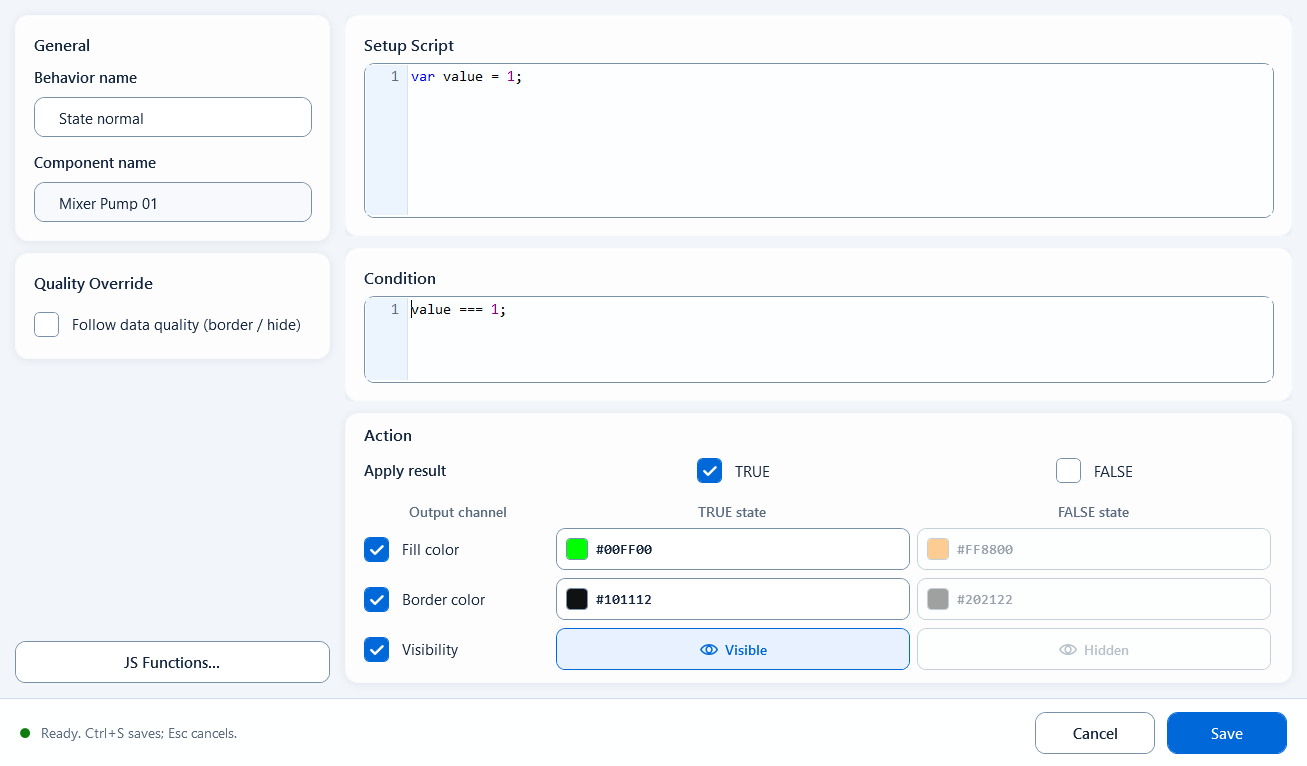
Write the condition in the editor and configure two style sets - fill, stroke, and visibility for the true and false states.
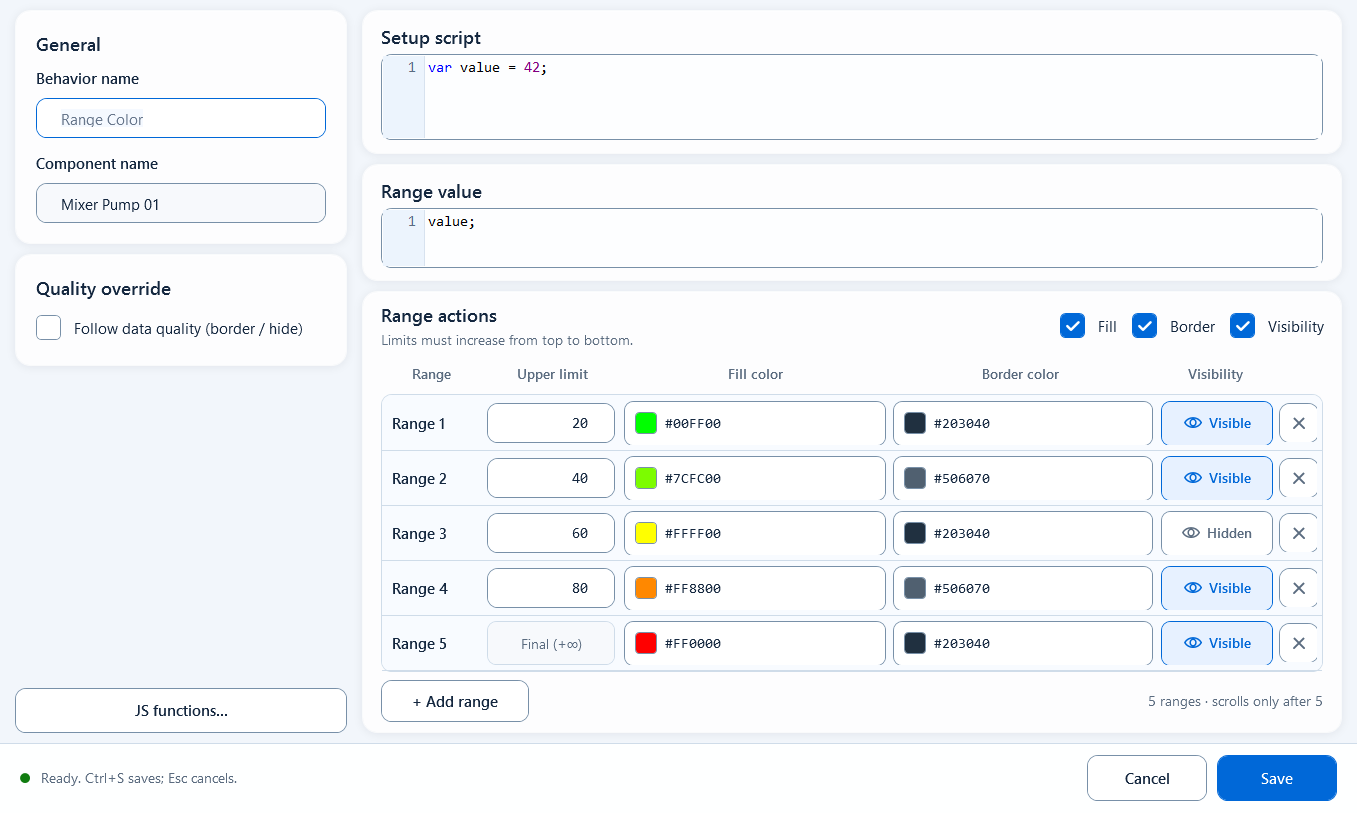
Four limits split the value into five bands, each with its own fill/border color or show/hide.
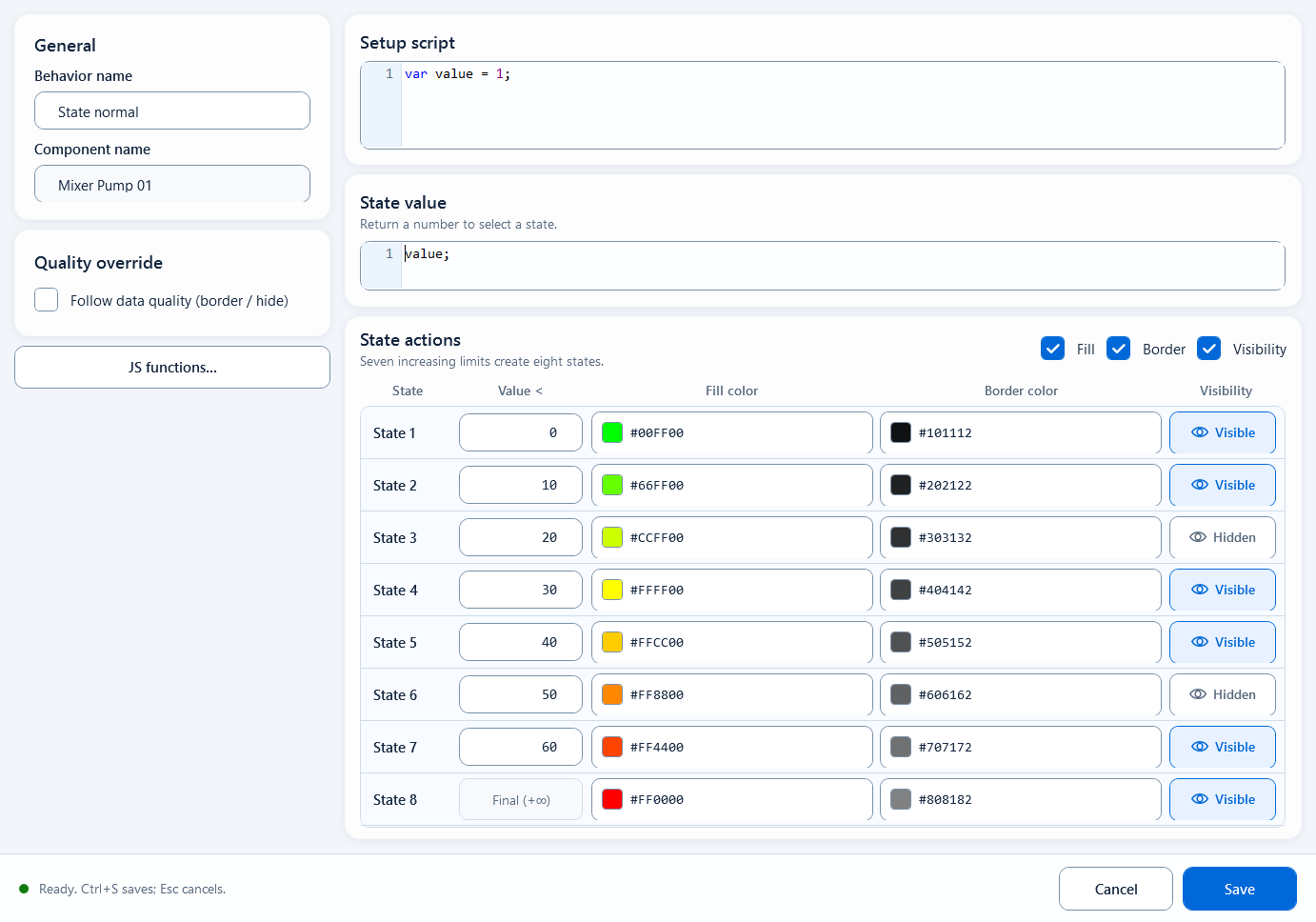
Snap one numeric value into up to 8 fixed states by limits, each with its own fill, border, and visibility.
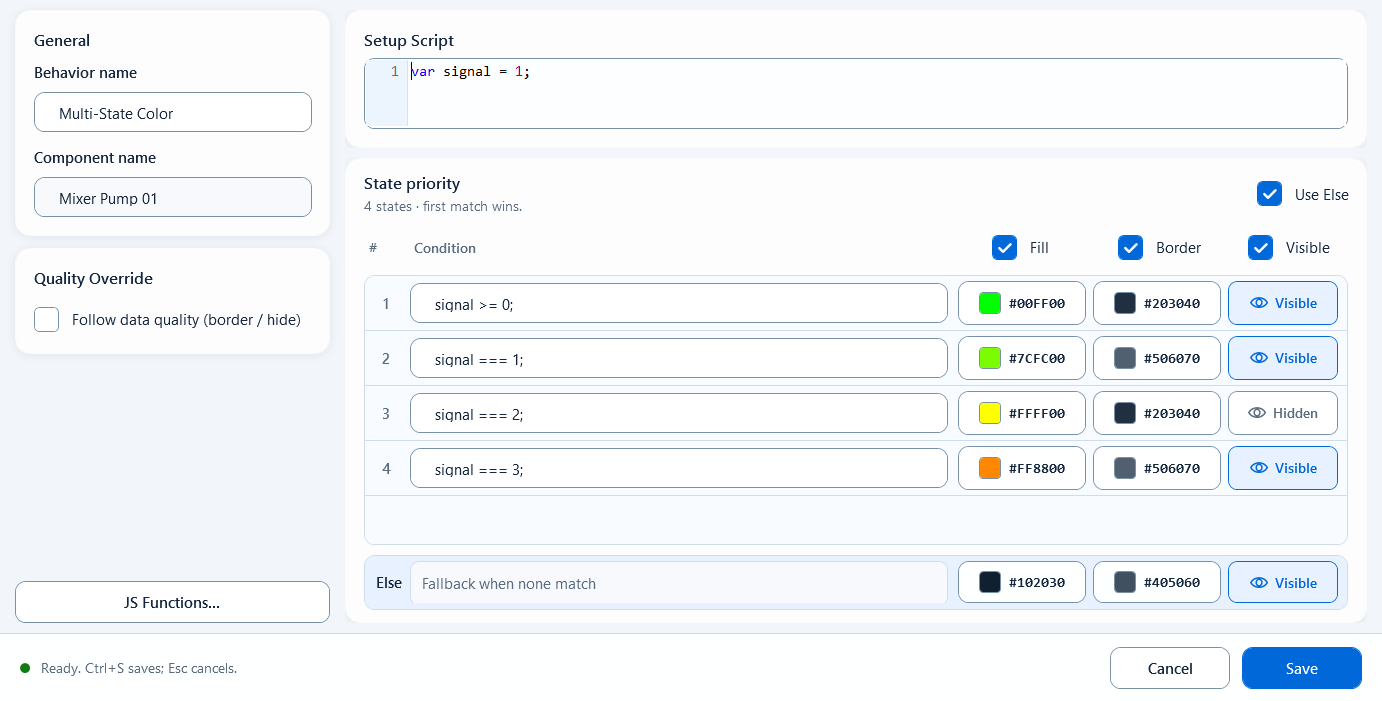
Rank up to 8 conditions by priority; the first true one wins and applies that row's fill, border, and visibility.
Drive fill color, border color, and visibility together from one script across the three output channels.
Keep data quality separate from process state
Understand data-quality indicators, the behavior-specific meaning of Condition, and visibility options. Available controls depend on the behavior editor.
Data quality indicates whether Tag data is valid; process states such as running, stopped and alarmed are separate. In Script Text, select Use quality outline colors under Quality Override and set Good and Bad colors. State Color provides Follow data quality (border / hide), with an option to hide on bad quality.
Condition has a different role in each behavior. Use the table and the corresponding editor to configure it.
For example, enter the expression below in Script Text Condition to evaluate its text only when the specified Tag has good quality. Replace the example name with your project Tag and verify both good and bad quality. Configure the corresponding Quality Override when a persistent quality indication is required.
- Condition must return a Boolean immediately; do not use fetch, promises or timers.
- Condition does not replace Mingcedar write permissions or equipment interlocks.
- Move / Rotate / Scale currently have no separate Post Operations input.
ReadTagQualityGood("PLC_LINE01.PUMP01.SPEED")Choose Tag Text, Script Text, or Localized Text
Display one Tag value with an optional fallback, prefix, suffix and quality border.
Bind Tag Text to a text component and set its target and optional prefix/suffix. Use Script Text for calculations or combined values.
Open Tag Text and configure these fields:
- Target tag: enter the full name PLC_LINE01.OVEN01.TEMPERATURE directly. Quoted names, name-string variables, and =bindingConfig.temperatureTag are also supported. The target must be a name string; no read method is required.
- Fallback value: the fallback text shown when the tag has no value; defaults to an empty string.
- Prefix: text placed before the value, e.g. "Temperature: ".
- Suffix: text placed after the value, e.g. " °C".
- Use quality outline colors: enable a quality border. Good communication quality uses the Good color (default #000000); bad quality uses the Bad color (default #FF8800).
Target tag: PLC_LINE01.OVEN01.TEMPERATURE
Fallback value:  "--"
Prefix:         "Temperature: "
Suffix:         " °C"
// Display example: Temperature: 36.5 °CUse for a direct single-Tag display, for example:
- Show a measured value (temperature, pressure, level, flow) with its unit directly on the screen.
- Display a string tag such as a device operating-mode name or batch number.
- If the text needs multiple tags, conditional logic, or formatting, use Script Text instead.
A fixed full name in Target tag does not require quotes. Use =bindingConfig.temperatureTag for an object property. Fallback value, Prefix, and Suffix are string expressions: quote literal text. Use Script Text for numeric variables, formatted results, or calculated Tags. Quality Border indicates data quality, not equipment state or alarms.
Script Text is under Behaviors → Text. Bind it to a text box or text-capable shape; Display Text determines the content. Use Tag Text to display a single Tag.
Setup Script prepares data, Display Text returns the string and Condition controls execution. Place each example part in its labeled field. Clear the default Setup Script if no preparation is needed.
- Setup Script: preparation area. Read tags, define variables, compute intermediate values (can be multi-line).
- Display Text: return the string to display.
- Condition: true applies the text; false skips the behavior.
- Use quality outline colors: apply the Good or Bad border color according to communication quality. The border does not represent the process value or alarm state.
// Setup Script
var pressure = ReadTagDouble("PLC_LINE01.AIR01.PRESSURE", 0.0);

// Display Text
"Pressure: " + pressure.toFixed(1) + " bar"Use for formatted or combined dynamic information.
- Show a measurement with units and fixed decimals, e.g. "Pressure: 3.2 bar".
- Combine several tags into one line, e.g. "Pump1 RUN / Speed 1450 rpm".
- Output different wording by condition, e.g. "Running" when on, "Stopped" when off.
The Display Text field is an expression position that returns a single value, not a full script.
- Do not put fetch, setTimeout, or other async code in Display Text; it needs an immediate value; put such logic in a script body like Page Script/Click Script.
- Keep heavy reads and calculations in Setup Script; let Display Text only do the final assembly.
- Always read tags with a quoted tag name and a fallback, e.g. ReadTagDouble("PLC_LINE01.AIR01.PRESSURE", 0.0); avoid bare tag-like text.
- The quality border represents communication quality (good/bad), not the process state.
Bind Localized Text to a text component to look up its key in the global translation table. Host language changes update the display automatically, without separate pages per language.
In Behavior Browser, add Localized Text to a text-capable component and enter Text key and Fallback text. This mode has no script or quality override settings.
- Text key (Text ID): enter the language-catalog key, for example pump.start.
- Fallback text (Default Text): readable text used when no translation is found.
- Fallback order: 1) translation from the current language pack, 2) Default Text, 3) the key itself (meaning no translation matched).
- Export note: the editor warns that text is flattened to one line, so multi-line content is collapsed.
Text key: pump.start
Fallback text: Start pumpUse it for multilingual screen text, for example:
- A Start button bound to one Text Key (e.g. pump.start): shows 'Start' in English, '启动' in Chinese, from the same shape.
- Screen titles, device-status text, and navigation menu items all driven by language keys, so switching the runtime language updates them all at once.
The host controls the active language; use hqVisuDesigner.useLanguage(...) to switch it from script. Missing translations display the configured fallback, then the key.
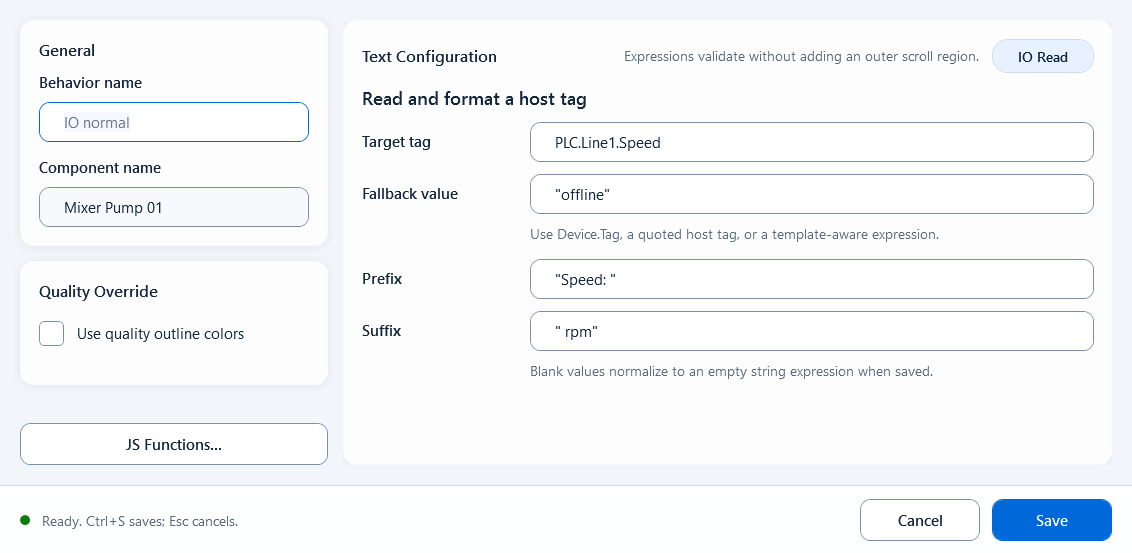
Fill the tag expression, default value, and optional prefix/suffix to show a single tag's value as text.
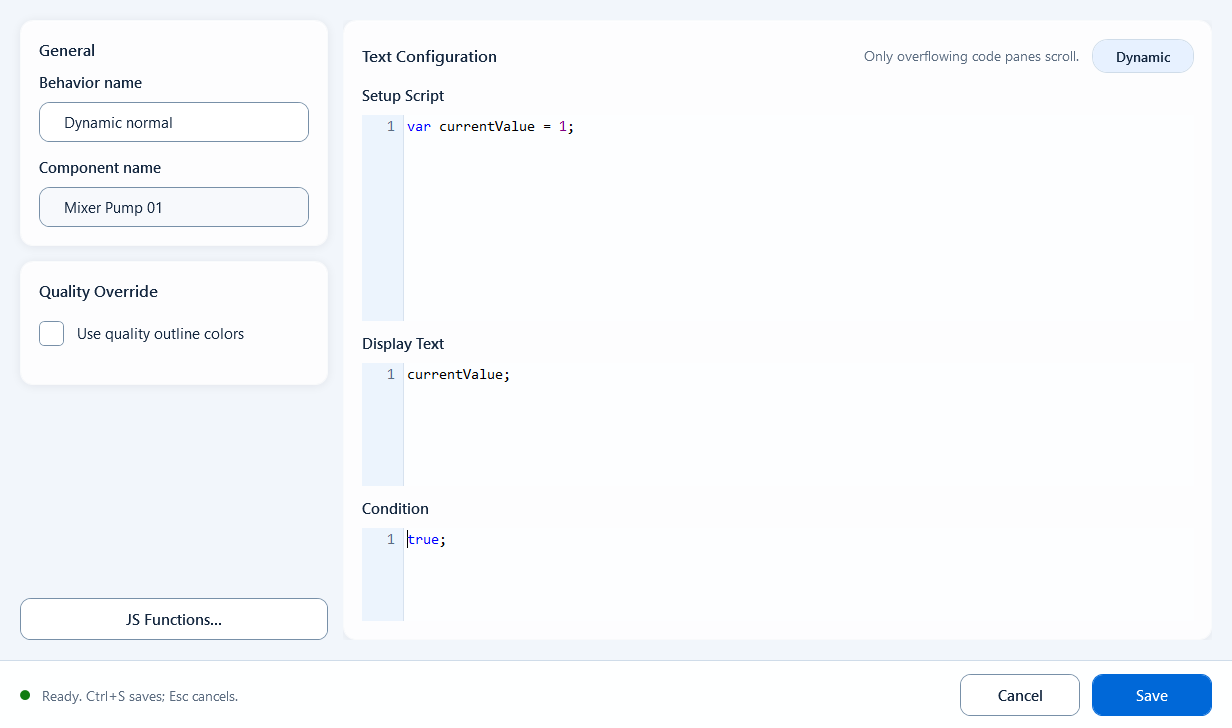
Read tags and compute in Setup Script, then return the final string to display in Display Text.
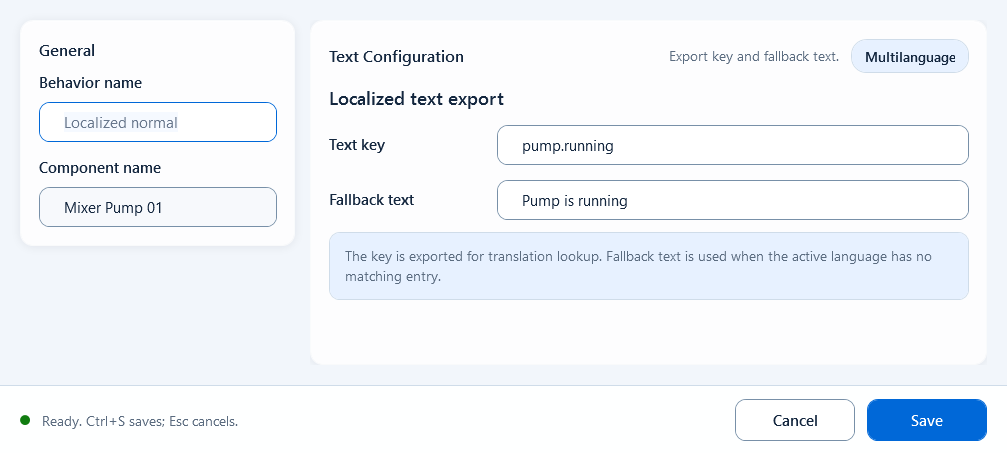
Bind a text shape to a language key so the runtime shows the translation for the current language, falling back when not found.
Combine colors, blinking, and readable values
Select a TRUE or FALSE appearance from a boolean condition to control fill, border, and visibility. Enable the corresponding state in Apply result. Use it for running/stopped, open/closed, or auto/manual components.
State Color is in Visual States. Condition selects TRUE state or FALSE state, and only states enabled in Apply result apply their fill, border, and visibility. A false condition does not inherently stop display or hide the component. Use Range Color or Discrete Color for numeric bands, and Multi-State Color for prioritized conditions.
Bind State Color to the component and open its editor. Prepare data in Setup Script and return a boolean from Condition. In Action, enable the required states and output channels. Enter each part of the example in its indicated field.
- Setup Script: optional variables and intermediate results for this behavior.
- Condition: a boolean expression, such as ReadTagBoolean("PLC_LINE01.PUMP01.RUN", false), or running from Setup Script.
- Apply result: TRUE is enabled by default. Enable FALSE to apply a static appearance when the condition is false.
- Output channel: enable Fill color, Border color, or Visibility and configure TRUE state and FALSE state.
- Quality Override: enable Follow data quality (border / hide), configure Good and Bad, and optionally enable Hide when quality is bad.
- Save / Ctrl+S validates and saves. Cancel / Esc discards this edit.
// Setup Script
var running = ReadTagBoolean("PLC_LINE01.PUMP01.RUN", false);

// Condition
running

// Action: enable TRUE, FALSE, and Fill color
// TRUE state: #22C55E
// FALSE state: #94A3B8Use it to distinguish two states by color or visibility.
- Pump/motor run lamp: running = green, stopped = grey/orange
- Valve open/close state: open = green, closed = red
- Auto/manual or local/remote two-state markers
- A boolean alarm block: shown and red when active, hidden when normal
FALSE is disabled by default; setting a FALSE state color alone does not apply it. Condition requires a boolean, not a literal Tag name or color string. State Color supports Quality Override: bad data quality restores the base appearance and applies the configured Bad border or visibility. On good quality, an enabled state border takes precedence over the Good border color. Configure data quality separately from running, stopped, and alarm states.
Blink Color is a Visual States behavior for fill, border, and visibility. With TRUE enabled, a true condition alternates Blink ON and Blink OFF. With FALSE enabled, a false condition applies Condition FALSE. Blink Color has no blink-interval setting. Use State Color for ordinary running/stopped indication and Range Color for numeric bands.
Bind Blink Color and configure the fields below. The example Condition blinks when the alarm bit is true.
- Behavior Name: a recognizable name for this behavior (Component Name is read-only and filled in for you).
- Setup Script: optional. Read tags, define variables, and compute intermediate values here for the Condition to use.
- Condition: an expression returning true / false. Enter ReadTagBoolean("PLC_LINE01.PUMP01.ALARM", false) directly, or reference a boolean from Setup Script.
- Action / Apply result: TRUE is enabled by default and FALSE is disabled. Enable FALSE and configure Condition FALSE for a static appearance after the alarm clears.
- Output Channels: independently enable Fill Color, Border Color, and Visibility, in any combination.
- Each enabled channel is configured across three columns: Blink ON, Blink OFF, and Condition FALSE - pick colors for fill/border, or visible/hidden for Visibility.
- Quality Override: enable Follow data quality (border / hide) and configure Good and Bad. Enable Hide when quality is bad when the shape should be hidden on invalid data.
// Setup Script
var alarm = ReadTagBoolean("PLC_LINE01.PUMP01.ALARM", false);

// Condition
alarm;Use it for binary states that need a prominent warning.
- Alarm lamp: blink the fill between red and dark red while the alarm bit is true; rest on a static gray after reset.
- Run/warning block: blink the block while a device is faulted or needs action; keep a steady static color when normal.
Check these configuration boundaries:
- Condition must return a boolean. Pass a literal Tag name to ReadTagBoolean; the name string itself is not an alarm state.
- Blink Color has no Blink Interval or speed field.
- Condition FALSE takes effect only with FALSE enabled. To show gray after an alarm clears, enable FALSE and Fill color and set the static color.
- Quality Override represents data quality. On good quality, an explicit Border color takes precedence over Good. Bad quality restores the base appearance and applies the configured Bad border or visibility.
Bind Tag Text to a text component and set its target and optional prefix/suffix. Use Script Text for calculations or combined values.
Open Tag Text and configure these fields:
- Target tag: enter the full name PLC_LINE01.OVEN01.TEMPERATURE directly. Quoted names, name-string variables, and =bindingConfig.temperatureTag are also supported. The target must be a name string; no read method is required.
- Fallback value: the fallback text shown when the tag has no value; defaults to an empty string.
- Prefix: text placed before the value, e.g. "Temperature: ".
- Suffix: text placed after the value, e.g. " °C".
- Use quality outline colors: enable a quality border. Good communication quality uses the Good color (default #000000); bad quality uses the Bad color (default #FF8800).
Target tag: PLC_LINE01.OVEN01.TEMPERATURE
Fallback value:  "--"
Prefix:         "Temperature: "
Suffix:         " °C"
// Display example: Temperature: 36.5 °CUse for a direct single-Tag display, for example:
- Show a measured value (temperature, pressure, level, flow) with its unit directly on the screen.
- Display a string tag such as a device operating-mode name or batch number.
- If the text needs multiple tags, conditional logic, or formatting, use Script Text instead.
A fixed full name in Target tag does not require quotes. Use =bindingConfig.temperatureTag for an object property. Fallback value, Prefix, and Suffix are string expressions: quote literal text. Use Script Text for numeric variables, formatted results, or calculated Tags. Quality Border indicates data quality, not equipment state or alarms.
Write the condition in the editor and configure two style sets - fill, stroke, and visibility for the true and false states.
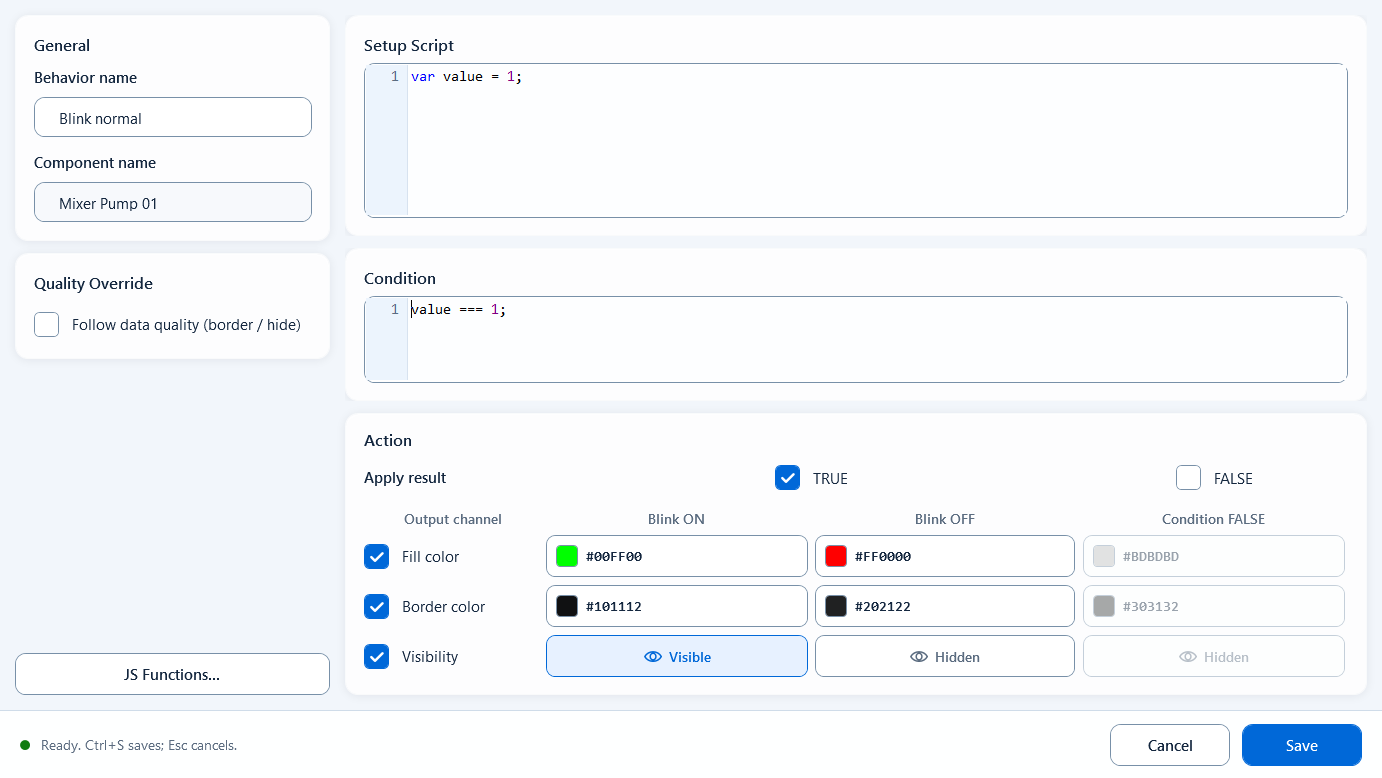
When the condition is true it toggles between Blink ON and Blink OFF; when false it rests on a static look, across fill, border, and visibility.
Fill the tag expression, default value, and optional prefix/suffix to show a single tag's value as text.