
State Color is in Visual States. Condition selects TRUE state or FALSE state, and only states enabled in Apply result apply their fill, border, and visibility. A false condition does not inherently stop display or hide the component. Use Range Color or Discrete Color for numeric bands, and Multi-State Color for prioritized conditions.
Manual
Combine colors, blinking, and readable values | Mingcedar Studio
Select a TRUE or FALSE appearance from a boolean condition to control fill, border, and visibility. Enable the corresponding state in Apply result. Use it for running/stopped, open/closed, or auto/manual components.
Combine colors, blinking, and readable values
Select a TRUE or FALSE appearance from a boolean condition to control fill, border, and visibility. Enable the corresponding state in Apply result. Use it for running/stopped, open/closed, or auto/manual components.
Bind State Color to the component and open its editor. Prepare data in Setup Script and return a boolean from Condition. In Action, enable the required states and output channels. Enter each part of the example in its indicated field.
- Setup Script: optional variables and intermediate results for this behavior.
- Condition: a boolean expression, such as ReadTagBoolean("PLC_LINE01.PUMP01.RUN", false), or running from Setup Script.
- Apply result: TRUE is enabled by default. Enable FALSE to apply a static appearance when the condition is false.
- Output channel: enable Fill color, Border color, or Visibility and configure TRUE state and FALSE state.
- Quality Override: enable Follow data quality (border / hide), configure Good and Bad, and optionally enable Hide when quality is bad.
- Save / Ctrl+S validates and saves. Cancel / Esc discards this edit.
// Setup Script
var running = ReadTagBoolean("PLC_LINE01.PUMP01.RUN", false);

// Condition
running

// Action: enable TRUE, FALSE, and Fill color
// TRUE state: #22C55E
// FALSE state: #94A3B8Use it to distinguish two states by color or visibility.
- Pump/motor run lamp: running = green, stopped = grey/orange
- Valve open/close state: open = green, closed = red
- Auto/manual or local/remote two-state markers
- A boolean alarm block: shown and red when active, hidden when normal
FALSE is disabled by default; setting a FALSE state color alone does not apply it. Condition requires a boolean, not a literal Tag name or color string. State Color supports Quality Override: bad data quality restores the base appearance and applies the configured Bad border or visibility. On good quality, an enabled state border takes precedence over the Good border color. Configure data quality separately from running, stopped, and alarm states.
Blink Color is a Visual States behavior for fill, border, and visibility. With TRUE enabled, a true condition alternates Blink ON and Blink OFF. With FALSE enabled, a false condition applies Condition FALSE. Blink Color has no blink-interval setting. Use State Color for ordinary running/stopped indication and Range Color for numeric bands.
Bind Blink Color and configure the fields below. The example Condition blinks when the alarm bit is true.
- Behavior Name: a recognizable name for this behavior (Component Name is read-only and filled in for you).
- Setup Script: optional. Read tags, define variables, and compute intermediate values here for the Condition to use.
- Condition: an expression returning true / false. Enter ReadTagBoolean("PLC_LINE01.PUMP01.ALARM", false) directly, or reference a boolean from Setup Script.
- Action / Apply result: TRUE is enabled by default and FALSE is disabled. Enable FALSE and configure Condition FALSE for a static appearance after the alarm clears.
- Output Channels: independently enable Fill Color, Border Color, and Visibility, in any combination.
- Each enabled channel is configured across three columns: Blink ON, Blink OFF, and Condition FALSE - pick colors for fill/border, or visible/hidden for Visibility.
- Quality Override: enable Follow data quality (border / hide) and configure Good and Bad. Enable Hide when quality is bad when the shape should be hidden on invalid data.
// Setup Script
var alarm = ReadTagBoolean("PLC_LINE01.PUMP01.ALARM", false);

// Condition
alarm;Use it for binary states that need a prominent warning.
- Alarm lamp: blink the fill between red and dark red while the alarm bit is true; rest on a static gray after reset.
- Run/warning block: blink the block while a device is faulted or needs action; keep a steady static color when normal.
Check these configuration boundaries:
- Condition must return a boolean. Pass a literal Tag name to ReadTagBoolean; the name string itself is not an alarm state.
- Blink Color has no Blink Interval or speed field.
- Condition FALSE takes effect only with FALSE enabled. To show gray after an alarm clears, enable FALSE and Fill color and set the static color.
- Quality Override represents data quality. On good quality, an explicit Border color takes precedence over Good. Bad quality restores the base appearance and applies the configured Bad border or visibility.
Bind Tag Text to a text component and set its target and optional prefix/suffix. Use Script Text for calculations or combined values.
Open Tag Text and configure these fields:
- Target tag: enter the full name PLC_LINE01.OVEN01.TEMPERATURE directly. Quoted names, name-string variables, and =bindingConfig.temperatureTag are also supported. The target must be a name string; no read method is required.
- Fallback value: the fallback text shown when the tag has no value; defaults to an empty string.
- Prefix: text placed before the value, e.g. "Temperature: ".
- Suffix: text placed after the value, e.g. " °C".
- Use quality outline colors: enable a quality border. Good communication quality uses the Good color (default #000000); bad quality uses the Bad color (default #FF8800).
Target tag: PLC_LINE01.OVEN01.TEMPERATURE
Fallback value:  "--"
Prefix:         "Temperature: "
Suffix:         " °C"
// Display example: Temperature: 36.5 °CUse for a direct single-Tag display, for example:
- Show a measured value (temperature, pressure, level, flow) with its unit directly on the screen.
- Display a string tag such as a device operating-mode name or batch number.
- If the text needs multiple tags, conditional logic, or formatting, use Script Text instead.
A fixed full name in Target tag does not require quotes. Use =bindingConfig.temperatureTag for an object property. Fallback value, Prefix, and Suffix are string expressions: quote literal text. Use Script Text for numeric variables, formatted results, or calculated Tags. Quality Border indicates data quality, not equipment state or alarms.
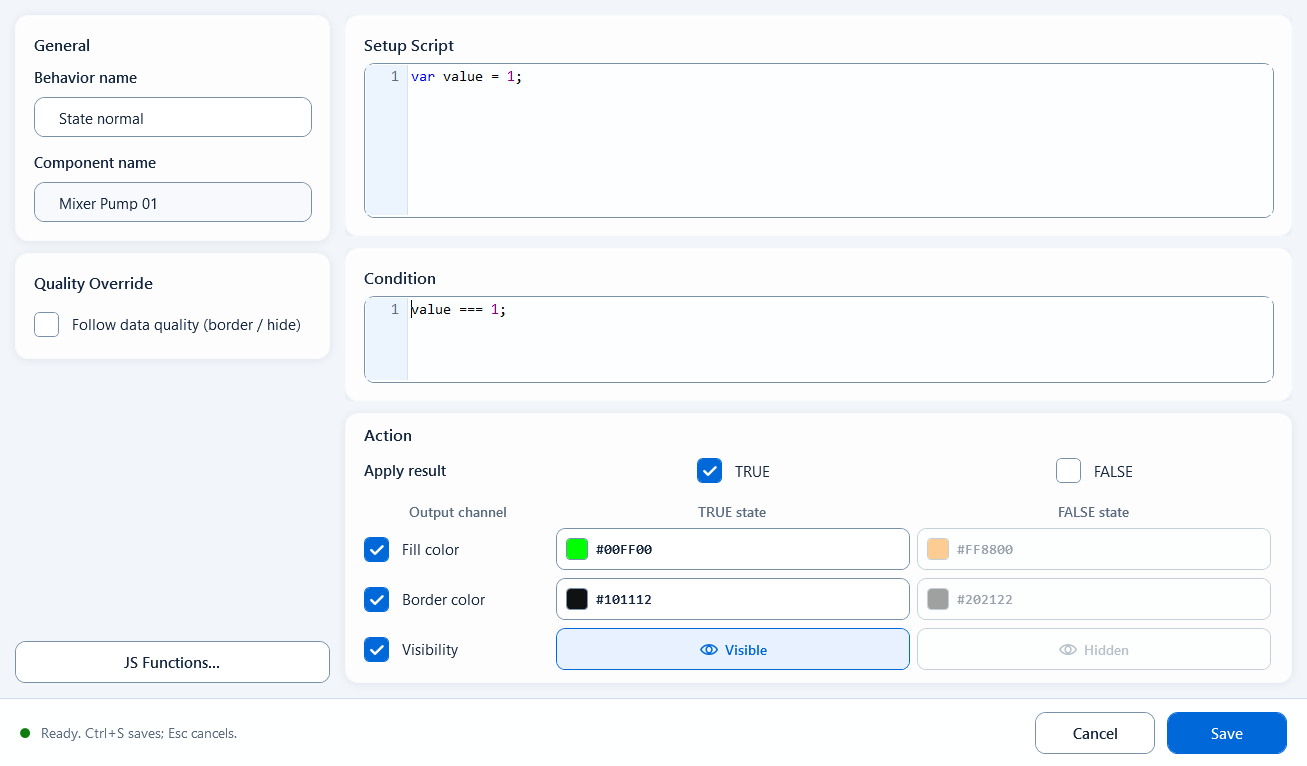
Write the condition in the editor and configure two style sets - fill, stroke, and visibility for the true and false states.
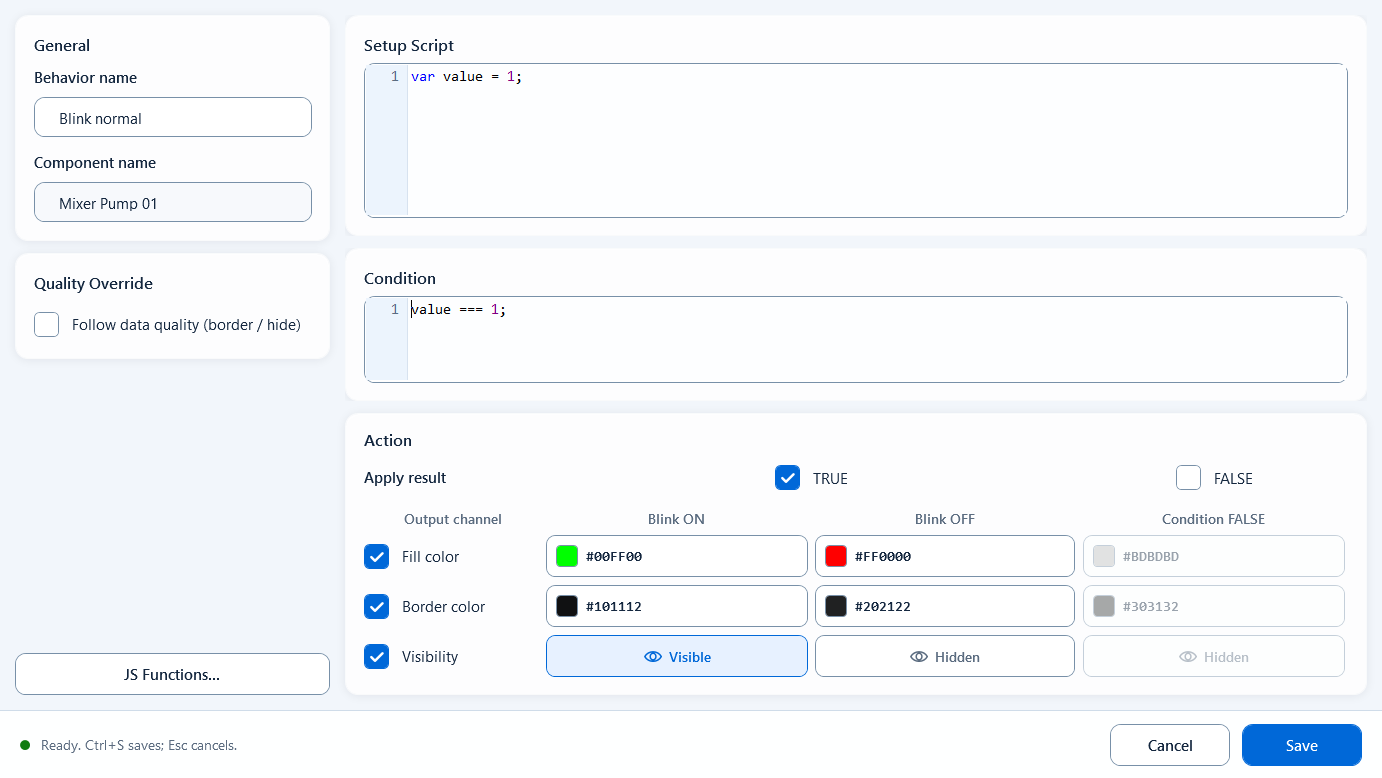
When the condition is true it toggles between Blink ON and Blink OFF; when false it rests on a static look, across fill, border, and visibility.
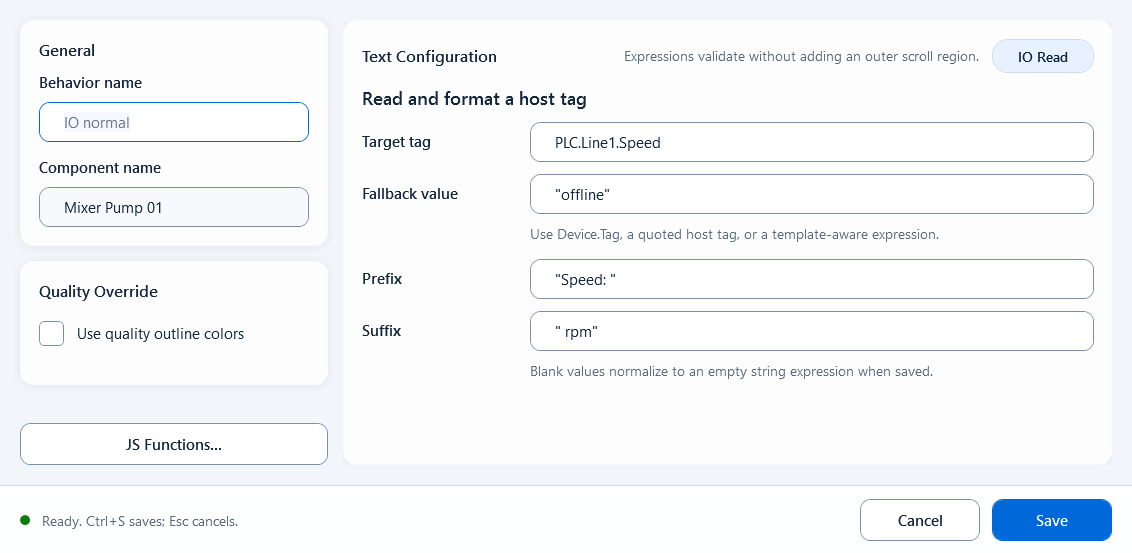
Fill the tag expression, default value, and optional prefix/suffix to show a single tag's value as text.