
Click Script is an Interactions behavior for custom click logic. Scripts can access object, objects, event, tag, page, presentation, shape, hqVisuDesigner and globals.
Manual
Click, Hover, and Press/Release scripts | Mingcedar Studio
Run JavaScript on click for confirmation, Tag reads/writes, styling or navigation. Condition controls whether it runs.
Click, Hover, and Press/Release scripts
Run JavaScript on click for confirmation, Tag reads/writes, styling or navigation. Condition controls whether it runs.
General has editable Behavior Name and read-only Component Name; Trigger is Click. Configure these Interaction Setup fields:
- Click Script: the script body executed on click. It supports multiple lines for conditions, tag reads and writes, component updates, and dialogs. Use return to exit early or return a result.
- Condition: an enable-gate expression, defaulting to true;. Put only a single expression that resolves immediately to true/false here, e.g. ReadTagBoolean(...) or a comparison; when false, that click does not run.
- Tag helpers available: ReadTagBoolean/Integer/Double/String, and during this real click action WriteTagBoolean/Integer/Double/String. Components and navigation use hqVisuDesigner (setComponentFill / setComponentText / setComponentVisible / openPage / openScreen, etc.).
- Async APIs (fetch, setTimeout, setInterval, ...) belong only in a script body like Click Script; never in Condition (a synchronous evaluation slot).
- The script snippet button is context-aware: it offers full script snippets in Click Script and short expression snippets in Condition.
// Click Script
var v = prompt("Enter a value", "0");
if (v === null || v === "") { return; }
var n = parseInt(v, 10);
if (isNaN(n)) { alert("Please enter an integer."); return; }
WriteTagInteger("PLC_LINE01.PUMP01.SETPOINT", n);

// Condition
ReadTagBoolean("PLC_LINE01.PUMP01.ALLOW_OP", false)Use for multi-step or custom click actions:
- Confirm-then-write: prompt/confirm the operator first, then WriteTagInteger/WriteTagBoolean.
- Drive several components on one click: recolor, relabel, or show/hide multiple components in a single handler (hqVisuDesigner.setComponentFill / setComponentText / setComponentVisible).
- A guarded action button: wire Condition to an allow/logged-in/manual-mode tag so the click simply does nothing when the precondition isn't met.
Configuration requirements:
- Writes remain subject to host permissions, confirmation, reason capture, and asynchronous processing. Calling WriteTag does not confirm that the device accepted the value; verify the result in the runtime platform.
- Condition must return its result synchronously. It does not support fetch() or other asynchronous calls that return a Promise.
- A multi-line Click Script can finish naturally without a final return. Use return in branches that must exit early, such as when the user cancels.
- Don't navigate with relative disk paths: use hqVisuDesigner.openPage("PageName") within the same package, hqVisuDesigner.openScreen("SCREEN_CODE") across packages, and a URL only for real external sites.
Hover Script attaches pointer-enter and pointer-leave scripts to a component for highlighting or temporary hints. It runs when a user moves the pointer in the Mingcedar runtime. Restore any appearance changed on enter in the leave script.
Trigger is Pointer Move. Both script boxes support multi-line code, ReadTag* and async calls such as setTimeout and fetch. Hover actions must not write devices:
- Pointer Enter (mouse over; called Mouse Over in the docs): script that runs when the pointer enters the shape.
- Pointer Leave (mouse out; called Mouse Out in the docs): script that runs when the pointer leaves, used to undo what the enter script changed.
- Context objects available in the script: object, objects, event (mouse context) plus tag, page, presentation, shape, hqVisuDesigner, and globals.
- object is the current shape's DOM element, so you can set its style directly (e.g. object.style.opacity); shape.name is the shape name.
- Note: Hover Script has no Enable/Condition gate (unlike Click Script); both scripts simply run.
// Pointer Enter (mouse over)
object.style.opacity = "0.7";

// Pointer Leave (mouse out)
object.style.opacity = "1";Use for highlights and hints without a click.
- Device-icon hover highlight: dim the opacity or add a stroke when the pointer is over a pump/valve, restore on leave, to signal it is clickable.
- Temporary info hint: on enter use hqVisuDesigner to show a note or emphasis border on the page, clear it on leave, without interrupting the operator.
Check runtime and restoration behavior:
- Enter changes are not auto-undone: you must write the matching restore logic in Pointer Leave, or the effect stays after the pointer leaves.
- It runs only on real pointer interaction in the exported/host page, not in PowerPoint edit mode, so verify after export.
- Do not call WriteTag* from Hover Script. The runtime grants write capability only to trusted click or Pointer Button press/release actions; keep hover purely visual.
Press/Release Script has a fixed Pointer Button trigger. The runtime accepts a real primary left-pointer interaction: pointerdown runs Pointer Press, while pointerup, pointercancel, or lost pointer capture enters Pointer Release. Unlike Click Script, it distinguishes the held and released phases.
The editor provides two full script boxes, Pointer Press and Pointer Release, with no separate Condition field. The press script enters a temporary state; the release script exits or resets it. Both scripts can use object, objects, event, tag, page, presentation, shape, hqVisuDesigner, and globals.
- Pointer Press: runs on the primary pointer press, for example write a momentary command true, show a pressed state, or begin a temporary action.
- Pointer Release: runs on release, cancellation, or lost capture, for example write false, restore styling, or end the action.
- Each script is syntax-validated separately. An empty phase script does not run.
- Tag writes still depend on host permission, confirmation, reason, and audit processing; a script call is not proof that the device completed the action.
// Pointer Press
WriteTagBoolean("<CommandTag>", true);

// Pointer Release
WriteTagBoolean("<CommandTag>", false);Use it for actions that remain active until the operator releases the pointer: motor jog, manual valve movement, a temporary acknowledgement, a hold-to-preview state, or pressed-state feedback. Keep one-shot submissions, navigation, and fixed writes in Click Script, Open Link, or Write Tag.
Keep the release script short, idempotent, and safe to repeat. Never configure only the press side and omit the reset path, and never treat this UI behavior as a replacement for PLC interlocks, emergency stops, or a safety circuit. If a host write outcome is uncertain, the runtime may block a later release write; the PLC/control system must enforce the final safe state for critical equipment.
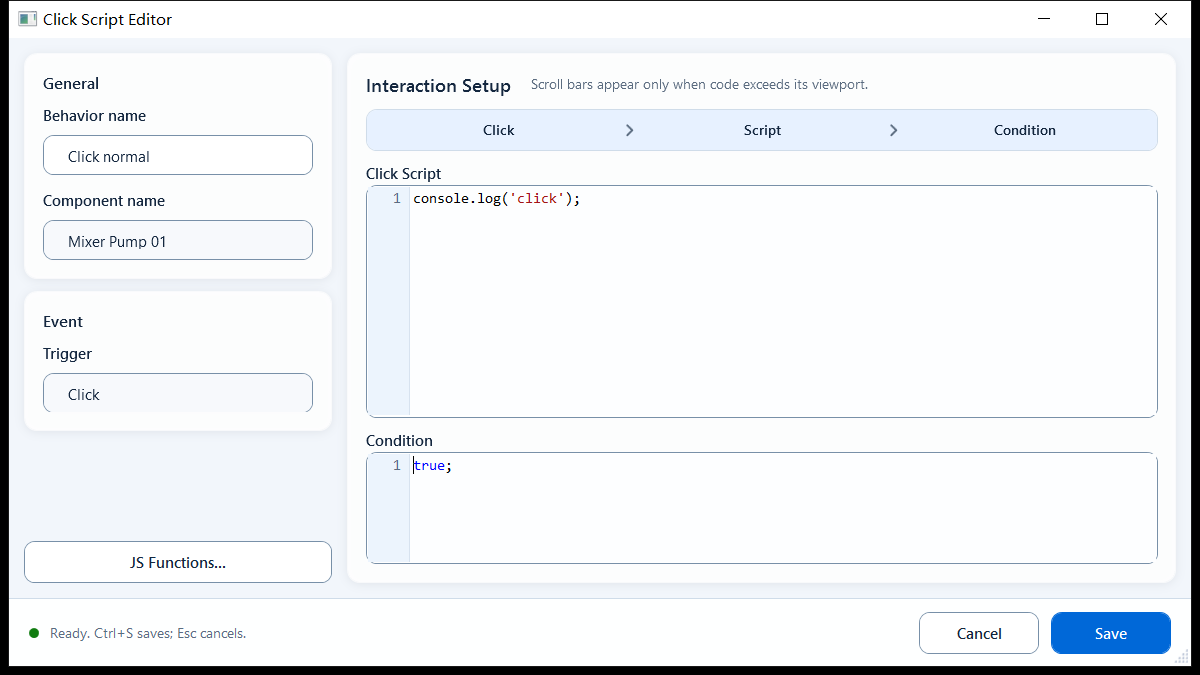
Write the on-click script in the Click Script box and use Condition to gate whether the click runs.
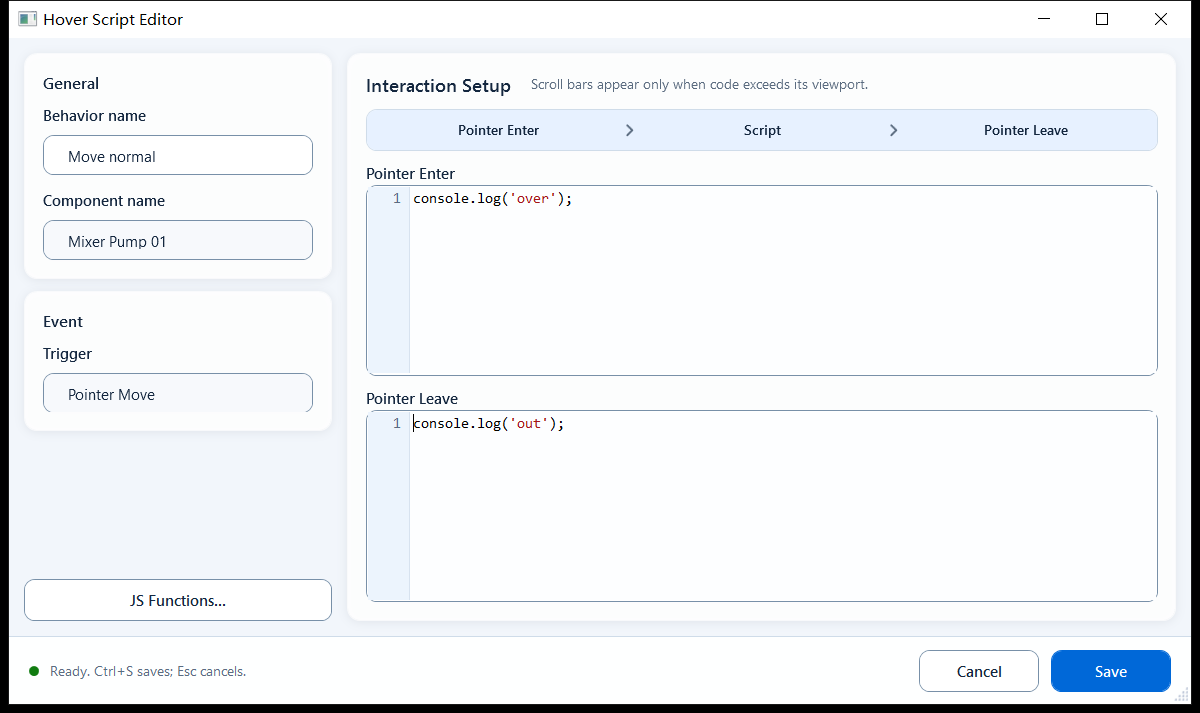
Fill the Pointer Enter and Pointer Leave scripts separately; the leave script restores what the enter script changed.
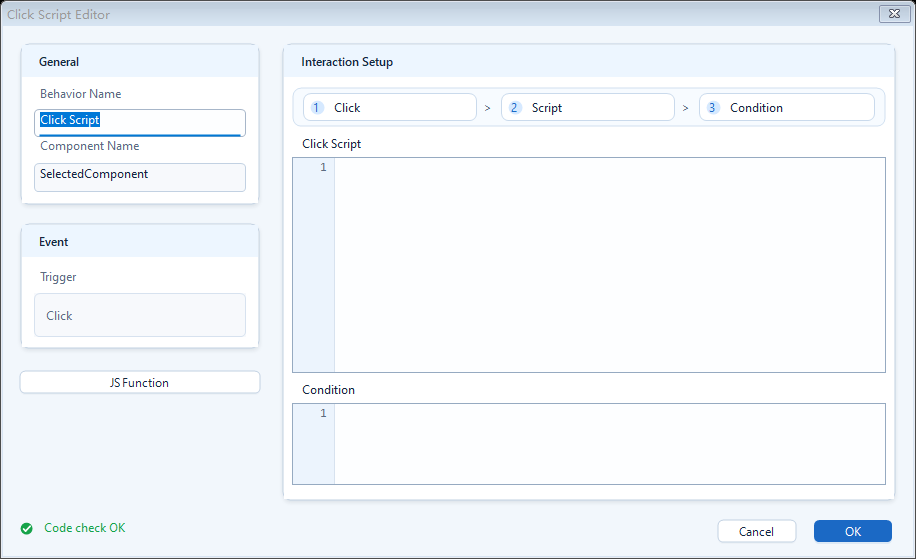
This behavior shares the Click/Hover editor shell; its actual mode shows Pointer Button, Pointer Press, and Pointer Release.