
Drag Geometry → Scale onto a component to drive its size from a number.
Manual
Scale: resize edges and limits | Mingcedar Studio
Map a numeric value to component size, for data bars, level fills and size indicators.
Scale: resize edges and limits
Map a numeric value to component size, for data bars, level fills and size indicators.
Scale clamps Source value to Limit minimum / Limit maximum and maps that interval to At limit minimum / At limit maximum. The output is a scale factor; 1 preserves the original size. Source minimum / Source maximum are available as ValueMin / ValueMax aliases. Changing the source range alone does not update the input limits.
- Behavior name is editable; Component name is read-only.
- Quality override / Override border by quality configures Good and Bad borders for data quality, separately from process limits.
- JS functions... inserts a method into the focused expression field.
- Source value returns a number, for example ReadTagDouble("PLC_LINE01.TANK01.LEVEL", 0). Condition returns a boolean; false skips the behavior and does not hide the component.
- Source minimum / Source maximum default to 0 / 100 and supply the ValueMin / ValueMax expression aliases.
- At limit minimum / At limit maximum specify scale factors, initially 0.5 / 1.5 for a new Scale behavior (change them to 0 / 1 for the level-fill example), at the input-limit endpoints. Capture calculates an endpoint from the component geometry.
- Limit minimum / Limit maximum start as independent values 0 / 100 and control clamping and normalization. Enter ValueMin / ValueMax to follow the source range.
- Moving edge: Top moves the top edge and fixes the bottom; Right moves the right edge and fixes the left.
- Save / Ctrl+S validates and saves; Cancel / Esc discards the edit.
// Source value
ReadTagDouble("PLC_LINE01.TANK01.LEVEL", 0)

// Source minimum / maximum: 0 / 100
// Limit minimum / maximum: ValueMin / ValueMax
// At limit minimum / maximum: 0 / 1
// Moving edge: TopThe editor records the original size. Resize the same component in PowerPoint and click Capture beside an endpoint. It calculates target size / original size using Moving edge, writes the factor and attempts to restore the original geometry.
- Choose Moving edge first, because it decides whether the calculation uses width or height and which edge defines the target size.
- Top / Bottom use height: Top uses original bottom minus current top, and Bottom uses current bottom minus original top.
- Left / Right use width: Left uses original right minus current left, and Right uses current right minus original left.
- If the original width/height is zero, the target size would be negative, or the selected object is not the same component, Target warns and refuses to write.
- Capture writes a 0.### factor. If you need a fixed expression instead, you can still overwrite At limit minimum / At limit maximum by hand.
Use size to represent a value, for example:
- Level fill: a fill block inside a tank rises with the level percentage; set Moving edge to Top so the bottom stays fixed.
- Bar growth: a throughput or load bar grows from one end with the value; set Moving edge to the edge it grows toward.
- Icon response: an icon scales between At limit minimum and At limit maximum with a value as a strength indicator.
Check these Scale settings:
- Moving edge is the edge that moves, not the fixed one: choosing Top means the top edge moves and the bottom is fixed; Left means the left moves and the right is fixed. To keep an edge still, pick its opposite.
- At limit minimum / At limit maximum are scale factors, not percentages: the original size is 1.0, not 100.
- One Moving edge means one direction: if you pick Right, do not expect it to scale toward both sides; the fixed edge does not move.
- Scale has no out-of-range hiding option. A false Condition only skips scaling; use Visibility in State Color or Script Color when the component must be hidden.
- Recheck Limit minimum / Limit maximum when changing the input range, or use ValueMin / ValueMax to keep the effective range aligned with the source range.
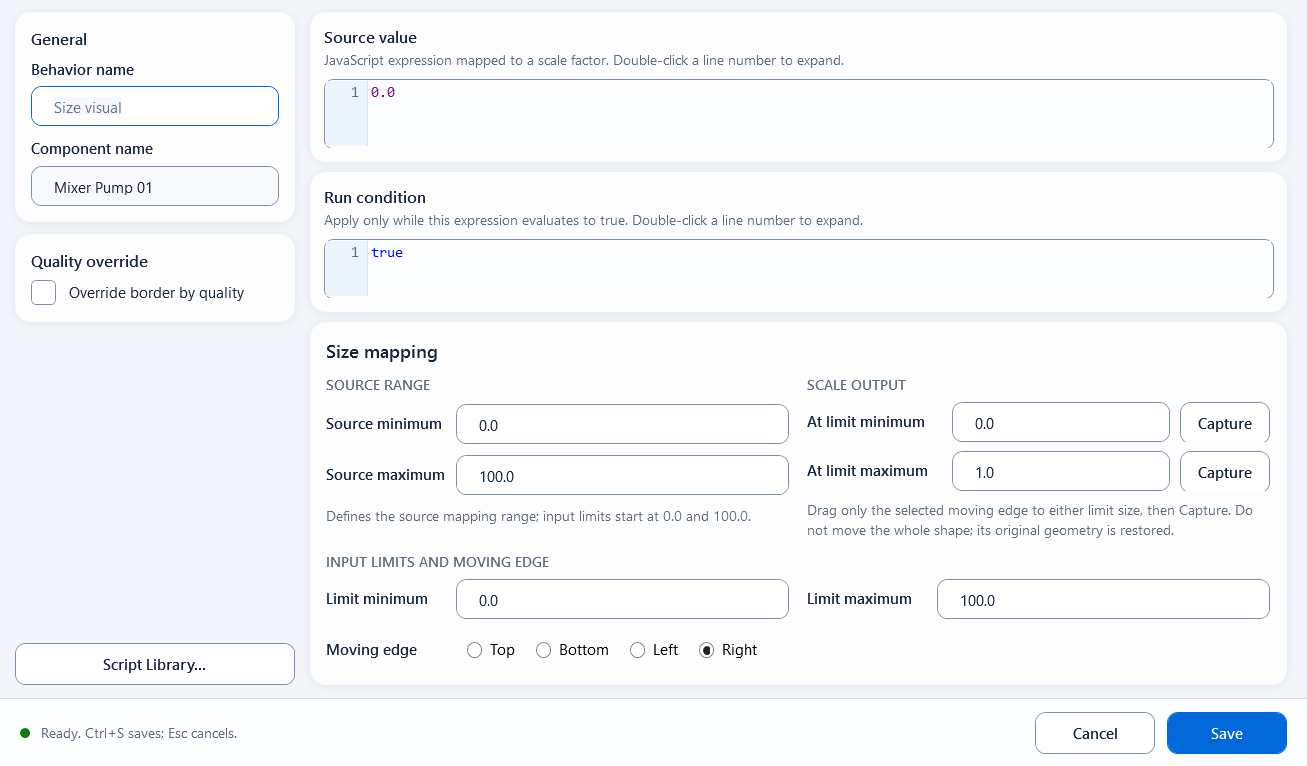
Map a value into a scale factor and use Moving edge to choose which edge moves and which stays fixed.