
Open Page as Popup opens another Page Code above the current page, for device details, confirmations and parameter panels. The underlying page remains in place.
Manual
Open and close popup pages | Mingcedar Studio
Open another exported page from this PowerPoint file as a popup without navigating away from the underlying page; the popup keeps its own HTML, SVG, JavaScript, and image assets.
Open and close popup pages
Open another exported page from this PowerPoint file as a popup without navigating away from the underlying page; the popup keeps its own HTML, SVG, JavaScript, and image assets.
Bind it to the opener, configure Popup page, Appearance and Interaction, and select Enabled:
- Popup page: select a page from this presentation or enter an existing exported Page Code, without .html or a folder path.
- Appearance: choose Fit content for the useful content or Full page canvas for the complete canvas.
- Interaction: set Block the page behind, Esc closes the popup, and Clicking outside closes it as needed.
- Enabled: controls this behavior. Review the summary below the choices before saving.
Select a fixed destination in Popup page. For a dynamic destination, parameters, or background options, expand Advanced options:
- Use a dynamic Page Code expression: provide a JavaScript expression that returns the Page Code.
- Page parameters (JSON object): pass a static object such as `{"PLC":"PLC_LINE01","Device":"PUMP_01"}`. A top-level array is invalid.
- Build page parameters with an expression: return an object or an ordered array of { key, value } entries; use the array to preserve repeated keys.
- Background behind popup: choose Dim the page behind or Keep the page visible. Dim strength is limited to 0%-85%.
- Allow the same popup to open more than once: permit duplicate instances. It is off by default to avoid accidental duplicates.
// Fixed page + static parameters
Page Code: device_details
Page parameters: {"PLC": "PLC_LINE01", "Device": "PUMP_01", "active": true}

// Dynamic page example
selectedDeviceType === "pump" ? "pump_details" : "valve_details"The static popup input requires a JSON object and cannot represent repeated keys. Dynamic parameter expressions can return an ordered array of { key, value } entries to preserve repeated keys. For consistent host and local-fallback behavior, use string, number, boolean, or null values. The popup destination still reads them with GetPageParameter, GetPageParameterValues, or GetPageParameters and treats the result as text.
- Static parameters: enter a JSON object.
- Dynamic parameters: Build page parameters with an expression accepts an object or an ordered { key, value } array, but not a Promise or DOM object.
- Destination reads: call GetPageParameter* in the popup page's Page Script.
- Close result: Close Current Popup's Result expression sends a result back to the opener; it is not a page query parameter.
- Parameters provide page context only; they do not bypass host permissions or expand Tag access.
// Popup Page Script
var plc = GetPageParameter("PLC", "");
var device = GetPageParameter("Device", "");
var activeText = GetPageParameter("active", "false");
var active = activeText === "true";The target must be an exported page in the package. Adding, removing or renaming popup pages, or changing shared assets, requires a full export. Select from the page list to match Page Code to the manifest; do not emulate popups with Open Link.
This closes only the popup containing the bound object, with no Page Code. Place it inside the popup; it does not navigate the main page.
By default, this behavior closes the popup without returning a value. To send a result to the opener, select Return data when this button is clicked (optional) and enter a result expression.
- Cancel / Close usually returns no result.
- OK / Done can return `{ confirmed: true }` or another value the opener expects.
- Enabled controls this behavior.
- For a condition, cursor style, or disabled appearance, expand Advanced options and configure the applicable fields.
// Result expression
({ confirmed: true, motorId: selectedMotorId })Use only in a popup context. Returned data does not write to a PLC; use Write Tag / Write Tag Bit, subject to host permissions and auditing.
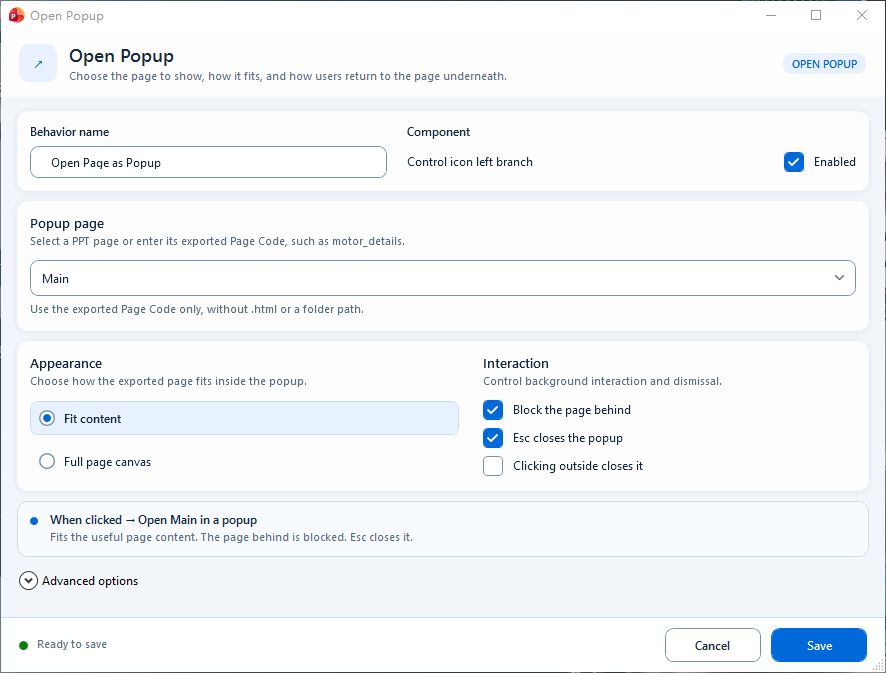
Choose the popup page, Fit content or Full page canvas, and dismissal controls. Advanced options is collapsed in this image.
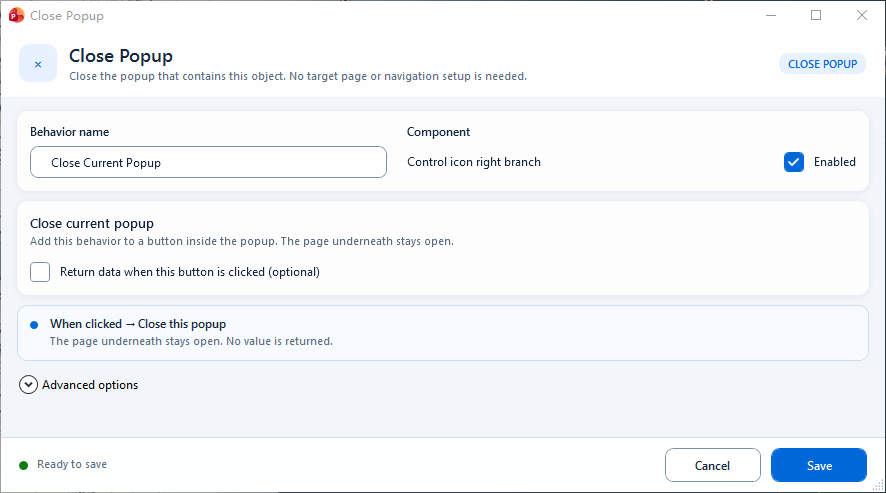
The containing popup closes while the underlying page stays open; enable Return data only when the opener needs a result.