
Export provides Export HTML (full package), This Page and History (recent folders). The package contains HTML, SVG, page JS, images and manifests. Shared runtime assets come from the host by default, so local HTML cannot replace host acceptance. One PPT may contain a main page and subpages. Upload the complete output folder to Mingcedar, which manages it by screenCode; do not publish a development-machine PPT path.
Manual
Export locations and delivery records | Mingcedar Studio
Export a PPT as an HTML / SVG / JS / IMG screen package and upload it to Mingcedar. One PPT is one package; replace it as a whole for formal delivery.
Export locations and delivery records
Export a PPT as an HTML / SVG / JS / IMG screen package and upload it to Mingcedar. One PPT is one package; replace it as a whole for formal delivery.
Choose the export mode and folder. HTML stays at the package root and generated scripts in js/. Typical structure:
- Export HTML: full-package export. Required whenever shared resources change, or pages are added/deleted/renamed, or navigation structure changes.
- This Page: exports only the current page's resources. Suitable only for page-level changes such as current-page graphics, Page Script, or component behaviors.
- Export History: view recent export folders, delete a selected folder, or clear all history. It only cleans the local records and does not delete your real exported files on disk.
- Package contents: <page>.html (pages; the first page follows the export file name configured in PPT), <page>.svg (per-page graphics), js/hq-pagemap.js (page map), js/<page>.js (page data and scripts), img/ (images), and runtime/export manifests.
<screen-package>/
  <page>.html
  <page>.svg
  js/
    hq-pagemap.js
    <page>.js
  img/
    ...
  screen.manifest.json
hqVisuDesigner-export-report.jsonSave the PPT and click Export HTML. In Choose an export folder, enter a path, use Browse..., or select a recent folder. Click Export and wait for completion before checking the output.
- The output folder may be new; it is created when export starts.
- Selecting a recent path fills the field; Export starts the operation.
- Read Export log for validation, page, script, and asset failures.
- Cancel requests a stop at the next safe export checkpoint.
- After completion, check screen.manifest.json and the export report.
Activate the target slide, click This Page, and choose its existing package folder. Use Export HTML if Page Code, pages, shared assets or page mappings changed.
- The current page name and Page Code are unchanged.
- Only this page's shapes, behaviors, or scripts changed.
- The target directory belongs to the same screen package.
- Open and test the page after export; do not rely only on file timestamps.
In Export History, Delete selected / Clear all marks entries for removal; Undo changes reverts pending edits, Save changes saves, and Cancel discards them. These commands never delete disk folders or files.
- Delete selected: remove one history entry.
- Clear all: remove every local history entry.
- Undo changes: restore unsaved changes in the window.
- Save changes: write the edited history.
- Delete a real package separately in the file system only after confirming the exact target.
- Sign in to Mingcedar, open Configuration Center → Screen Files and select the target directory.
- Use folder selection to add the complete export, inspect Pending Files and click Publish.
- Open Configuration Center → Menus. Create or edit an entry, choose Page (open HTML directly), select the published path in Entry HTML, enter a name and save.
- Refresh the runtime interface, open the page from its menu and verify display, interactions and navigation.
Choose the export mode by the scope of your change, then upload to Mingcedar:
- Changed only one page's graphics/script/data in a screen: open that PPT, export with This Page, and do a page-level replace.
- Changed shared resources, or added/deleted/renamed a page or changed navigation: export with Export HTML (This Page will not carry these changes).
- Official publish: export the full package, upload to the host, let the host replace the package as a whole, and optionally keep one backup. The host manages by screenCode; do not pile loose files from different export dates into one folder over time.
Configuration requirements:
- If the PPT has unsaved changes, export shows a prompt; prefer Save and Export. Choosing Export Without Saving may produce files that do not match your latest edits.
- Adding, deleting, or renaming pages is a package-level change: do not use This Page, use a full export, otherwise the host keeps stale pages and links open removed pages.
- Delete/Clear in Export History only clears local history records; it never removes the real export folder.
- For official delivery, use hqVisuDesigner.openPage for same-package jumps and hqVisuDesigner.openScreen for cross-package jumps; do not use relative disk paths like ../../other-screen/index.html, because the host package path can change and relative paths break.
Save pages and templates, clean up as needed, choose the export scope and directory, then check the exported main, popup and interaction pages.
- Save the presentation and templates.
- Run Batch Replace within the intended scope.
- Choose Export HTML or This Page according to impact.
- Test key pages after export.
Treat one presentation as one complete screen package in Mingcedar. Keep page HTML, SVG, page scripts, images, and manifests together. Do not maintain the package as unrelated loose files.
- Same-package navigation: hqVisuDesigner.openPage(...).
- Cross-package navigation: hqVisuDesigner.openScreen(screenCode).
- Keep the exported directory structure intact.
- Use a full package for formal delivery and version archives.
Use Export HTML for first release, formal delivery, shared files, page additions or removals, page renames, and navigation changes. Use This Page only for a clearly isolated page change whose Page Code and package structure remain unchanged.
- Formal delivery: full package.
- Local page-only update: This Page.
- Any change crossing the current page boundary: full package.
- Decide whether this run is a preview or a release before choosing the folder.
Batch Replace scans the current selection or page across Bindings & tags, Animations & behaviors, Scripts, Targets & links, Page & shape text, and Colors. It builds a read-only preview first; the document changes only after Replace. Find is exact and case-sensitive, with surrounding spaces ignored.
- Scope: Selected content or Current page.
- Variables: detected template variables in the active scope.
- Categories: choose allowed types and click Apply filter.
- Preview: Type, Object, Replace in, Current value, Replacement preview.
- Find next or F3: move to the next exact match.
- Blank Replace with: remove each exact match.
Select the intended objects, or leave the selection empty for the current page. Open Batch Replace, verify Scope, choose Categories, and click Apply filter. Enter Find and Replace with, review every replacement preview, use Find next to locate uncertain rows in PowerPoint, then click Replace.
- A few objects only: select them before opening the window.
- Current page: confirm Scope says Current page.
- Color changes: use the color buttons and enable Colors.
- Unexpected preview rows: remove that category and apply the filter again.
- After Replace, inspect text, tags, scripts, links, and colors on the slide.
Template-variable matches identify instance parameters such as <PLC> or <RUN_TAG>. Page text, Default Text, and Language Key belong to display configuration. Review Type and Replace in before replacing so an instance parameter is not mistaken for visible copy.
Use separate locations for previews and formal releases, and include a clear release identifier in the parent directory name. Export History remembers paths only; it does not classify a release or preserve package versions.
Export History remembers recent paths; clearing entries does not delete directories. Keep release directories or version archives for rollback.
Upload the complete export result to Mingcedar, configure the menu entry, and open the package. Test page navigation, popups, tag reads, tag writes, language text, template inputs, charts, and browser-console errors before handoff.
- The expected entry page opens.
- Every same-package and cross-package link reaches the correct target.
- Writes show the expected permission, confirmation, reason, and result.
- Images, templates, scripts, and charts load without missing resources.
- The package can be traced to the source PPT and release folder.
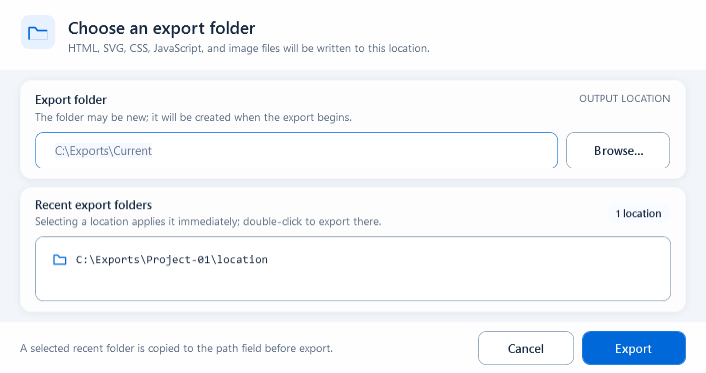
Choose the export folder or pick a recent location to export the whole PPT as one screen package.
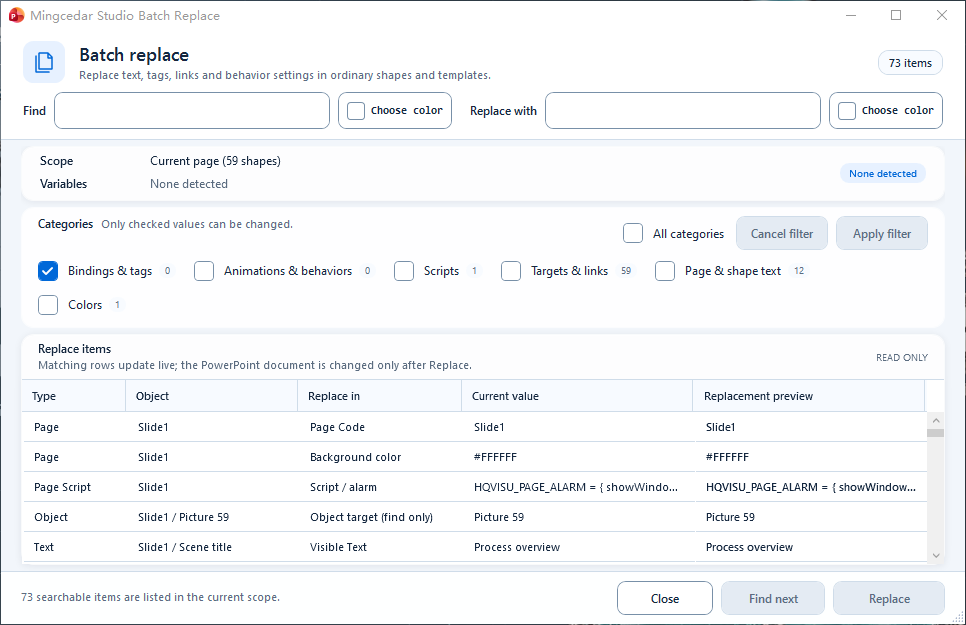
Check Scope, Categories, and the preview table first. This example lists searchable items; the document changes only after Replace.
Choose the export folder and recent locations before exporting runtime HTML, SVG, CSS, JS, and image assets.
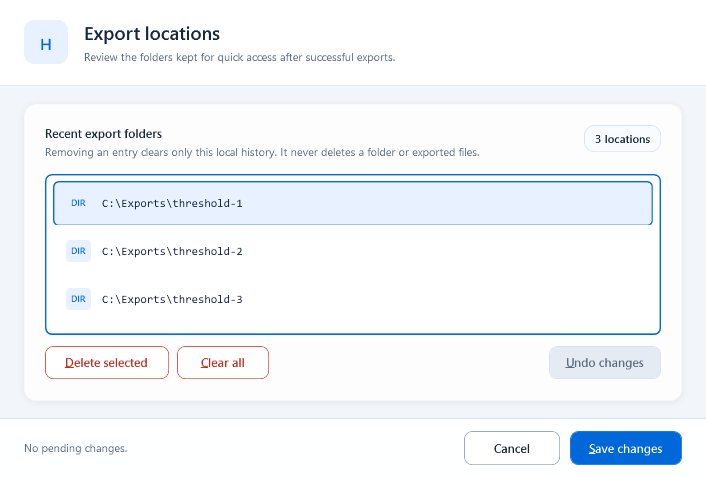
Export history remembers recent folders, but it is not a version manager or rollback tool.
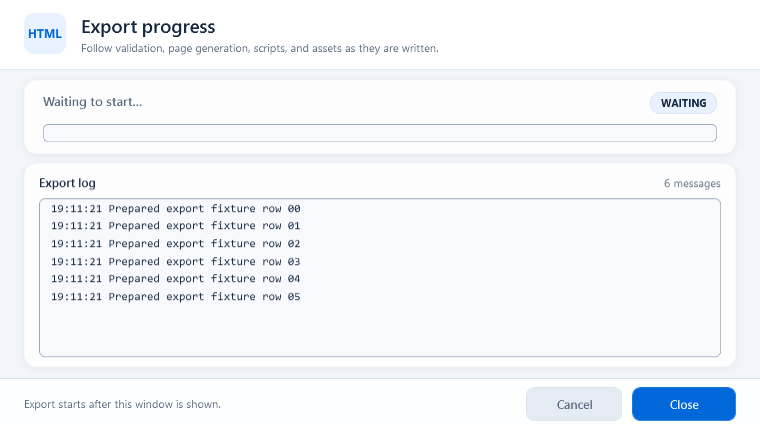
The window shows export status, a progress bar, and execution logs; keep the PowerPoint file and export folder available when troubleshooting.