
If a required runtime asset is missing, confirm the full screen package was published and the menu points to its HTML entry. Ask the Mingcedar administrator to check shared runtime resources if the issue remains.
Manual
Troubleshoot export and navigation | Mingcedar Studio
Check page names, resources, template values, and behavior targets before publishing; troubleshoot runtime results in Mingcedar.
Troubleshoot export and navigation
Check page names, resources, template values, and behavior targets before publishing; troubleshoot runtime results in Mingcedar.
Check whether the target is a PowerPoint page, exported file, relative path, Mingcedar screen, or external website. The target type and path must match the exported files.
Check the button's Condition and saved behavior, then inspect runtime errors. Export and publish the latest package before testing again.
Confirm exported template assets, placeholder values, popup scope, and menu entry are present in Mingcedar.
Save pages and templates, clean up as needed, choose the export scope and directory, then check the exported main, popup and interaction pages.
- Save the presentation and templates.
- Run Batch Replace within the intended scope.
- Choose Export HTML or This Page according to impact.
- Test key pages after export.
Treat one presentation as one complete screen package in Mingcedar. Keep page HTML, SVG, page scripts, images, and manifests together. Do not maintain the package as unrelated loose files.
- Same-package navigation: hqVisuDesigner.openPage(...).
- Cross-package navigation: hqVisuDesigner.openScreen(screenCode).
- Keep the exported directory structure intact.
- Use a full package for formal delivery and version archives.
Use Export HTML for first release, formal delivery, shared files, page additions or removals, page renames, and navigation changes. Use This Page only for a clearly isolated page change whose Page Code and package structure remain unchanged.
- Formal delivery: full package.
- Local page-only update: This Page.
- Any change crossing the current page boundary: full package.
- Decide whether this run is a preview or a release before choosing the folder.
Batch Replace scans the current selection or page across Bindings & tags, Animations & behaviors, Scripts, Targets & links, Page & shape text, and Colors. It builds a read-only preview first; the document changes only after Replace. Find is exact and case-sensitive, with surrounding spaces ignored.
- Scope: Selected content or Current page.
- Variables: detected template variables in the active scope.
- Categories: choose allowed types and click Apply filter.
- Preview: Type, Object, Replace in, Current value, Replacement preview.
- Find next or F3: move to the next exact match.
- Blank Replace with: remove each exact match.
Select the intended objects, or leave the selection empty for the current page. Open Batch Replace, verify Scope, choose Categories, and click Apply filter. Enter Find and Replace with, review every replacement preview, use Find next to locate uncertain rows in PowerPoint, then click Replace.
- A few objects only: select them before opening the window.
- Current page: confirm Scope says Current page.
- Color changes: use the color buttons and enable Colors.
- Unexpected preview rows: remove that category and apply the filter again.
- After Replace, inspect text, tags, scripts, links, and colors on the slide.
Template-variable matches identify instance parameters such as <PLC> or <RUN_TAG>. Page text, Default Text, and Language Key belong to display configuration. Review Type and Replace in before replacing so an instance parameter is not mistaken for visible copy.
Use separate locations for previews and formal releases, and include a clear release identifier in the parent directory name. Export History remembers paths only; it does not classify a release or preserve package versions.
Export History remembers recent paths; clearing entries does not delete directories. Keep release directories or version archives for rollback.
Upload the complete export result to Mingcedar, configure the menu entry, and open the package. Test page navigation, popups, tag reads, tag writes, language text, template inputs, charts, and browser-console errors before handoff.
- The expected entry page opens.
- Every same-package and cross-package link reaches the correct target.
- Writes show the expected permission, confirmation, reason, and result.
- Images, templates, scripts, and charts load without missing resources.
- The package can be traced to the source PPT and release folder.
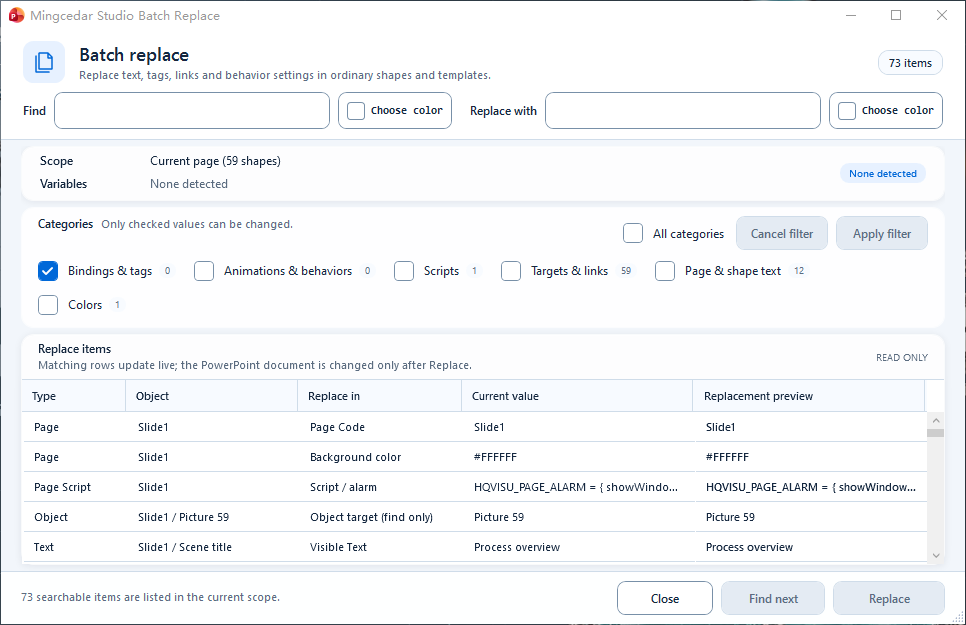
Check Scope, Categories, and the preview table first. This example lists searchable items; the document changes only after Replace.
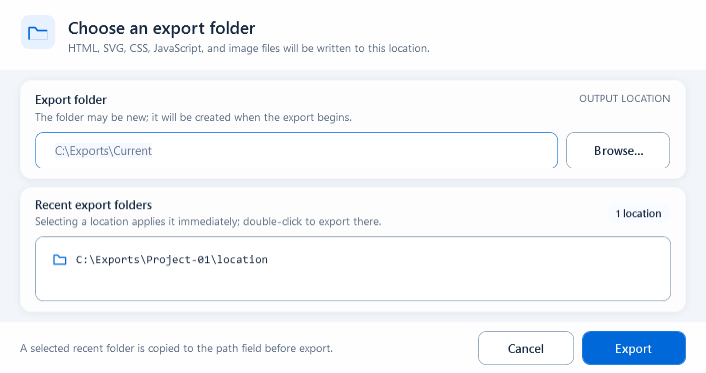
Choose the export folder and recent locations before exporting runtime HTML, SVG, CSS, JS, and image assets.
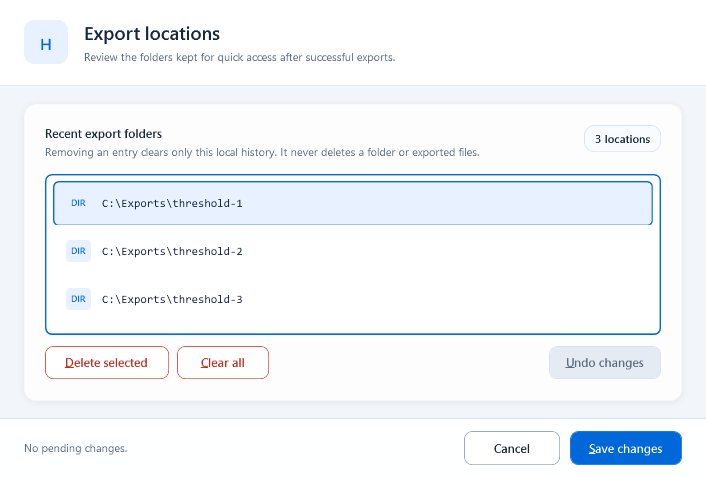
Export history remembers recent folders, but it is not a version manager or rollback tool.
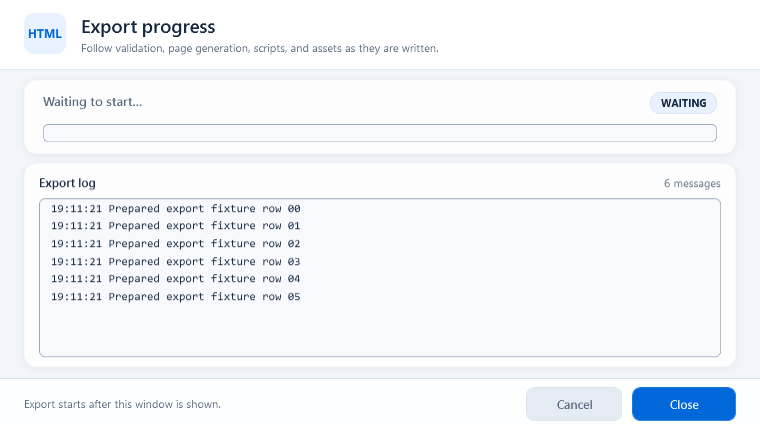
The window shows export status, a progress bar, and execution logs; keep the PowerPoint file and export folder available when troubleshooting.