
Move is a Geometry behavior for numeric single-axis motion. Use Rotate for angles and Scale for size changes.
Manual
Choose the behavior for the task | Mingcedar Studio
Map a number to a horizontal or vertical offset from the original position, for sliders, level markers and indicators.
Choose the behavior for the task
Map a number to a horizontal or vertical offset from the original position, for sliders, level markers and indicators.
Move clamps Source value to Limit minimum / Limit maximum and maps that interval to At limit minimum / At limit maximum. The output is a canvas distance relative to the original component position. Source minimum / Source maximum are available as ValueMin / ValueMax aliases. Changing the source range alone does not update the input limits.
- Behavior name is editable; Component name is read-only.
- Quality override / Override border by quality configures Good and Bad borders for data quality, separately from process limits.
- JS functions... inserts a method into the focused expression field.
- Source value returns a number, for example ReadTagDouble("PLC_LINE01.TANK01.LEVEL", 0). Condition returns a boolean; false skips the behavior and does not hide the component.
- Source minimum / Source maximum default to 0 / 100 and supply the ValueMin / ValueMax expression aliases.
- At limit minimum / At limit maximum specify movement offsets, initially 0 / 120 for a new Move behavior, at the input-limit endpoints. Capture calculates an endpoint from the component geometry.
- Limit minimum / Limit maximum start as independent values 0 / 100 and control clamping and normalization. Enter ValueMin / ValueMax to follow the source range.
- Move axis: Horizontal or Vertical. Hide outside input limits controls visibility on an out-of-range input.
- Save / Ctrl+S validates and saves; Cancel / Esc discards the edit.
// Source value
ReadTagDouble("PLC_LINE01.TANK01.LEVEL", 0)

// Source minimum / maximum: 0 / 100
// Limit minimum / maximum: ValueMin / ValueMax
// At limit minimum / maximum: 0 / -shape.height
// Move axis: VerticalCapture beside At limit minimum / At limit maximum calculates the offset from the same component in PowerPoint. The editor records the original geometry, writes the difference between target and original coordinates, and then attempts to restore the original position.
- Choose Move axis first: Horizontal uses the Left difference and Vertical uses the Top difference.
- Move the component to the desired endpoint, then use Capture beside that endpoint.
- The offset uses 0.### formatting and can be replaced with a numeric expression.
- The same component must remain selected. Unavailable original or current geometry produces an error.
- If restoration fails, the saved offset remains; restore the component before continuing.
Use a measured value to drive linear motion, for example:
- Tank level: map the level percentage into a vertical offset so the liquid block floats up and down with the level
- Slider / horizontal indicator: map a 0-100 value into a horizontal offset to produce slider or horizontal indicator bar motion
Check these settings:
- Movement outputs use canvas distance. Use shape.width for one component width; 100 means 100 canvas units.
- Limit minimum / Limit maximum controls the actual mapping, with out-of-range visibility controlled separately.
- Check the movement axis before Capture to avoid recording the wrong coordinate difference.
- After changing the source range, update input limits or enter ValueMin / ValueMax to follow it.
Drag Geometry → Rotate onto the component. It applies the supplied angle directly without percentage mapping.
Rotation input returns an angle in degrees. Maximum angle defines a symmetric allowed range and PIVOT POINT sets the pivot. Rotate does not perform source-range percentage mapping.
- Behavior name is editable; Component name is read-only.
- Override border by quality configures Good / Bad borders for data quality.
- JS functions... inserts a method into the focused expression field.
- Rotation input: an angle expression, such as ReadTagDouble("PLC_LINE01.VALVE01.ANGLE", 0).
- Condition: a boolean; false skips rotation and does not hide the component.
- Maximum angle defaults to 360. A value of 90 permits -90° to +90°. Preset buttons enter 45, 90, 180, 270, or 360.
- PIVOT POINT: Center, Top, Bottom, Left, or Right, according to the mechanical pivot.
- Hide outside angle range hides an out-of-range angle; otherwise the angle is clamped to the boundary.
- Save / Ctrl+S validates and saves; Cancel / Esc discards the edit.
// Rotation input
ReadTagDouble("PLC_LINE01.VALVE01.ANGLE", 0)

// Maximum angle: 90
// PIVOT POINT: CenterUse it for angle-driven motion, for example:
- Gauge pointer: read the angle for the pressure/temperature value and turn the needle around its center
- Valve angle: rotate the valve icon by its opening angle, with the pivot on the real stem center
- Fan / mixer blade: rotate the blade by its running angle to show motion
Check these limits:
- Rotation input uses degrees. Convert an opening percentage explicitly when the Tag is not an angle.
- Match the pivot to the mechanical axis. Use Bottom for a bottom-hinged pointer and Center for a center-mounted component.
- Angle presets only update Maximum angle, not Rotation input.
- A false Condition only skips rotation. Use the hide option or a separate visibility behavior to control visibility.
Drag Geometry → Scale onto a component to drive its size from a number.
Scale clamps Source value to Limit minimum / Limit maximum and maps that interval to At limit minimum / At limit maximum. The output is a scale factor; 1 preserves the original size. Source minimum / Source maximum are available as ValueMin / ValueMax aliases. Changing the source range alone does not update the input limits.
- Behavior name is editable; Component name is read-only.
- Quality override / Override border by quality configures Good and Bad borders for data quality, separately from process limits.
- JS functions... inserts a method into the focused expression field.
- Source value returns a number, for example ReadTagDouble("PLC_LINE01.TANK01.LEVEL", 0). Condition returns a boolean; false skips the behavior and does not hide the component.
- Source minimum / Source maximum default to 0 / 100 and supply the ValueMin / ValueMax expression aliases.
- At limit minimum / At limit maximum specify scale factors, initially 0.5 / 1.5 for a new Scale behavior (change them to 0 / 1 for the level-fill example), at the input-limit endpoints. Capture calculates an endpoint from the component geometry.
- Limit minimum / Limit maximum start as independent values 0 / 100 and control clamping and normalization. Enter ValueMin / ValueMax to follow the source range.
- Moving edge: Top moves the top edge and fixes the bottom; Right moves the right edge and fixes the left.
- Save / Ctrl+S validates and saves; Cancel / Esc discards the edit.
// Source value
ReadTagDouble("PLC_LINE01.TANK01.LEVEL", 0)

// Source minimum / maximum: 0 / 100
// Limit minimum / maximum: ValueMin / ValueMax
// At limit minimum / maximum: 0 / 1
// Moving edge: TopThe editor records the original size. Resize the same component in PowerPoint and click Capture beside an endpoint. It calculates target size / original size using Moving edge, writes the factor and attempts to restore the original geometry.
- Choose Moving edge first, because it decides whether the calculation uses width or height and which edge defines the target size.
- Top / Bottom use height: Top uses original bottom minus current top, and Bottom uses current bottom minus original top.
- Left / Right use width: Left uses original right minus current left, and Right uses current right minus original left.
- If the original width/height is zero, the target size would be negative, or the selected object is not the same component, Target warns and refuses to write.
- Capture writes a 0.### factor. If you need a fixed expression instead, you can still overwrite At limit minimum / At limit maximum by hand.
Use size to represent a value, for example:
- Level fill: a fill block inside a tank rises with the level percentage; set Moving edge to Top so the bottom stays fixed.
- Bar growth: a throughput or load bar grows from one end with the value; set Moving edge to the edge it grows toward.
- Icon response: an icon scales between At limit minimum and At limit maximum with a value as a strength indicator.
Check these Scale settings:
- Moving edge is the edge that moves, not the fixed one: choosing Top means the top edge moves and the bottom is fixed; Left means the left moves and the right is fixed. To keep an edge still, pick its opposite.
- At limit minimum / At limit maximum are scale factors, not percentages: the original size is 1.0, not 100.
- One Moving edge means one direction: if you pick Right, do not expect it to scale toward both sides; the fixed edge does not move.
- Scale has no out-of-range hiding option. A false Condition only skips scaling; use Visibility in State Color or Script Color when the component must be hidden.
- Recheck Limit minimum / Limit maximum when changing the input range, or use ValueMin / ValueMax to keep the effective range aligned with the source range.
Blink Color is a Visual States behavior for fill, border, and visibility. With TRUE enabled, a true condition alternates Blink ON and Blink OFF. With FALSE enabled, a false condition applies Condition FALSE. Blink Color has no blink-interval setting. Use State Color for ordinary running/stopped indication and Range Color for numeric bands.
Bind Blink Color and configure the fields below. The example Condition blinks when the alarm bit is true.
- Behavior Name: a recognizable name for this behavior (Component Name is read-only and filled in for you).
- Setup Script: optional. Read tags, define variables, and compute intermediate values here for the Condition to use.
- Condition: an expression returning true / false. Enter ReadTagBoolean("PLC_LINE01.PUMP01.ALARM", false) directly, or reference a boolean from Setup Script.
- Action / Apply result: TRUE is enabled by default and FALSE is disabled. Enable FALSE and configure Condition FALSE for a static appearance after the alarm clears.
- Output Channels: independently enable Fill Color, Border Color, and Visibility, in any combination.
- Each enabled channel is configured across three columns: Blink ON, Blink OFF, and Condition FALSE - pick colors for fill/border, or visible/hidden for Visibility.
- Quality Override: enable Follow data quality (border / hide) and configure Good and Bad. Enable Hide when quality is bad when the shape should be hidden on invalid data.
// Setup Script
var alarm = ReadTagBoolean("PLC_LINE01.PUMP01.ALARM", false);

// Condition
alarm;Use it for binary states that need a prominent warning.
- Alarm lamp: blink the fill between red and dark red while the alarm bit is true; rest on a static gray after reset.
- Run/warning block: blink the block while a device is faulted or needs action; keep a steady static color when normal.
Check these configuration boundaries:
- Condition must return a boolean. Pass a literal Tag name to ReadTagBoolean; the name string itself is not an alarm state.
- Blink Color has no Blink Interval or speed field.
- Condition FALSE takes effect only with FALSE enabled. To show gray after an alarm clears, enable FALSE and Fill color and set the static color.
- Quality Override represents data quality. On good quality, an explicit Border color takes precedence over Good. Bad quality restores the base appearance and applies the configured Bad border or visibility.
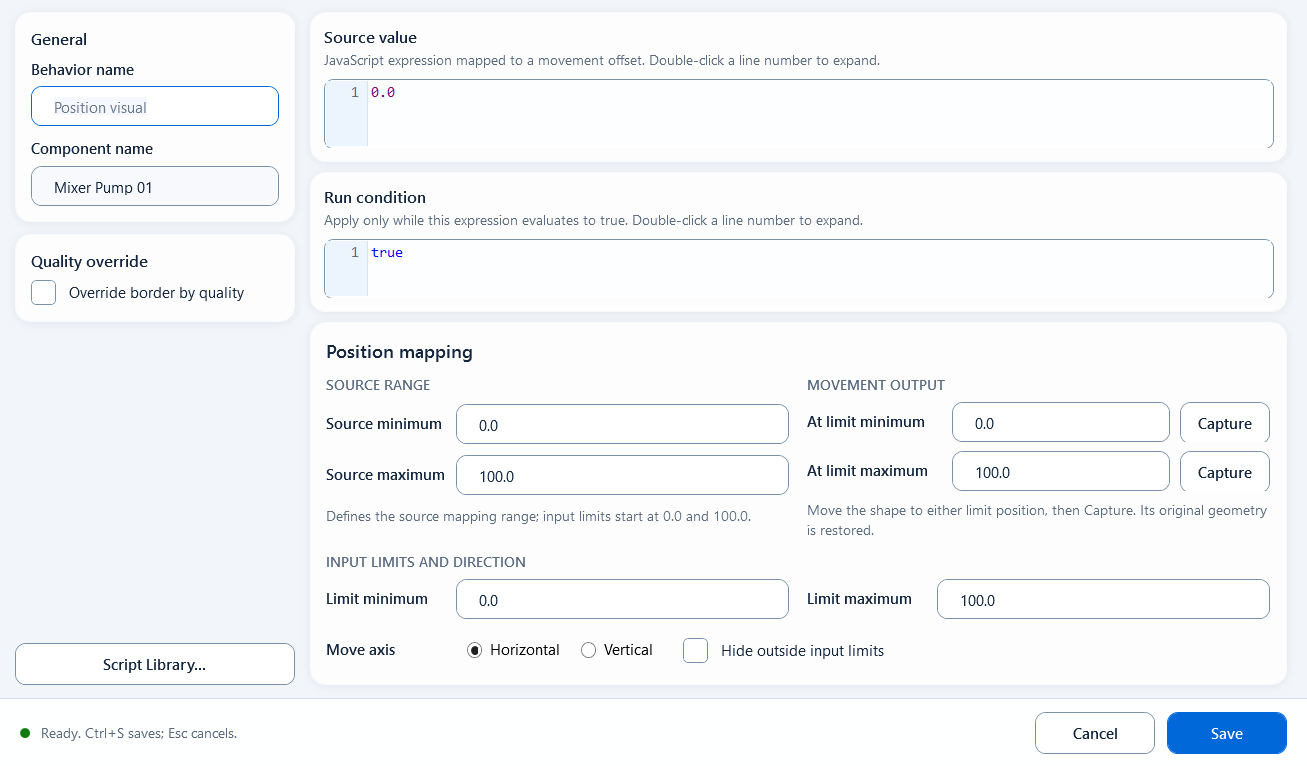
Set the source range, offset range, and axis to map a value proportionally into a single-axis offset.
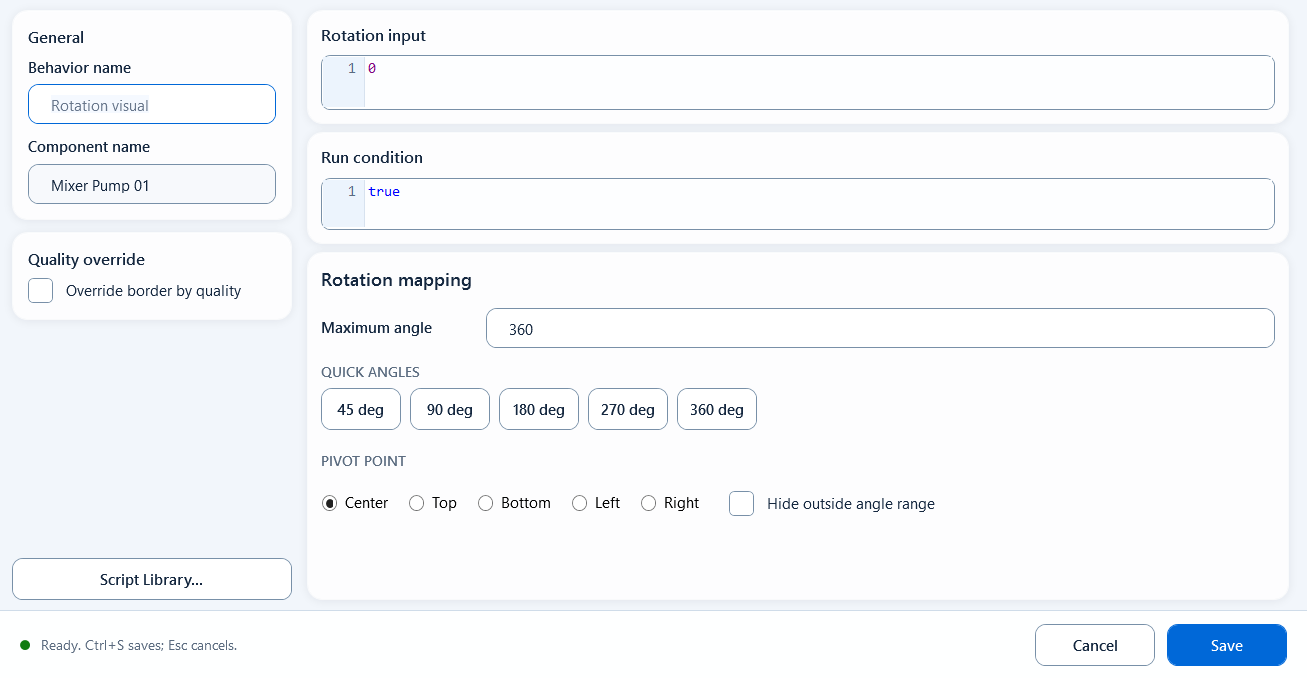
Apply an angle value to the component so it turns around the chosen pivot, with a max-rotation limit.
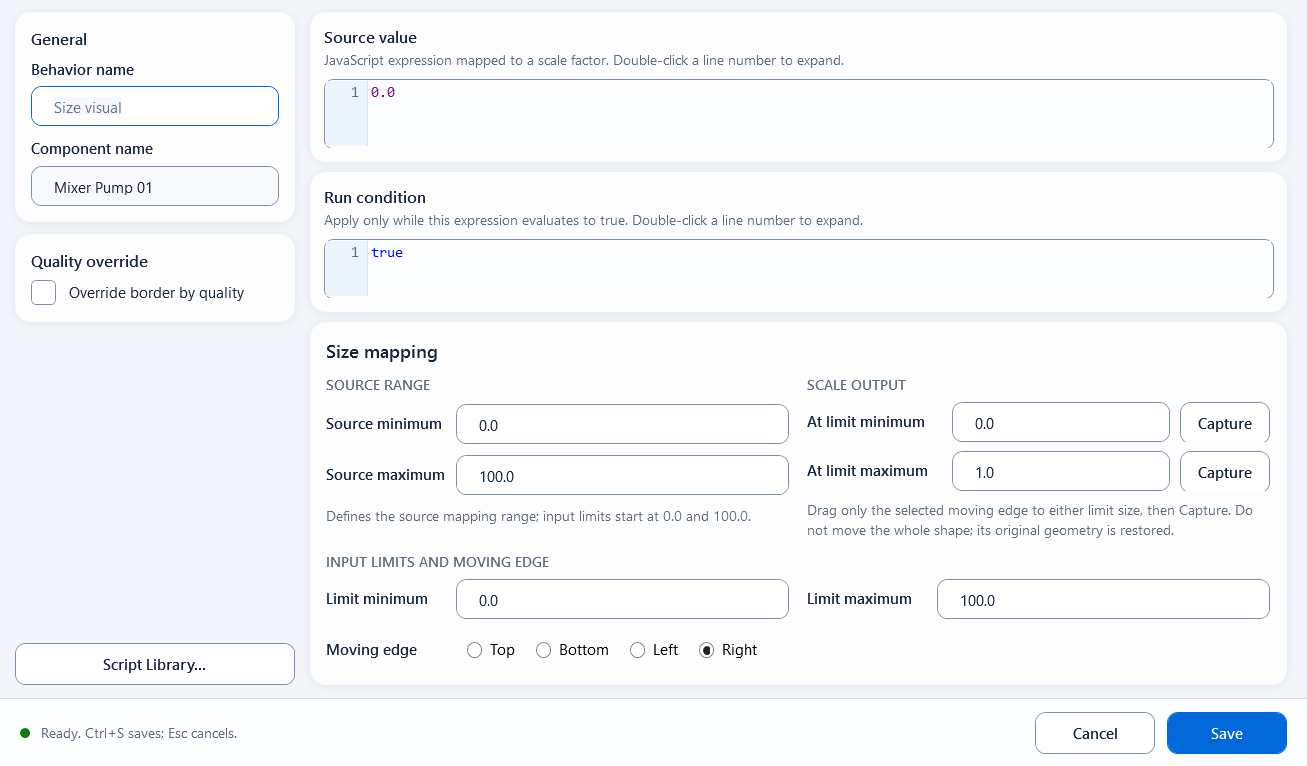
Map a value into a scale factor and use Moving edge to choose which edge moves and which stays fixed.
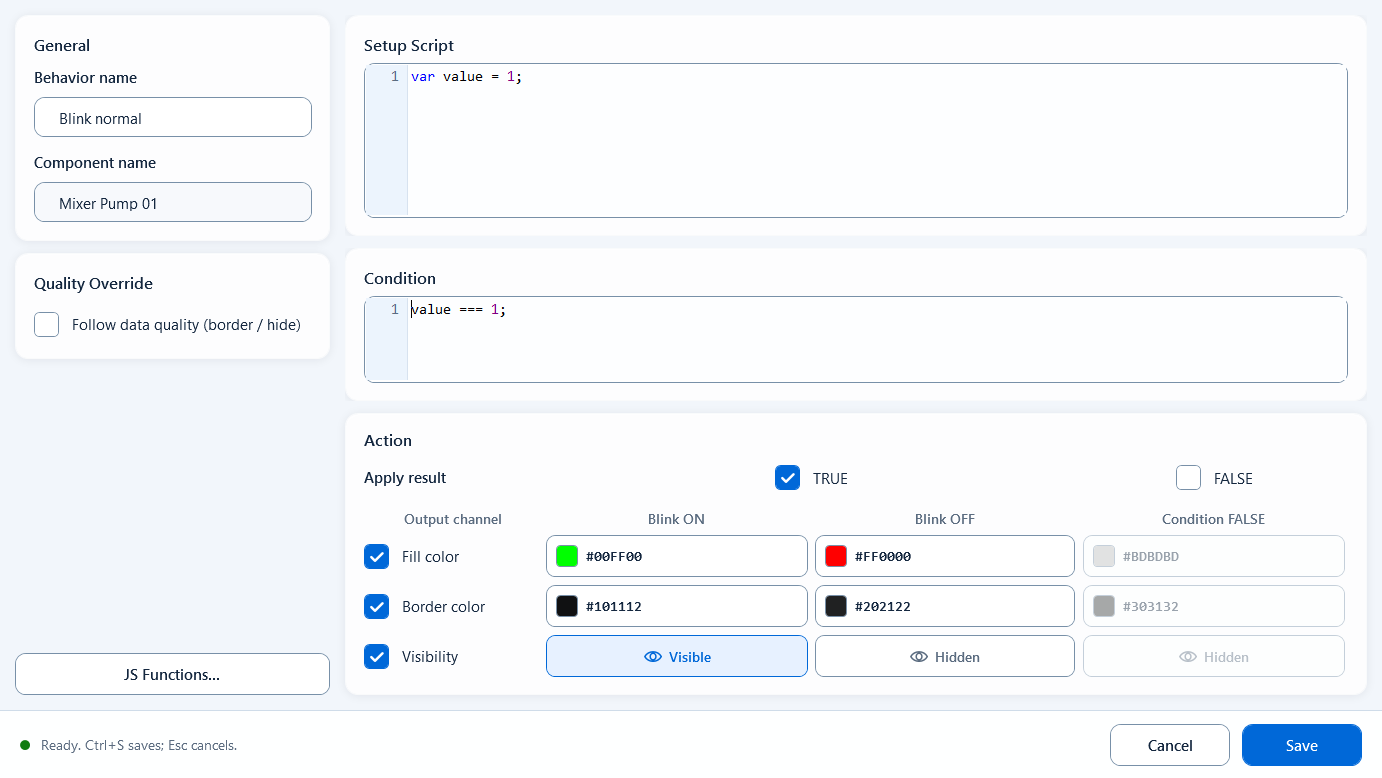
When the condition is true it toggles between Blink ON and Blink OFF; when false it rests on a static look, across fill, border, and visibility.