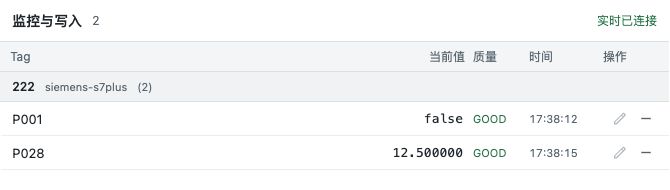
Location: Configuration Center → Tag Test (io:diagnose permission). Select a Device on the left, browse Tags in the center, and monitor values or initiate writes on the right.
Operating guide
Operating guide: Tag Test: monitoring, quality, and writes
Add Tags to the monitor and inspect collected values, quality, time and write results.
1. Select a Device and monitor a Tag
Location: Configuration Center → Tag Test (io:diagnose permission). Select a Device on the left, browse Tags in the center, and monitor values or initiate writes on the right.
Find and select the Device, checking code and protocol.
Filter the enabled-Tag list by name or address and verify code, address, and type.
Click Monitor tag or drag the row into the monitor.
After connecting, check value, quality and time. Add other Tags individually; remove those no longer needed.
Expected result The monitor shows the target Tag’s connection and data state. An empty monitor may mean no Tags were added.
2. Separate connection state from data quality
Live connected describes the workspace connection, not the validity of every Tag.
Inspect the connection first, then the Tag row’s quality and timestamp.
Compare good values with field values; zero can also be valid.
The row shows GOOD or BAD. Use Details for Waiting for data, No data, and source diagnostics. Check Tag and Device enablement, monitoring selection, and collection state.
If quality is BAD or the timestamp has not advanced, inspect Device connection, collection state, and the diagnostic detail; an older value is not proof of current validity.
Open Details for diagnostics; use Inspect full value for structured values.
Expected result Distinguish unsubscribed, waiting, invalid and valid measurements.
3. Enter and confirm one write
Writing requires a signed-in account with tag:write permission. The button is disabled when Tag control is off, live connection is unavailable, or quality is not GOOD; insufficient permission returns a denied result.
Record the previous value and time and verify the target.
Click Write and enter a type-correct value within the displayed range.
Enter a reason when the field is marked required, compare the previous and target values, then click Confirm write once.
Read the result: Accepted is still pending confirmation, while Write completed and Readback confirmed mean different things. Then observe the collected value.
For uncertain results or readback mismatches, retain details and search Event Records by time, actor and Tag. Verify before repeating the command.
Expected result Check command and readback results separately. Cancellation submits nothing; denial or uncertainty is not success.
If the result differs
Write unavailable: check account permission, Allow Runtime Writes, live connection, and GOOD quality. For an unconfirmed result or readback mismatch, inspect the field value and Event Records first.
Figure 1: Tag Test monitor
The monitor shows each Tag value, quality and sample time. Check both quality and time before relying on a value.