Use the Portal address provided by the installation. Screens use a separate Screen origin.
Responsive
Responsive: Desktop, tablet and phone access
Access the host in a browser. Admin layouts adapt to width; runtime screens follow their project design.
Connect and open a screen
Use the Portal address provided by the installation. Screens use a separate Screen origin.
Open the Portal in the device browser and follow the menu’s sign-in requirement.
Confirm both Portal and Screen addresses resolve and are trusted. Access to the Portal alone can leave the shell visible with an empty screen.
After rotation or resizing, check screen proportions. Fixed PPT canvases scale proportionally; equipment graphics are not automatically rearranged.
Viewing and operating on smaller screens
Use the navigation, filters and scrolling provided by each page.
Expand navigation to choose a screen, alarms, trends or an administration page. Filter large tables before inspecting rows.
Alarm acknowledgement, writes and service controls retain the same account permissions on every screen size.
On returning to a page, check freshness, connection and quality before operations that depend on current data.
Screen design for target devices
Project button sizes, graphics density and typography determine readability on smaller screens.
For phones, use a dedicated compact screen and menu, or a responsive custom page.
Check buttons, popups, numeric inputs and scroll regions on desktop and touch devices. Video and browser audio also depend on device support and permissions.
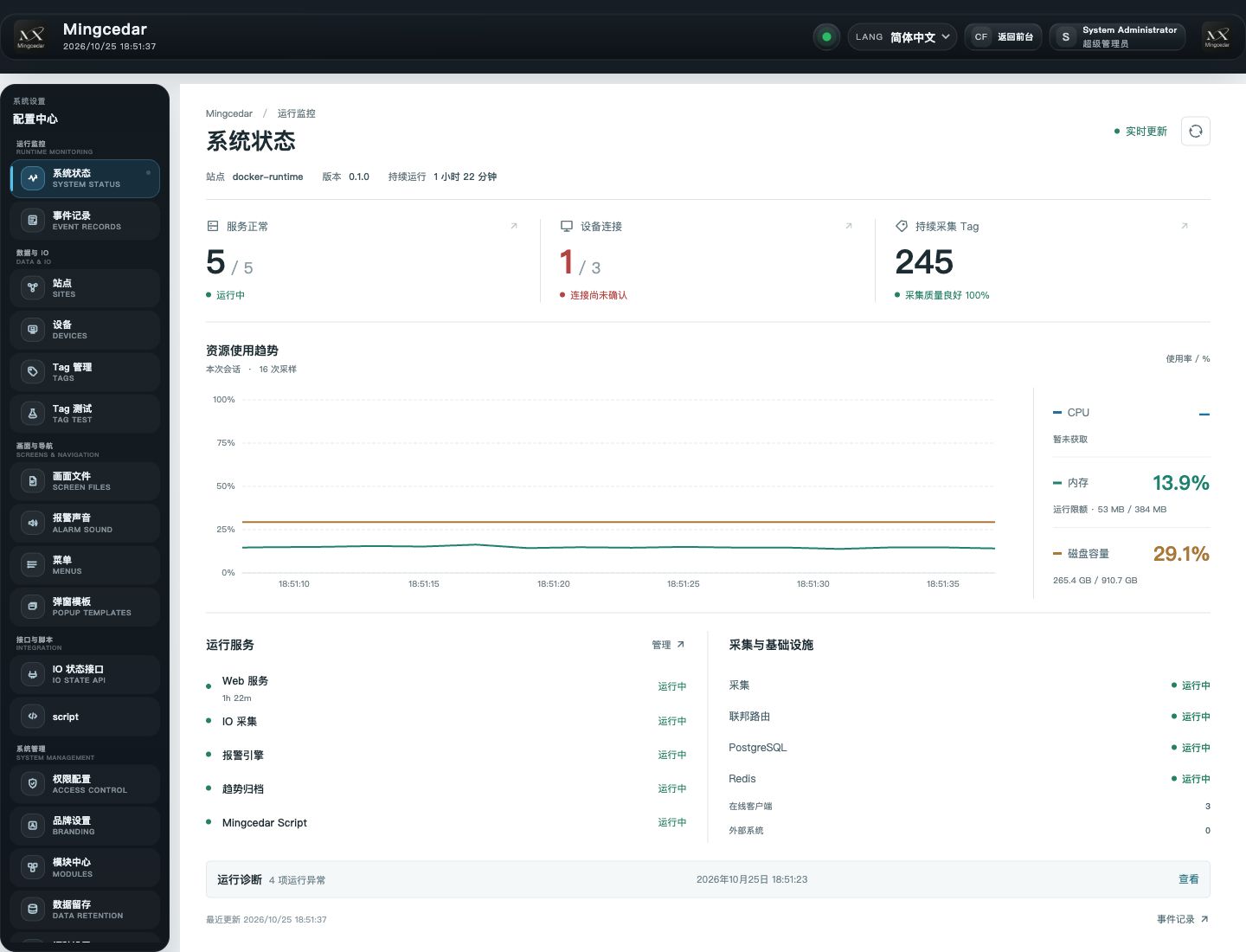
Figure 1: Desktop System Status
The 1440×1100 desktop view shows the full navigation, service status, and resource information.
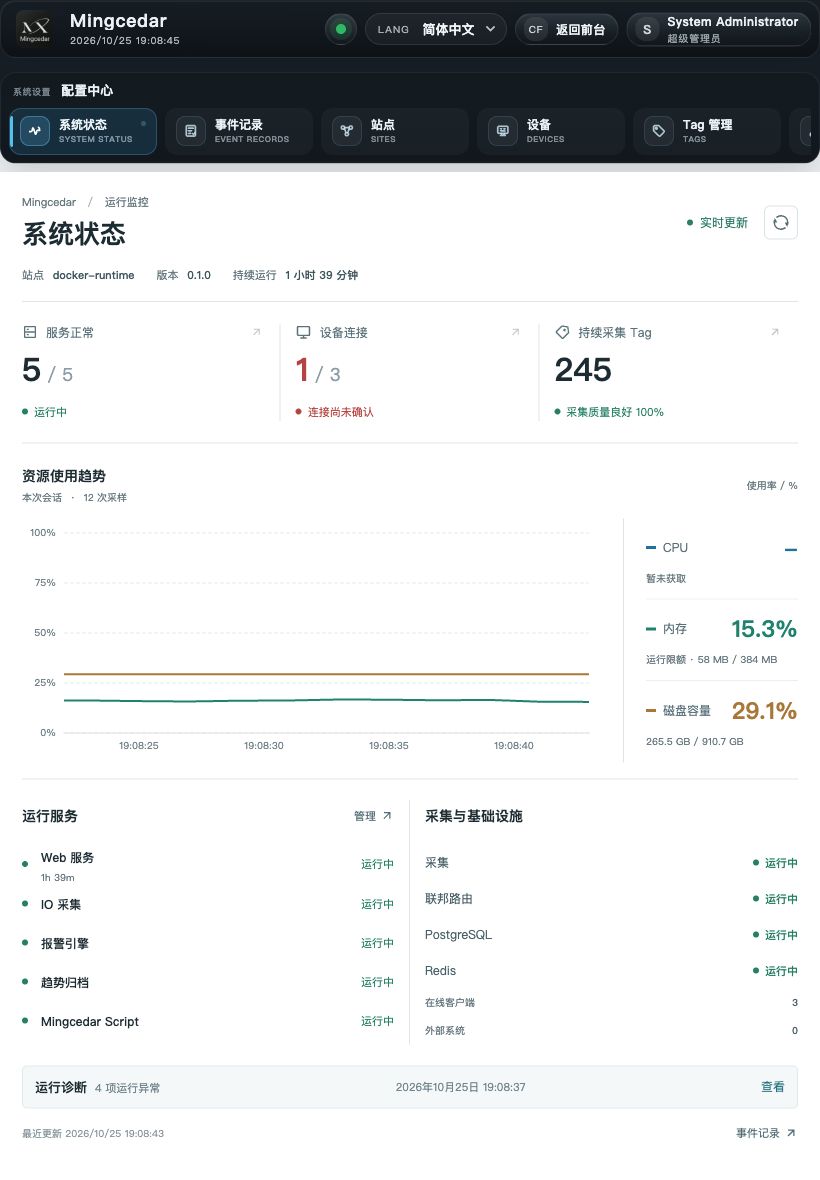
Figure 2: Tablet System Status
The tablet layout moves navigation into a horizontal strip and arranges services and resources for the available width.
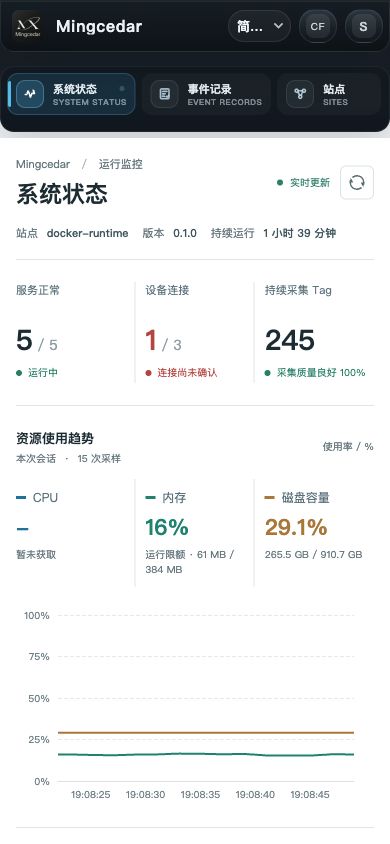
Figure 3: Mobile System Status
The phone layout stacks status and resource charts in one column. Scroll down to view running services.