Connect Mingcedar servers, choose Screens, IO, Alarm and Trend sources, and set the Device scope.
1. Find your way around the Sites workspace
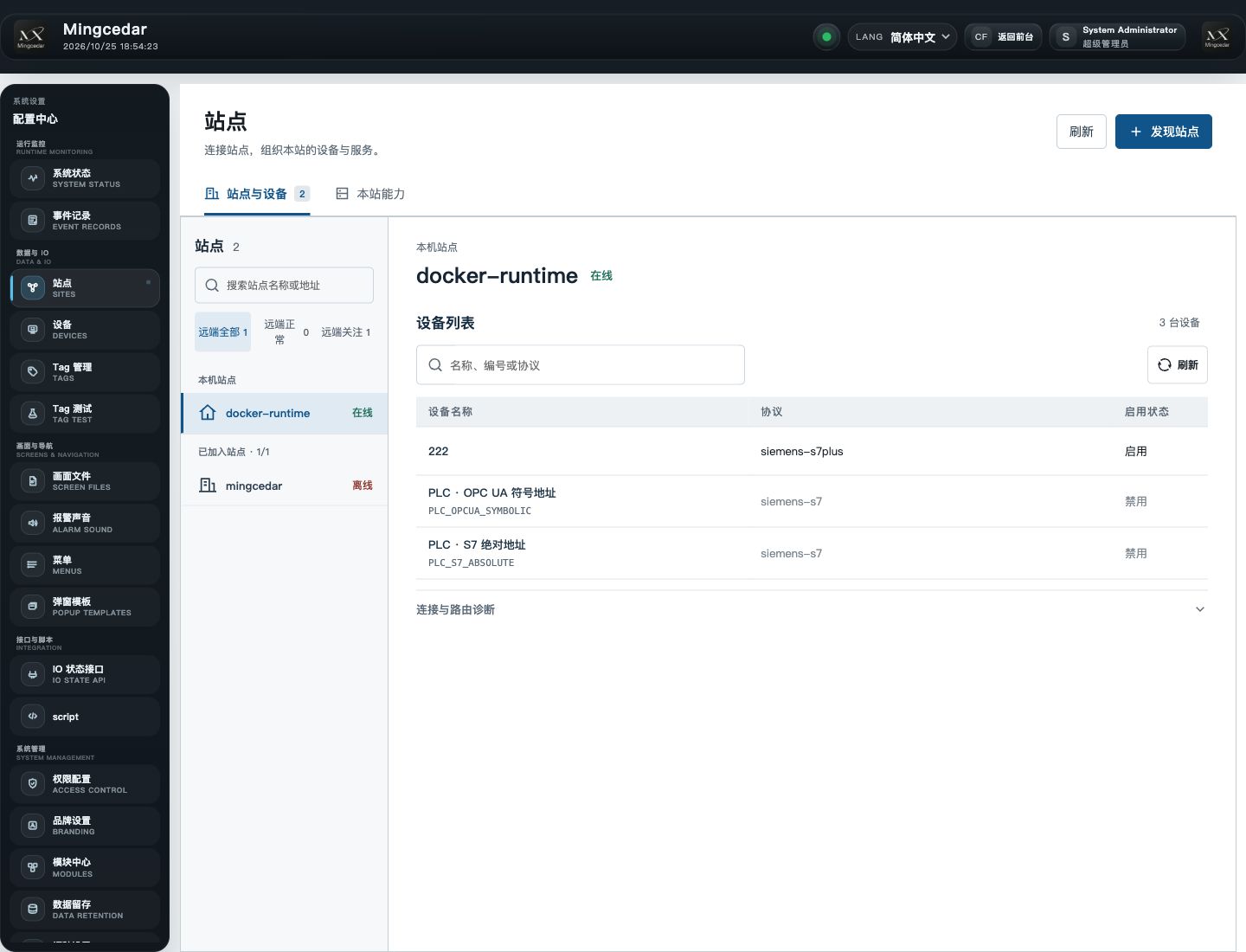
Open Configuration Center → Sites. Each Site contains services, Devices, Tags and configuration, and can join others to use their capabilities. In this example, configure A to read B.
Scroll horizontally to view the full table
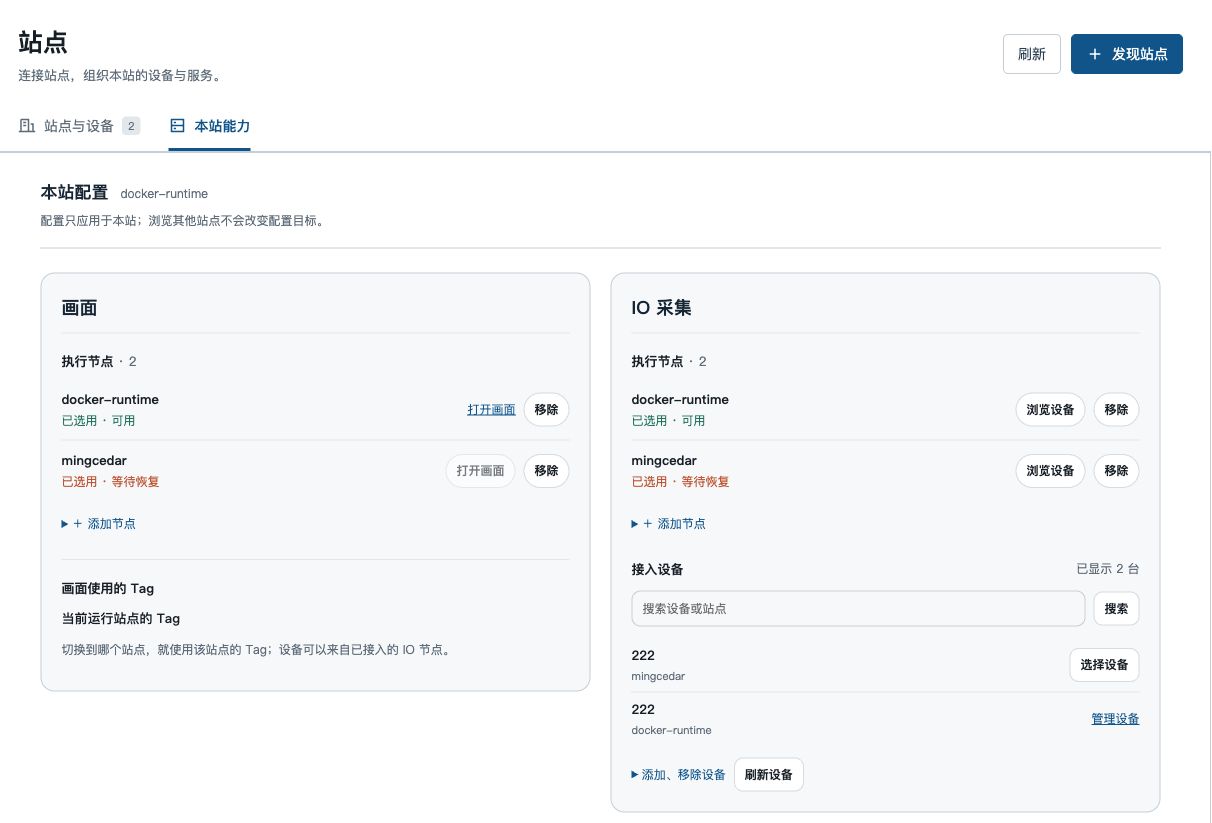
Expected result Local Capabilities always configures the signed-in server’s Runtime Unit, regardless of the Site being browsed.
2. What each capability provides
Select capabilities independently; Alarm and Trend do not require Screens. Source selection does not start or stop peer services or copy configuration.
Scroll horizontally to view the full table
3. Connections have a direction
After A joins B and selects its IO, A can read B within its authorization. For reverse access, join A on B and select capabilities and Devices. Each Site retains its configuration.
Expected result Joining does not grant the peer local administrator or PLC write permissions, and does not turn two independent Sites into an acquisition primary/standby pair.
4. Check the local Site, address and permissions
- Open Configuration Center → Sites and check the Local Site name and current server. Select Refresh to read current connection state.
- Record the other Portal’s full HTTPS root address, such as
https://<server-ip>:<port>. Use its configured, resolvable hostname or IP, rather than a PLC address, Screen port or /app/admin page path.
- Viewing needs Site view permission. Joining, removing, selecting capabilities and saving scopes need
site:manage. Read-only accounts cannot edit.
- Ordinary LAN installations can use discovery or Add by Address directly. Installations explicitly configured with project certificates require their project connection configuration first.
Expected result If the page shows Last Observed, restore the connection and refresh before judging availability.
5. Discover and join a source Site
- On A, select Discover Sites. The scan runs from A’s server. Search by Site name or Portal HTTPS address.
- Expand a Site to preview its Devices. The required viewing connection is established when needed; browsing Devices does not join the Site or select a capability.
- Check the address and select Add Site. If discovery does not find it, expand Add by Address, enter the full Portal HTTPS root address and select Join.
- When the target appears under Joined Sites, close the dialog and check its Devices and connection state.
- If the action becomes Verify Enrollment, select it to read the original connection result. Then use Continue Joining or Continue Viewing Devices as prompted.
Expected result After joining, choose sources in Local Capabilities. Ordinary LAN needs no join code, manual certificates or peer approval.
If the result differs
- If the Site was joined but the list failed to refresh, refresh the Site list and continue configuring capabilities.
- For an identity conflict, check whether the address now reaches another server or the installation identity changed. Follow the connection preparation chapter.
6. Add or remove capability sources
Scroll horizontally to view the full table
- Open Local Capabilities and find the Screens, IO, Alarm or Trend card.
- Under Execution Nodes → + Add Node, add a node from joined Sites or use Add by Site Address. This selects only the current capability.
- Wait for the save result and check the node state. Use Browse Devices, Open Screens, View Alarms or View Trends to open the corresponding content.
- Select Remove and confirm. Only this capability source is removed; Site membership, other capabilities and Device configuration remain.
Expected result Saved selections are used subject to availability and authorization, without publishing. IO needs PLC scope; Screens, Alarm and Trend need their own configuration and permissions.
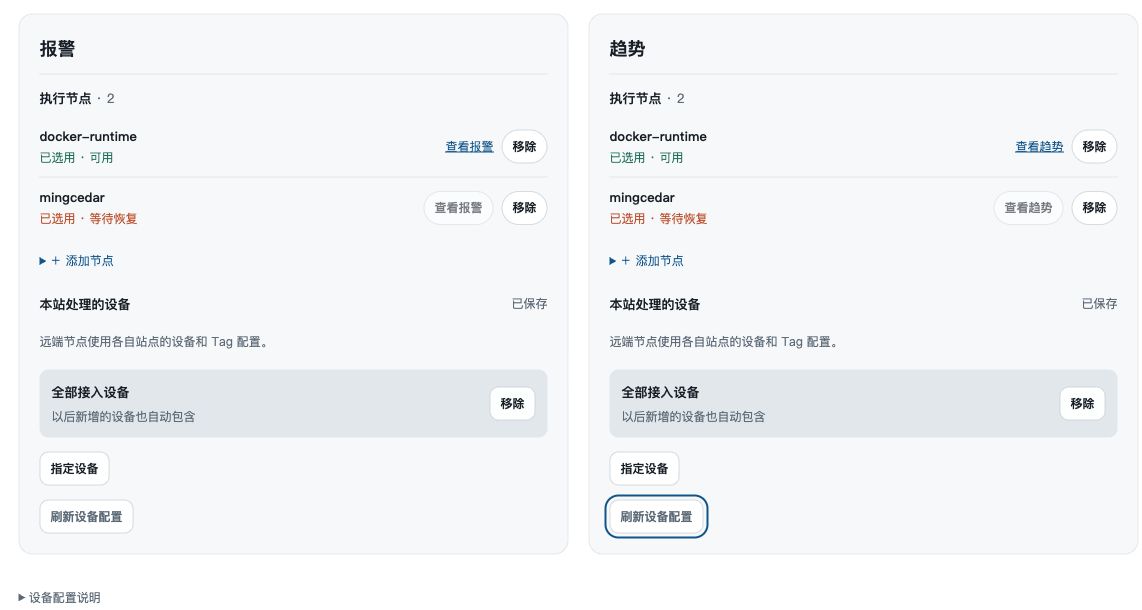
Open Sites → Local Capabilities → Alarm or Trend → Devices Processed Here. Each service saves its own scope, shared by its nodes in the same Runtime Unit but not copied to independent remote Sites.
Scroll horizontally to view the full table
- Check the local Site name, current scope and Device sources. The directory includes enabled local Devices and remote Devices admitted to this Site’s IO scope.
- Select Specify Devices or Add Devices, enter a name and press Enter or Search, then check Devices and select Add Selected Devices. Use Load More Devices for another page. Additions or removals show Unsaved changes.
- Select Save Alarm Settings or Save Trend Settings, review the scope change and its effect, then Confirm and Save.
- After Saved appears, check the corresponding execution nodes and the Tag’s alarm rules or trend settings. Saving the Device scope does not create those rules.
Expected result The saved scope includes selections outside the displayed page. Clearing Device inputs does not stop the service or calculated Tags; adding Devices again does not guarantee backfilling the excluded period.
If the result differs
- If the save outcome is unconfirmed, select Check Current Configuration. If another operation changed the settings, reread and review the draft before saving again.
- If remote Device names need updating, select Update Names beside the source and search again. This does not change the Device selection.
8. Outages, removal and reconnection
- In Sites and Devices, select the source and expand Connection and Routing Diagnostics. Check Site connection, source service and routing separately; verify individual Tag quality and timestamps as well.
- During a temporary outage, retain the source selections you need. After recovery, refresh and verify new values without rejoining the same Site.
- To end membership, select the remote Site, choose Remove Site and confirm. Unsaved PLC selections for that source are discarded, and this Site stops using the source.
- When joining it again later, explicitly select the required capabilities, then preview and save the PLC scope before checking business references.
Expected result Removal preserves the peer’s Devices, Tags and database, and related local history. It does not revoke Node identity.