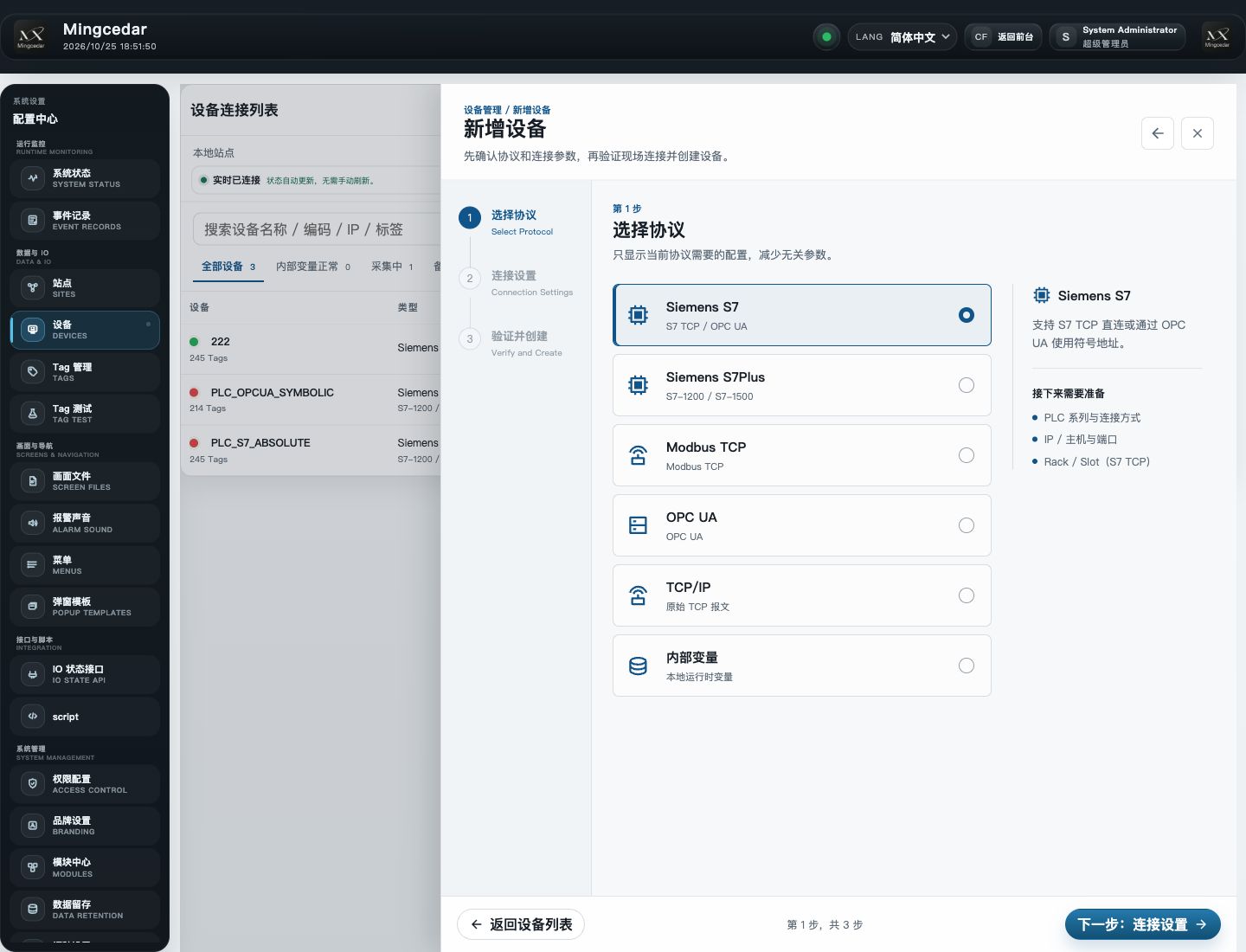
Add a Device through Protocol → Connection → Verify and Create, then check application, connection and collection.
1. Create a Device and verify connection settings
Open Admin → Devices. Viewing needs io:view; editing needs io:manage. Prepare the field protocol, address and Tag map.
- In Devices, click New Device and select Siemens S7, Siemens S7Plus, Modbus TCP, OPC UA, TCP/IP, or Internal Value. Continue to Connection Settings.
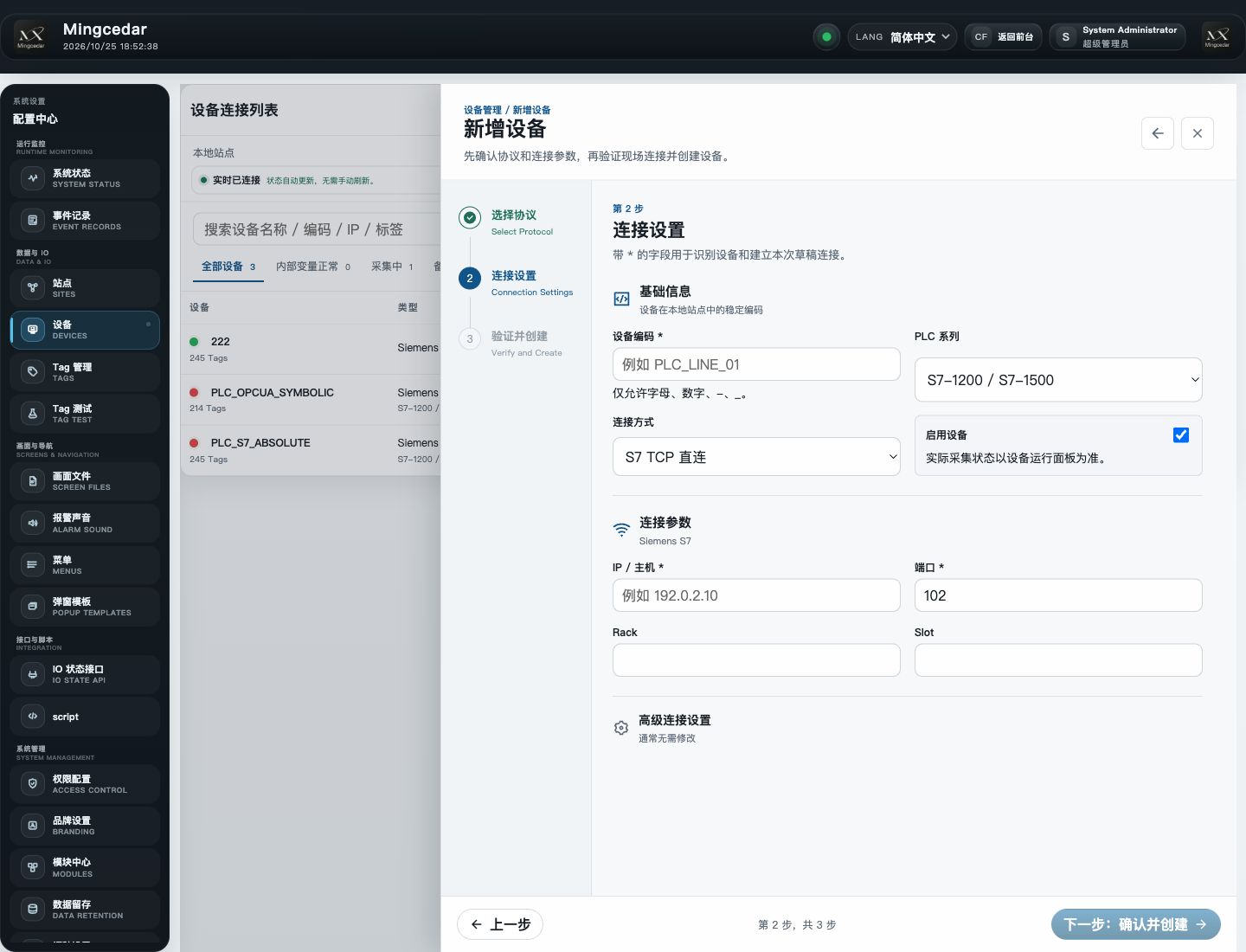
- Enter a stable Device Code and the connection fields for the selected protocol. The S7 direct connection example uses PLC series, connection method, host, port, and Rack/Slot.
- Check advanced connection settings against the Device documentation. The final-step Check connection is an optional draft diagnostic; success is not required to create the Device. Then click Create device.
- Return to Devices and open details. Inspect configuration application, PLC connection, and Collection separately; run connection diagnostics when needed.
- Record Device Code for selection in Tag Management.
Expected result Check application of the saved definition, then validate Tags; connection success does not prove addresses or values are correct.
2. Create and save one Tag
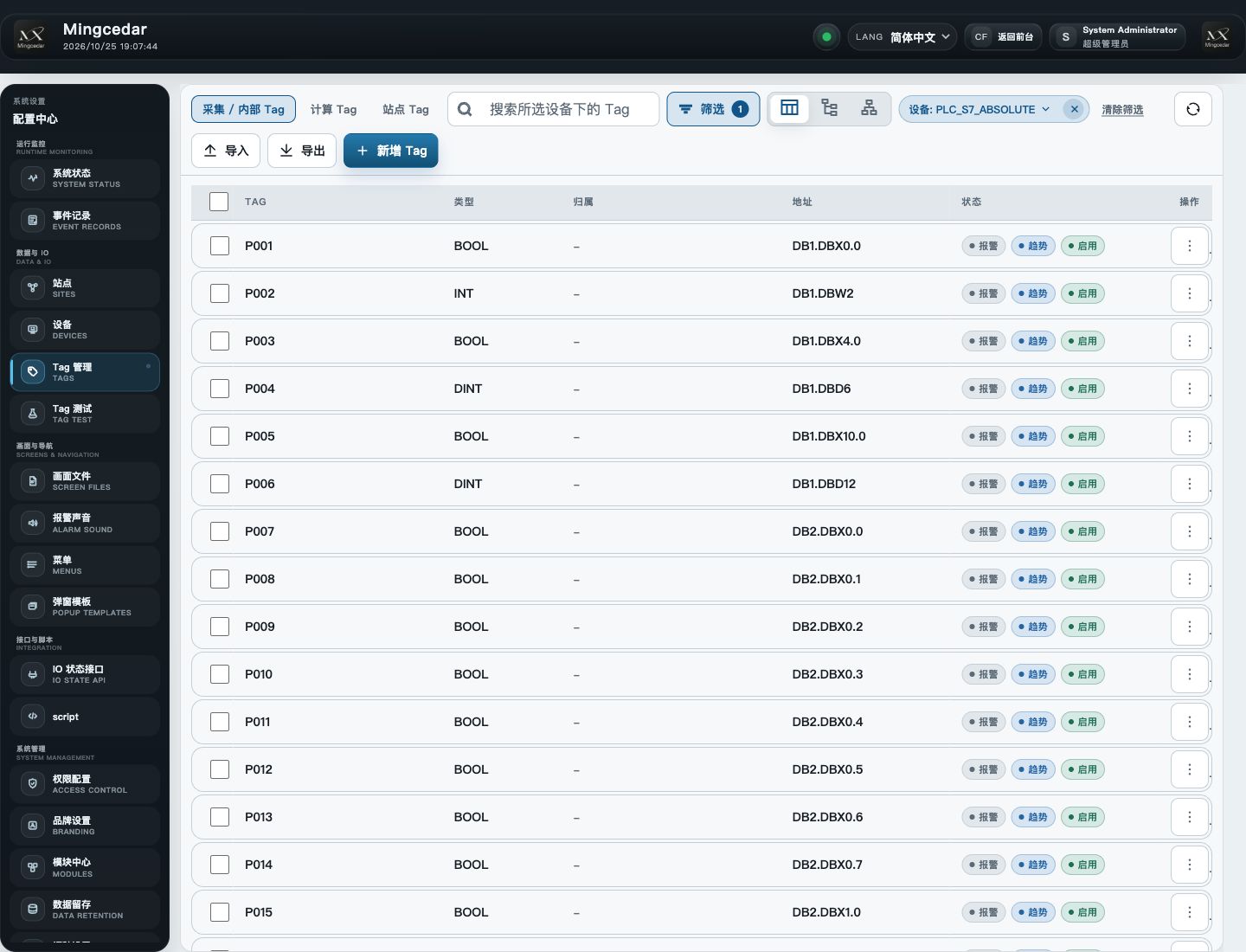
Open Admin → Tag Management → Collected / Internal Tags. Viewing needs io:view; saving and importing need io:manage.
- Select the Device and click New Tag. Verify Device ownership in Basic.
- Enter a stable Tag Name, optional Display Name, and Unit. Use the saved case and dot separator in full codes such as PumpPLC.Pressure.
- Enter the protocol address and type: DB/offset for absolute S7, the actual symbol for symbolic access, server NodeId for OPC UA, or register-map addressing and base for Modbus.
- Check the data type, byte order, display precision, and scaling against the point map. If the value looks wrong, check addressing and type settings first.
- Enable the Tag. Turn on Allow Runtime Writes only when this Tag needs control. Save, then reopen it to verify the fields.
- Select the Device and Tag in Tag Test, add it to the monitor, and inspect value, quality, and time.
Expected result Saving starts application. If no GOOD value arrives, check connection, collection and addressing.
Templates belong to the selected Device; do not reuse protocol fields across incompatible Device types.
- Select the target Device, open Import Template / Template Guide, and download its Template CSV or Template JSON.
- Fill stable Tag names, addresses, types, and other fields according to the template. Preserve headers and use codes rather than display names for identity fields.
- Prepare and review the import file using the template, then choose it through Import.
- Review created, updated, skipped, and invalid rows in precheck. Cancel to correct the file, or explicitly import valid rows only; invalid rows are not saved.
- Confirm the Device and impact before submitting. Record actual created, updated, skipped, and failed counts. If a batch stops or its outcome is uncertain, inspect import records and current Tags first.
- Filter the imported Tags, reopen critical definitions, and verify their values in Tag Test.
Expected result Check import counts, key definitions and collected values; import completion does not validate data.
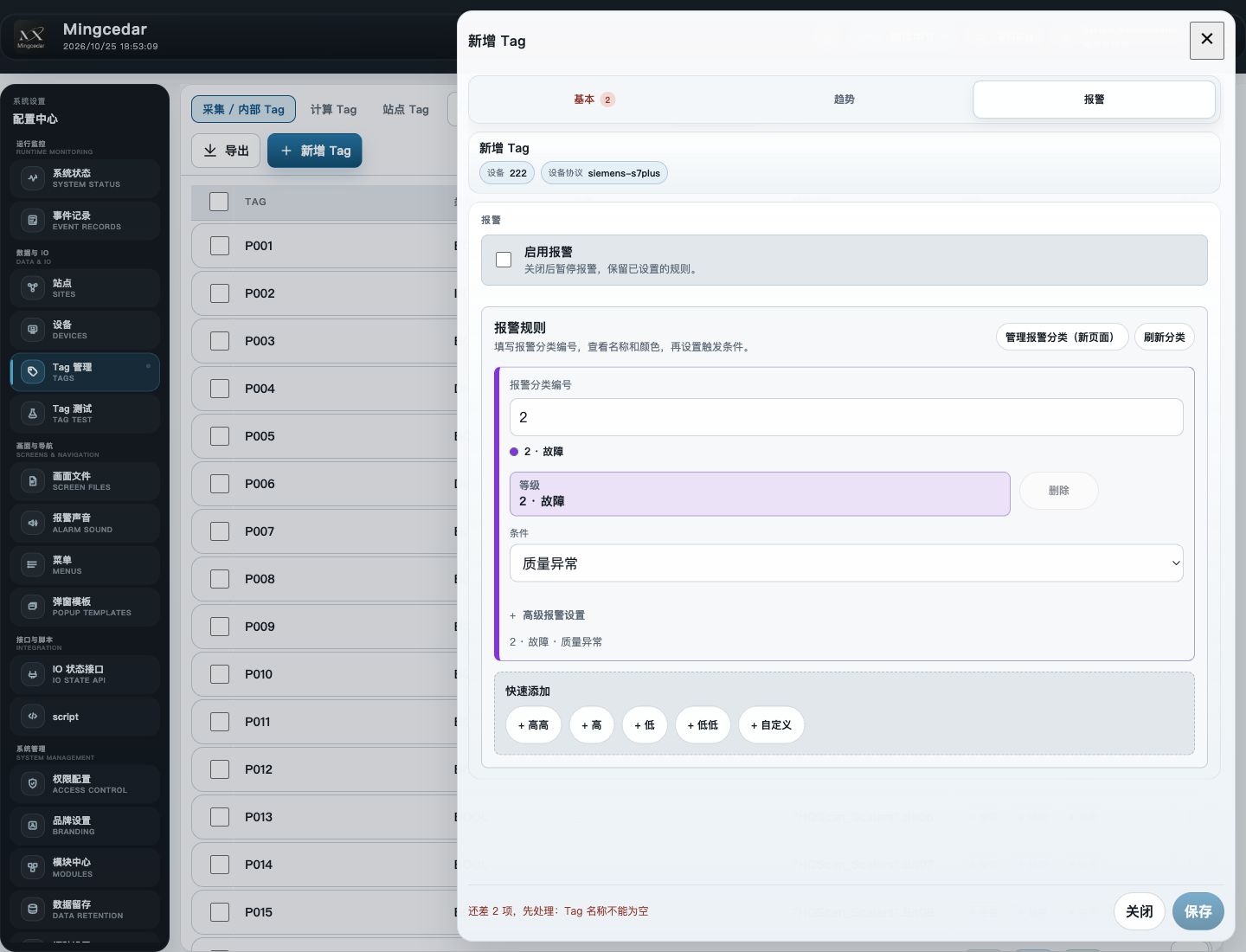
Verify the live value before enabling dependent alarms and trends. Both are configured in their tabs in the Tag editor.
- Edit the Tag and open Alarm. Enter an alarm category number defined in Settings, choose a trigger condition matching the Tag type, then set the applicable threshold, deadband, and delay. Verify units and save.
- Enable recording in Trend, then choose Record on change, Timed recording, or Record changes + periodic fill. Set millisecond intervals for timed/fill modes and a deadband for numeric changes when needed.
- Use the default or a selected trend policy and save. The recording interval affects trend history, not Device acquisition.
- Inspect active state in the built-in alarm view and query the period after recording started in the trend view.
- If alarms or history do not appear, check Tag quality, alarm conditions, and when trend recording began.
Expected result Check alarms and trends separately; data from before archival was enabled is not backfilled.
5. Enable control and verify a write
Enabling control opens the Tag-side capability; the user still needs the corresponding permission.
- In the Tag’s Basic tab, enable Allow Runtime Writes and verify that the Tag and Device are enabled, then save. The actual Write editor shows whether a reason is required and reports the readback outcome.
- Open Tag Test as the operator, verify the live connection and current GOOD quality, then choose Write for the target Tag.
- Follow the diagnostic write procedure once and inspect the result and subsequent readback.
- Find that Runtime Write in Event Records and retain actor, time, subject, and outcome.
Expected result Check control enablement, permissions, write response and readback. Investigate unknown or mismatched results first.
Siemens S7 and OPC UA
S7 absolute addressing uses host, port, rack, slot, and DB offsets. The OPC UA path for S7 symbolic addressing uses an endpoint and server access configuration. Standalone OPC UA devices also require node, certificate, and permission checks. Validate fields when changing address modes.
Siemens S7Plus symbolic access
S7Plus reads and writes Siemens PLC variables by symbolic path, subject to permissions. Collected values support screens, alarms and trends.
- Prerequisite: first check whether the installer already includes a matching S7Plus driver. If absent, install it using the administrator deployment steps. Verify the PLC model, firmware and access settings.
- Variable types: Booleans, 8-, 16- and 32-bit integers, single- and double-precision floats, STRING / WSTRING, and the date/time scalars in the type list. Configure leaf scalar members of arrays and structures as Tags; whole arrays, general structures, and 64-bit integers are not supported.
- In Devices, select Siemens S7Plus and enter the PLC host and port. The default port is 102.
- Verify TLS certificate validation for the PLC. Import a PLC/CA public certificate or leave it blank to use the system trust store. Enter the optional TLS server name only if the certificate requires another DNS name. The PLC must allow anonymous access to the required variables.
- Create Tags under that Device using actual symbol paths and matching data types, then save. Device and Tag definitions enter application automatically.
- In Tag Test, verify value, quality and timestamp. If writes are required, configure Tag control and user permissions, then verify command and readback results.
Modbus TCP and internal values
For Modbus TCP, verify host, port, Unit ID, address base, register type, byte order, and word order. Internal values need no external PLC connection and remain subject to type validation, permissions, and write auditing.