Create a user with username, display name, initial password, language and status.
Assign roles and, when appropriate, require a password change at the next sign-in.
Edit roles and state; a blank password preserves the existing one. After saving, check page and action access with that account.
Disable an account to stop further access. Review the account and confirmation prompt before deleting it.
Access Control: roles and permissions
Roles grant selected permissions regardless of their names.
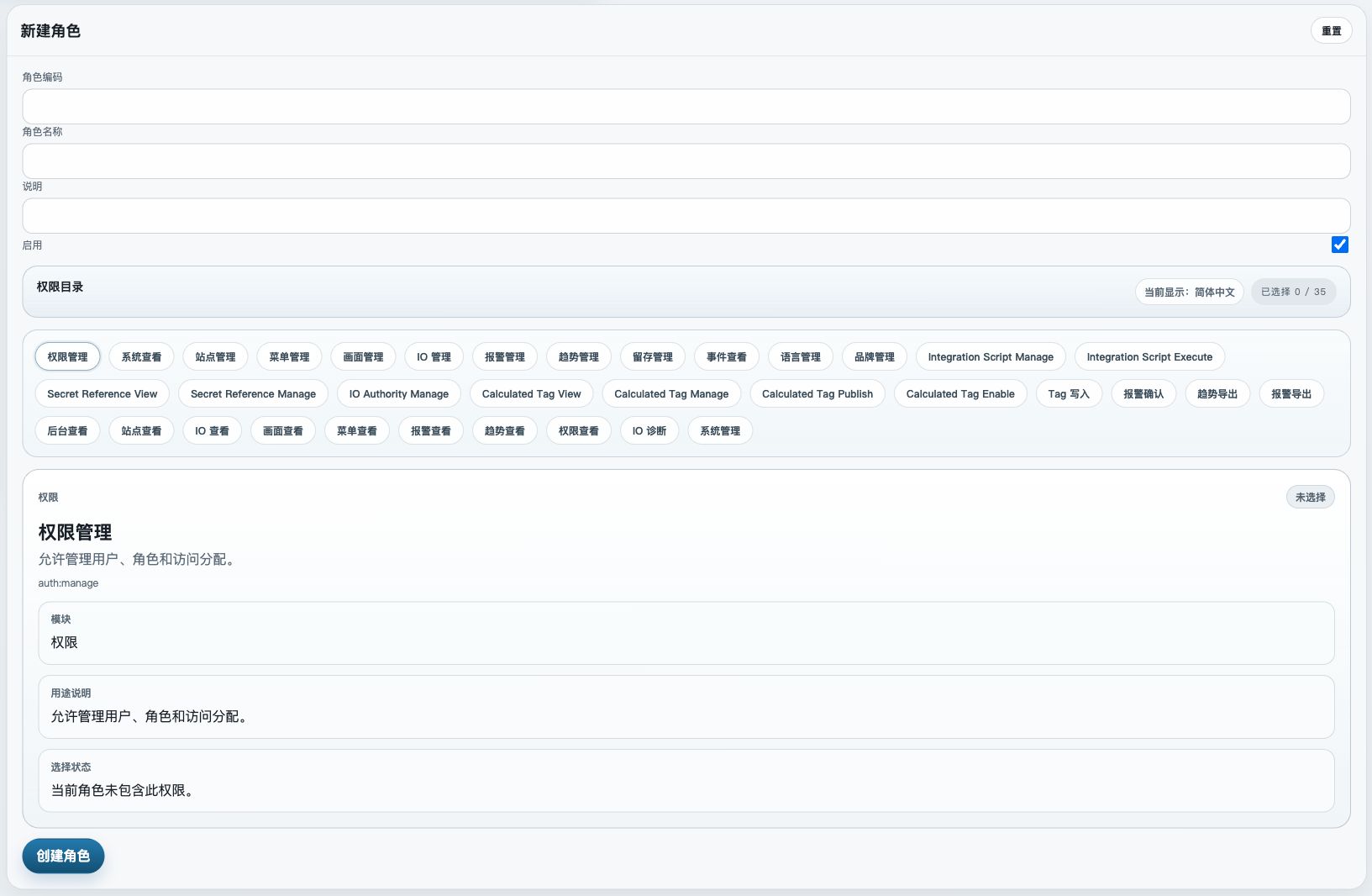
Open Roles and create a role with code, name, description and enabled state.
Find permissions by group, read their descriptions, select the required items and save.
Assign the role in Users. Verify viewing, editing, writes, alarm acknowledgement and exports separately.
Built-in roles cannot be deleted; the super-admin role remains enabled. If an entry is missing, check user status, enabled roles and the required permission.
Runtime menus and sign-in requirements
A menu’s login requirement controls access to that page. RUNTIME_PUBLIC_READ controls the deployment’s runtime read policy.
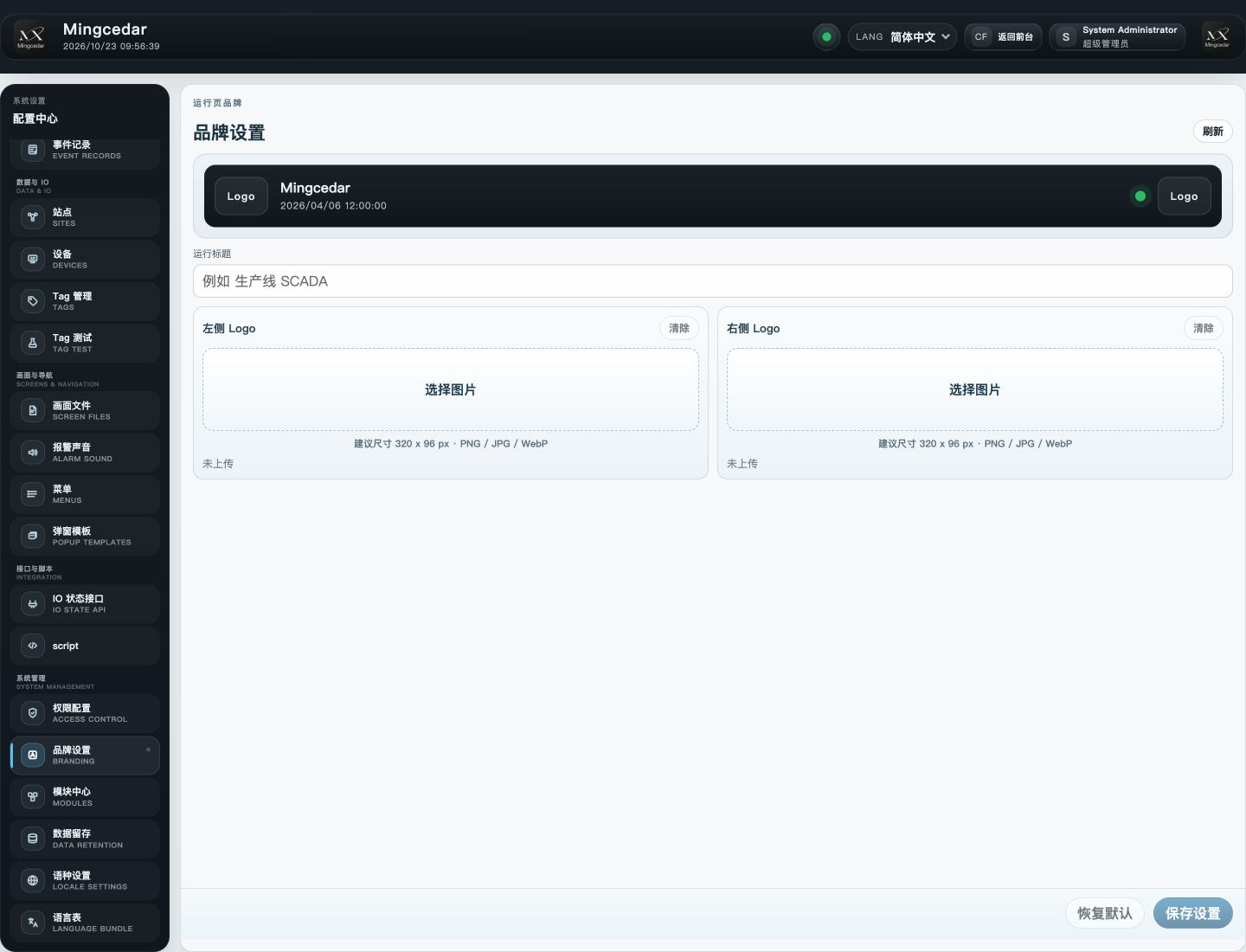
Select the menu in Menus, set Login required, and save. The runtime entry uses its saved name, order and target page.
When public reads are enabled, runtime values, alarms and trends can be read within their scope. Disabling public reads requires a valid login.
Writes still check the user’s write permissions, the Tag’s runtime-write setting and the page’s declared capabilities.
IO State API Profiles and Access Keys are managed independently of menu login requirements.
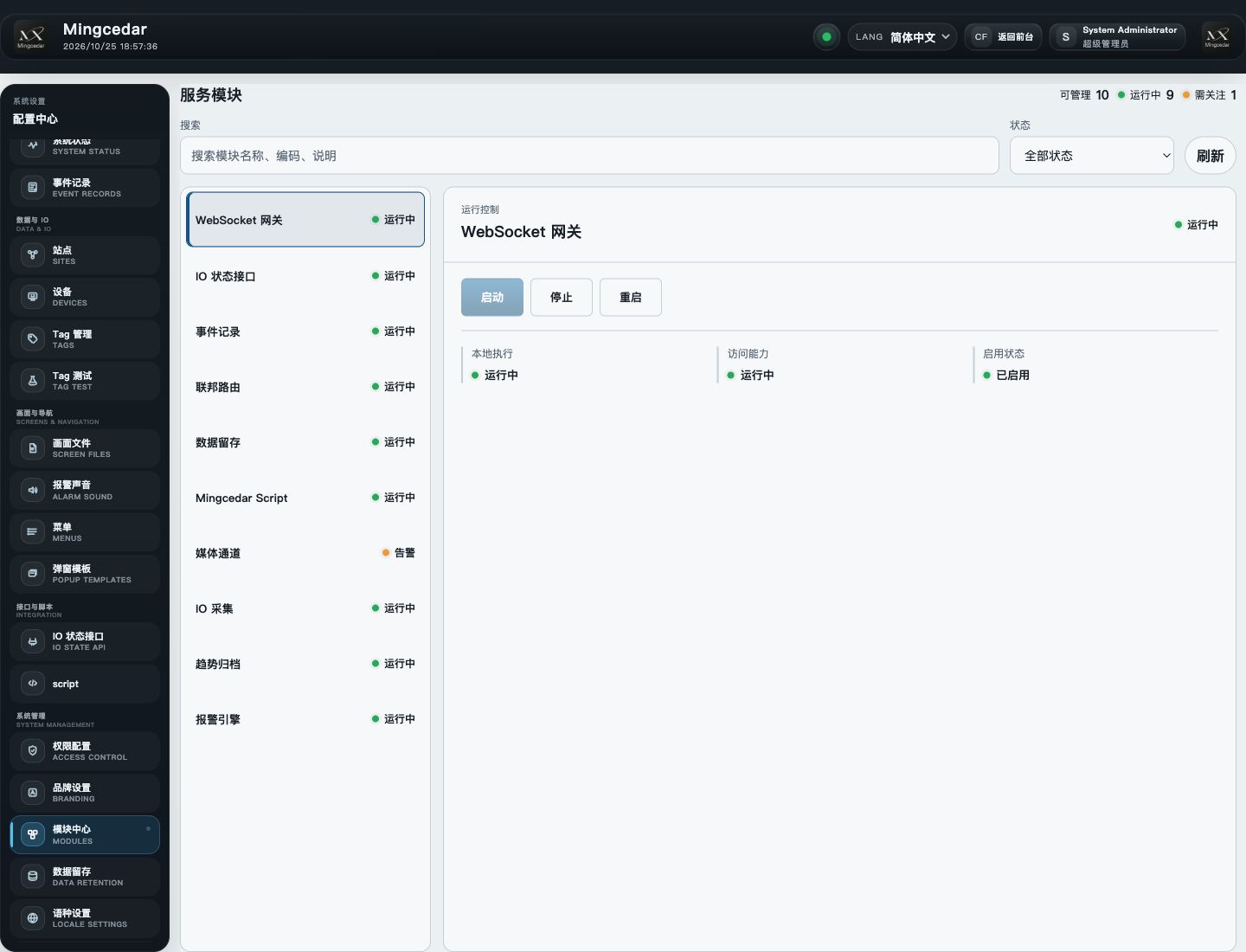
Search by name, code or description, or filter by running, attention, disabled or offline state.
Select a module and inspect its status and available controls. Start, stop or restart only where those controls are available.
Stopping or restarting IO, Alarm, Trend or Script pauses intake and drains tasks. Review the impact, submit, then check the receipt, health and readiness. For unknown results, use Verify Original Request instead of resubmitting. View services without controls in System Status.
Use Devices for PLC connection and collection details. A running module does not prove a PLC is connected.