Location: Configuration Center → Screen Files. Viewing requires screen:view; uploads and restores require screen:manage. Prepare a complete Mingcedar Studio export or custom HTML with its assets, preserving relative paths.
Screens
Screens: Screen files, runtime menus, and popup templates
Upload HTML and assets, configure menus and popup templates, then check runtime data and access.
1. Select a directory and publish screen files
Location: Configuration Center → Screen Files. Viewing requires screen:view; uploads and restores require screen:manage. Prepare a complete Mingcedar Studio export or custom HTML with its assets, preserving relative paths.
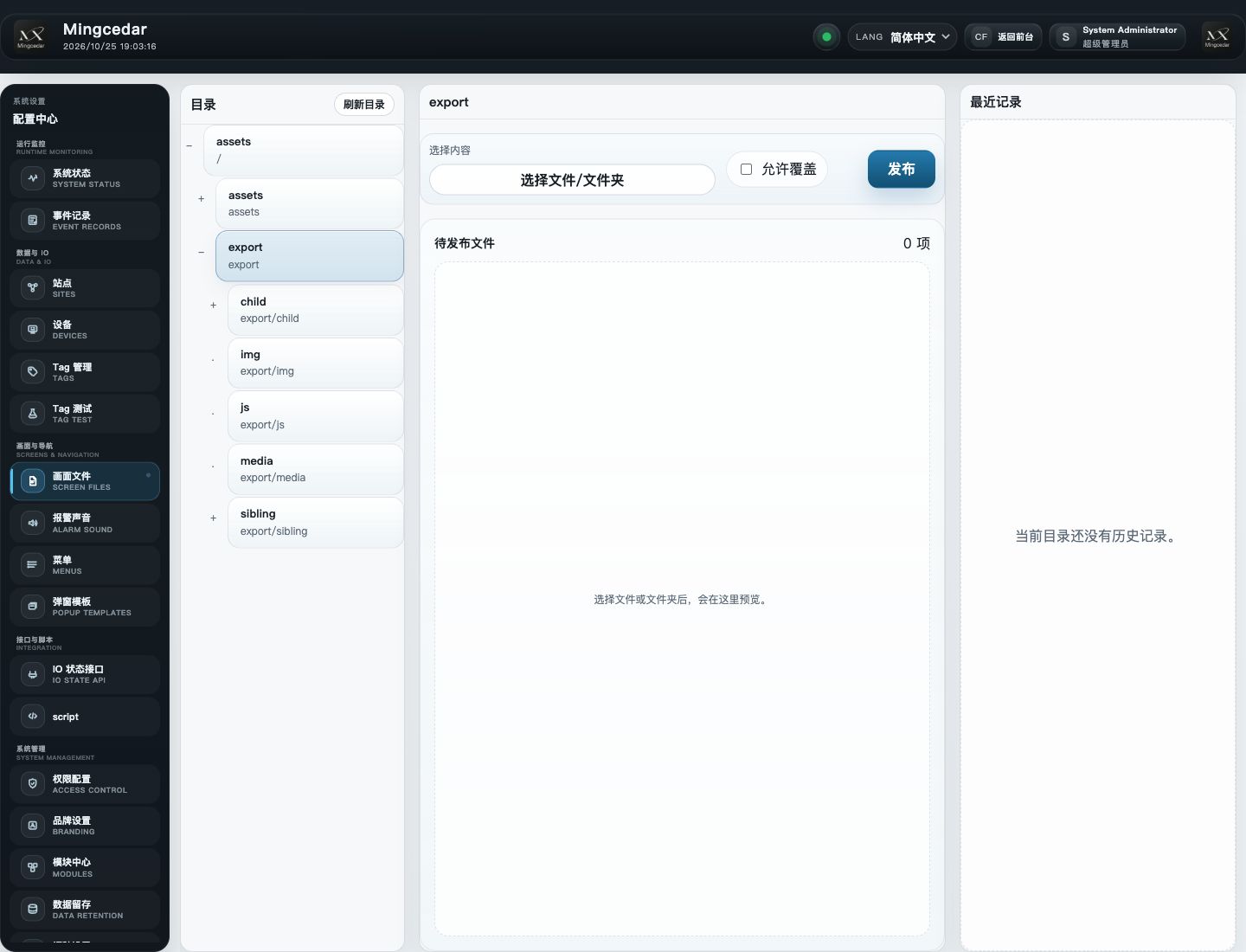
Select the assets root or a destination subfolder on the left and inspect the displayed User page directory.
Choose Content, then select files or a complete folder. Use a folder for a page bundle to preserve relative paths.
Review the entry HTML and dependencies in Pending Files. Enable Allow overwrite only when replacing existing files is intended.
Click Publish. This uploads pending files into the current directory; wait for Upload finished and its file count.
Refresh the directory, confirm the HTML and assets, and inspect Recent History. Then choose the HTML in Menus.
Expected result The directory shows HTML, assets and the upload record. No separate version publication is needed.
If the result differs
Existing file: confirm the intended replacement before allowing overwrite.
No files selected: choose content again and inspect Pending Files.
Submission timeout: inspect the directory and Recent History before submitting again.
Which runtime directory Screen Files uses
Screen Files displays the active User page directory, and the Entry HTML selector in Menus scans that directory. Installation method or administrator configuration can change the path; use the value shown on the page.
Place pages directly under assets or organize them in project subfolders.
A folder upload preserves its inner paths; relative references in HTML must match the resulting layout.
For manual file copies, use the displayed runtime directory rather than an unpacked installer directory.
If Menus cannot find the HTML, confirm its Screen Files location and refresh.
Inspect recent records and restore a directory
Recent History lists uploads, publications, and cleanup for the selected directory. Restore replaces the current runtime directory content with the chosen record.
Select the directory and expand a recent record to inspect its time, action, and file count.
To restore it, click Restore and confirm the directory and record summary in the dialog.
Wait for completion, refresh the directory, then reopen its HTML from the runtime menu and verify assets and live functions.
Expected result Restore replaces current runtime files. Open the screen from its menu to verify the result.
2. Create a direct primary-page menu
Location: Configuration Center → Menus. Viewing requires menu:view; creation and editing require menu:manage. A primary Page (open HTML directly) opens one page; a Group holds secondary menus.
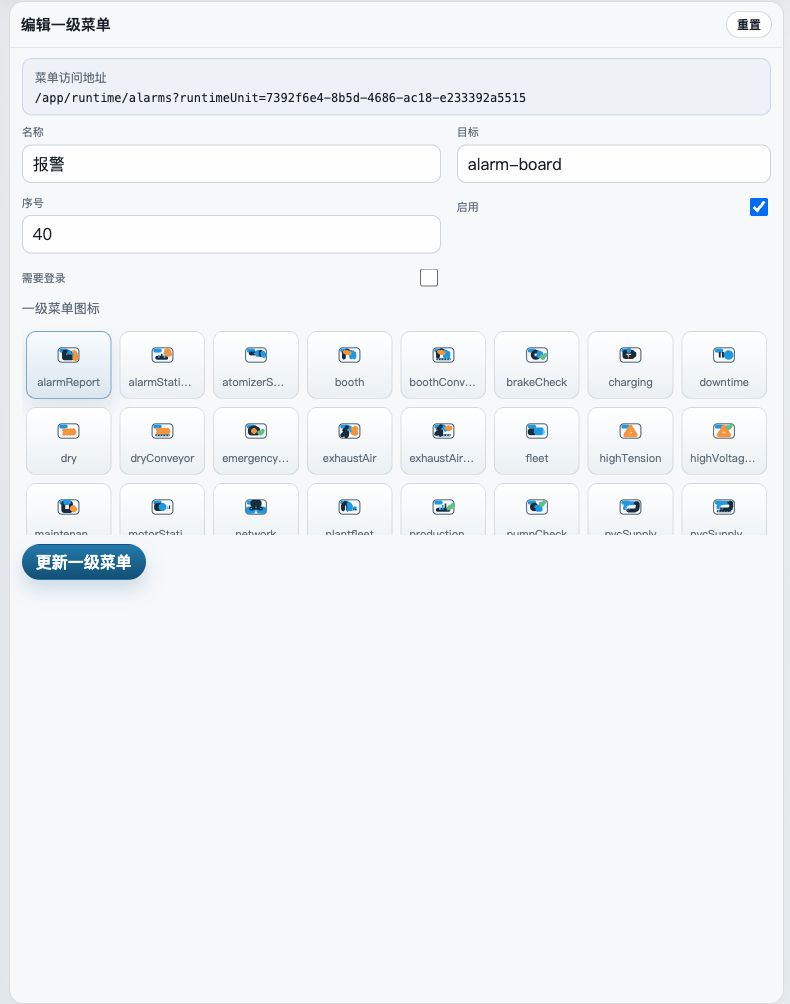
Click New Primary and enter Default Name. Add an I18n Key if available; otherwise the runtime shows the default name.
Choose Page (open HTML directly) and select the uploaded file under Entry HTML, including its subfolder path.
Set Sort Order and icon. Turn on Login required when this entry should be visible only to signed-in users.
Click Create Primary Menu, or Update Primary Menu when editing, and wait for the save result.
Open it in the runtime menu; refresh the runtime page if it still shows an older menu list.
Expected result The menu opens the selected HTML; uploaded files and assets determine its content.
If the result differs
Entry HTML missing: check Screen Files, refresh, and reopen Menus.
Menu missing: check the save result, Site, login state, and primary type.
Page 404: compare Entry HTML with the actual relative path in Screen Files.
Create a Group and secondary-page menu
Create a primary Group before adding secondary pages. Alarm Scope is configured in the secondary-menu editor.
Create a primary menu of type Group (contains secondary menus), enter its name, and choose Save and Manage Secondary.
Set the secondary Default Name and Entry HTML, then set Sort Order, icon, and Login required as needed.
For alarm filtering, click Configure and enter full Tag names, Device codes, or Device code.group codes. Closing that dialog does not save the menu; click Create or Update Secondary Menu.
Expand the Group in the runtime portal, open the page, and verify its alarm scope and access state.
Expected result The secondary page and alarm scope are saved with its menu.
3. Create and save a popup template
Open Admin → Popup Templates. Viewing needs screen:view; saving needs screen:manage. Select on the left, edit centrally and preview on the right. Switching prompts for unsaved changes.
Click New and enter a unique Template Name. System Code is derived from the name and previewed in a read-only field.
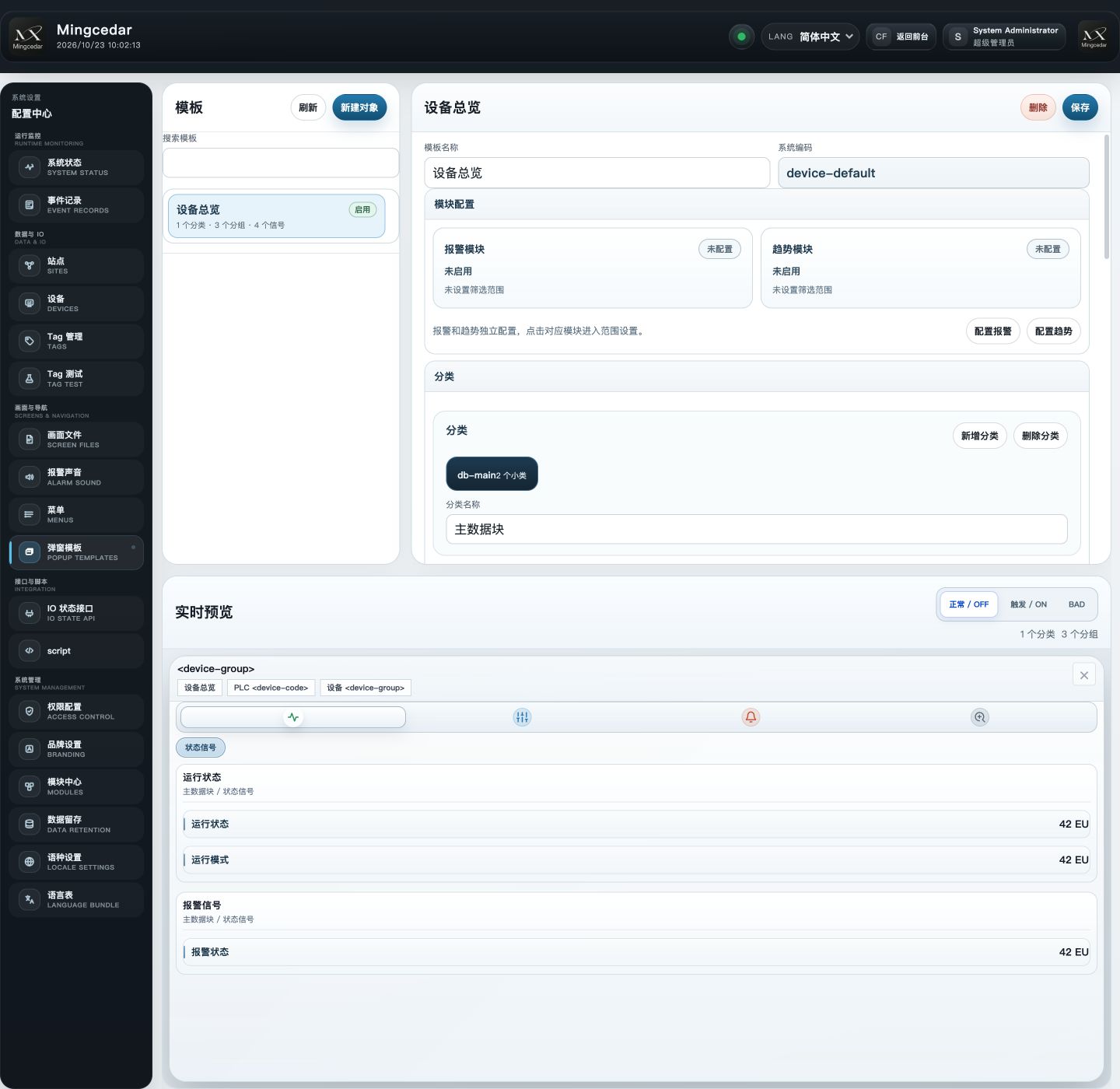
Under Structure, arrange categories, subcategories, groups, and signal items. Enter actual signal suffixes; runtime combines PLC name, DiagnosisControl prefix, and suffix.
In Module Settings, enable alarms or trends and configure the corresponding scope. Save the whole template after closing the module dialog.
Live Preview shows structure and sample states without field writes. Verify actual Tag, alarm and trend bindings in runtime.
Click Save at the top, wait for confirmation and the Unsaved marker to clear, then reselect the template to check persistence.
Open a runtime equipment object using this template and verify its actual Tags, alarm scope, and trend results.
Expected result Check the saved template’s object bindings and data in the runtime screen.
Popup template files and edits
Each template is a local JSON file. POPUP_TEMPLATE_PATH specifies its directory; remove any .json suffix to get the directory path. Windows defaults to config/popup-templates/ under the installation root.
Template names must be unique; keep System Code and template ID consistent.
After changing structure or module settings, click the top Save button to write the file.
Preview uses sample states; verify alarm and trend scopes separately in the running equipment context.
Move an existing popup template to another project
Back up destination templates and stop Web/App during maintenance. Copy complete JSON files to its configured template directory, restart Web/App and refresh the list to update the process cache.
Check for an existing template ID or System Code before copying to avoid replacement.
Signal suffixes and alarm/trend scope must match Device and Tag codes in the destination project.
After migration, inspect the structure in the editor, save any needed adjustment, and open the popup from the actual runtime screen.
Screen popup and alarm scope
A Mingcedar Studio export can declare popup and alarm scope in JSON. Full Tag and group references include their Device Code; plcCodes contains the Device Code alone. Verify the actual scope at runtime.
showWindow controls whether the page permits an alarm window.
tags lists full Tag codes, such as PumpPLC.Pressure.
plcCodes lists Device codes only.
functionGroupCodes, deviceGroupCodes, and signalGroupCodes use Device Code.group code.
An empty array adds no filter for that dimension; other page and template settings still affect the effective scope.
Open the menu in the runtime portal and inspect its entry file, assets, live values, popups, and login access.
The menu opens the intended HTML, with images, styles, and scripts loading successfully.
Tag values agree with Tag Test quality and time, and popup objects bind to the intended Device.
Alarm and trend scopes include the target points, and Login required behaves as configured.
Figure 1: Screen Files
The page shows directories, file or folder selection, Pending Files, and Publish. The selected directory has no pending files or history in this screenshot.
Figure 2: Menus
Primary-menu editing shows Name, Target, Sort Order, Enabled, Login required, and icons. Check the menu URL at the top.
Figure 3: Popup Templates
Edit template structure and alarm/trend modules, then inspect the current template in Realtime Preview.