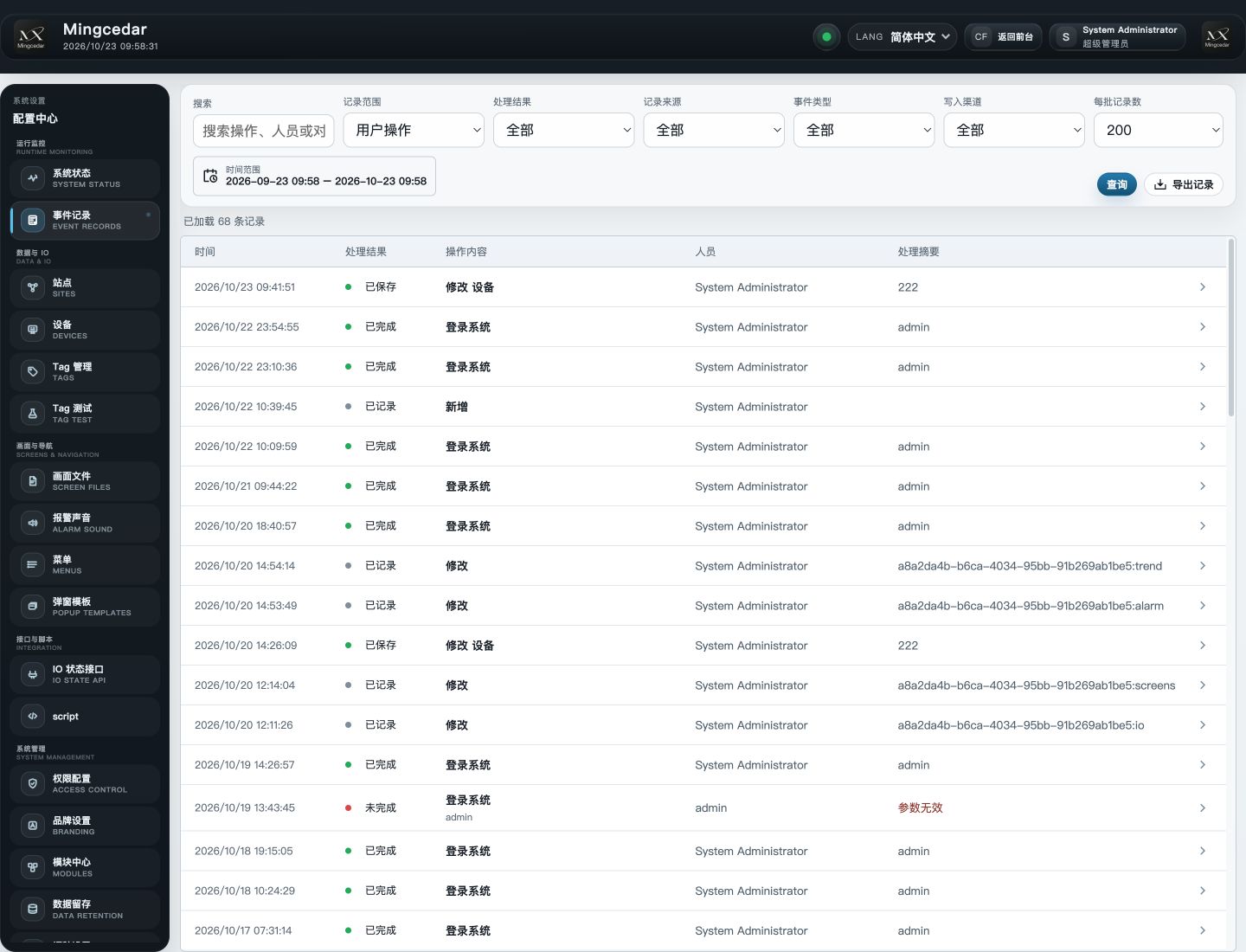
Location: Configuration Center → Event Records (event:view permission). The default scope is User operations and the initial period is the last 30 days. Search, outcome, and record-scope filters apply to loaded records.
Operating guide
Operating guide: Event records: query, trace, and export
Trace operations by time, actor, subject and outcome. Query event records, alarm history and trends separately.
1. Select the query scope
Location: Configuration Center → Event Records (event:view permission). The default scope is User operations and the initial period is the last 30 days. Search, outcome, and record-scope filters apply to loaded records.
Select a time range such as the last 24 hours, with start no later than end.
Choose User operations for user configuration/login, System activity for background work, or All when needed.
Set Record Source to Operation or Login and, when relevant, Event Type and Write Channel. Outcome includes Completed, Recorded, Not completed, Partial, In progress, and Unconfirmed.
Enter an actor, action, or subject in Search and click Query.
Expected result Matching records show time, outcome, action, actor and summary.
If the result differs
No records: relax narrow filters and check record scope and timezone. If loaded rows do not match but more pages exist, continue loading before concluding the record is absent.
2. Trace a runtime write
Trace an existing Runtime Write record through its request, outcome, and current Tag value.
Choose Runtime Write as Event Type.
Select the channel used, such as Custom Page, PPT Runtime, Integration Script, or Runtime Popup.
Narrow the time range, search by Tag or actor, and open Details.
Compare request target, requested value, summary, and Items not completed. If a command identifier is present, compare it with the caller’s result.
Inspect the current value in Tag Test separately; later operations may have changed it.
Expected result Check the request, outcome and field state separately. Recorded does not mean succeeded.
3. Load more records and export
Export collects records using the active query criteria. Batch size is not the total number of records in the selected period.
While browsing, scroll to load more records or click Load next page. Export independently collects matching records for the current criteria; you do not need to load every list page first.
Review the range and filters, then click Export records.
Wait for completion and inspect the downloaded file’s times, subjects, and record count.
If the browser export limit is exceeded, split the query by time and export each interval. An interrupted or cancelled export does not produce a complete file.
Expected result Check file scope and export status. Retention policies determine record availability.
Figure 1: Query Event Records
The top bar has search, scope, outcome, source, event type, write channel, and time filters. Loaded records appear below with Query and Export actions.