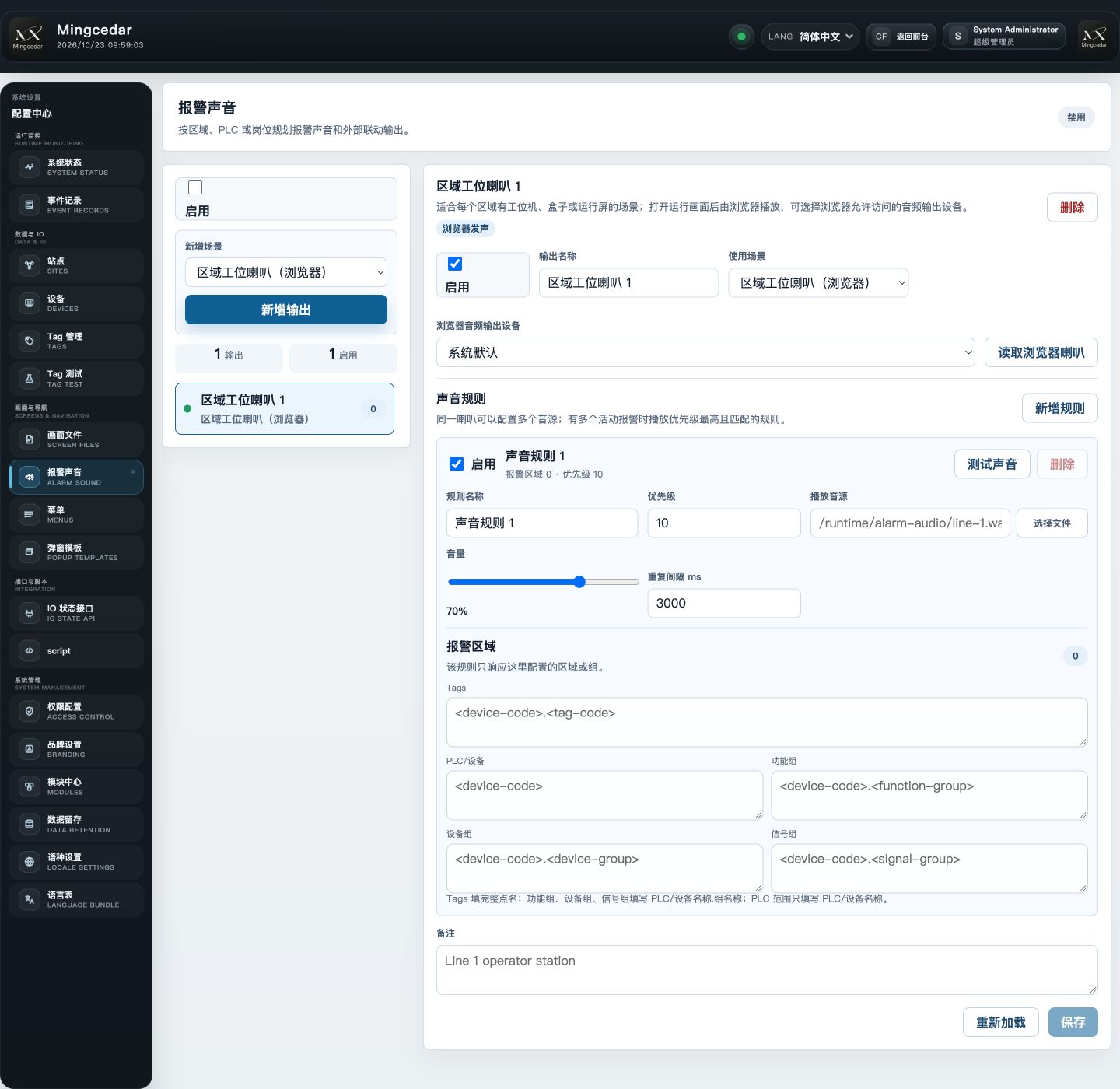
Location: Admin → Alarm Sound. Viewing requires alarm:view; editing requires alarm:manage and an installed Alarm Sound module.
User guide
User guide: Alarm sound and outputs
Configure playback location, sound rules and alarm scope, with separate behavior for browser audio and the host speaker.
Choose an available output
Location: Admin → Alarm Sound. Viewing requires alarm:view; editing requires alarm:manage and an installed Alarm Sound module.
Add and name an output. Choose Zone Workstation Speaker (Browser) or Server General Horn (System Default).
Browser playback requires an open runtime page. Scan browser-accessible speakers and select an audio device; availability depends on browser support and permission.
The server general horn plays through the Windows host’s current default speaker without an open browser. It does not provide system playback on other platforms.
Agent, multi-card, IP horn and PLC/relay outputs marked unavailable cannot trigger alarms. Choose an available output and test playback; saving an unavailable output does not enable it.
Configure rules, audio and scope
An output can contain multiple sound rules. When several match, the highest-priority matching rule plays.
Add a rule with a name, priority, audio source, volume and repeat interval. Upload an audio file or enter an accessible audio URL.
Configure the alarm area or groups for the rule. Any matching scope item can trigger it; an enabled rule must contain at least one scope item before saving.
Check the output switch and the global switch, then save. Reload reads the saved configuration.
Preview audio to check its source and volume in the current browser. A browser preview of a Windows system output does not verify the host speaker; check actual output at the host.
Figure 1: Alarm Sound Configuration
A browser speaker output can hold rules for priority, audio source, volume, repeat interval, and alarm scope. The global sound switch is disabled in this screenshot.