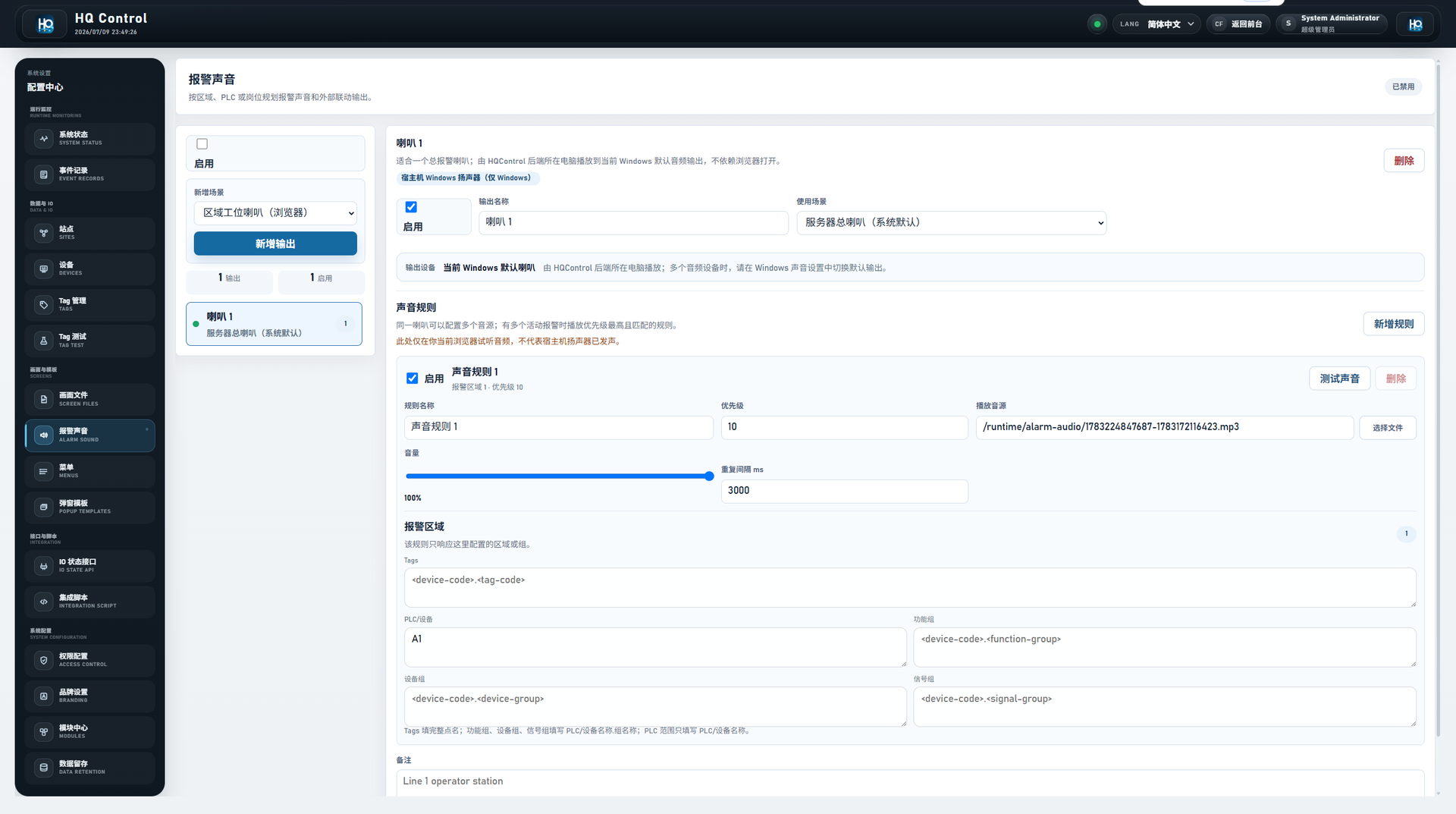
Alarm Sound Configuration: route alarms to the right speaker
Open Configuration Center -> Alarms & Trends -> Alarm Sound. Enable the global switch, create one or more speaker outputs, then add sound rules under each speaker. One speaker can have multiple rules; when several active alarms match, the higher-priority matching rule should be used first.
Alarm Sound
Alarm Sound: Alarm Sound Configuration: route alarms to the right speaker
Alarm Sound turns active alarms into an audible site reminder. It runs after alarms are already active and decides which audio file should play, from which browser or output device, and how often it repeats.
Where to configure it
Open Configuration Center -> Alarms & Trends -> Alarm Sound. Enable the global switch, create one or more speaker outputs, then add sound rules under each speaker. One speaker can have multiple rules; when several active alarms match, the higher-priority matching rule should be used first.
Confirm tag alarm rules can already create active alarms.
Create the speaker output before adding detailed sound rules.
Use Test Sound on the target operator browser before handover.
Speaker output fields
A speaker output represents one playback endpoint. Speaker name and speaker code identify the output. When output type is browser playback, the audio is played by the browser that has the runtime or configuration page open. The browser audio output can stay on system default, or be read from the browser when the browser and OS allow device selection.
Create one output per operator station when stations need independent sound behavior.
Use a stable <speaker-code> for each operator station.
Disabling the output stops the rules under that speaker from playing.
Sound rule fields
A sound rule decides which audio file plays for a matching alarm scope. Common fields include rule name, rule code, enabled state, priority, audio file, volume, and repeat interval. Use higher priority for more urgent or more specific alarm scopes.
Audio files can use runtime paths such as /runtime/screens/assets/alarm-audio/line-1.wav.
Start volume around 60% to 80%, then adjust on the real operator station.
Repeat interval is in milliseconds. 3000 means the active alarm can remind again every 3 seconds.
When several rules match the same alarm, the higher-priority rule should be selected first.
Alarm scope format
Scope limits a sound rule to specific Tags, PLCs / devices, function groups, device groups, or signal groups. Tags use full codes such as <device-code>.<tag-code>. PLC / device scope uses only the device code. Function, device, and signal groups use <device-code>.<group-code> so same-named groups on different devices do not match accidentally.
For one production line, prefer the device code or a group under that device.
For a few critical points, enter full tag codes such as <device-code>.<motor-overload-tag-code>.
An empty scope dimension means that dimension does not restrict matching.
Handover test
Alarm sound depends on browser permission, operating-system volume, the audio file path, and currently active alarms. Before handover, test the target browser, then trigger or simulate one alarm to confirm automatic playback.
Confirm the browser tab is allowed to play sound and is not muted.
Confirm the audio file exists and the target browser can play the format.
Confirm the configured scope matches a real alarm, not a missing group or tag.
Confirm sound stops after recovery or waits for the next active alarm cycle.
Figure 1: Alarm Sound Configuration
Alarm Sound organizes rules under speaker outputs. Each rule controls audio file, volume, repeat interval, priority, and alarm scope.