
Installer access
See Downloads for packages, platforms, and version notes. The shared file list serves only the selected host folder.
See Downloads for packages, platforms, and version notes. The shared file list serves only the selected host folder.
See Downloads for packages, platforms, and version notes. The shared file list serves only the selected host folder.
The desktop package requires macOS 13 or later. Open the DMG and drag Mingcedar Share.app into Applications. Allow local-network and folder access when prompted. Restore the window from the menu bar; Command-Q stops sharing and exits. Check Downloads for available package architectures and access methods.
Launch at login uses a per-user LaunchAgent to open the desktop app without automatically starting sharing. Install in Applications first; disable login startup before moving or removing the app. New settings use ~/Library/Application Support/HQ VISU/HQShare/config.json; an existing ~/.hqvisu/hqshare/config.json remains in use.
The package is not notarized by Apple. If macOS blocks it, verify its source and follow the system Privacy & Security guidance.
/etc/hqshare/hqshare.env points to the executable and configuration file. The shared folder, port, bind address, and users are stored in config.json. Restart the service after CLI configuration changes.
Windows can add a per-user Explorer menu. Share this folder automatically starts sharing with the saved port and bind address. Configure accounts, change the initial password, and check network scope before first use. For headless Linux, use the systemd package.
The Windows desktop app configures the shared folder, port, and bind address. Settings are stored under the current user.
Desktop mode can continue running from the system tray after the window closes and can enable startup for the current Windows user. Confirm the shared folder, port, and allowed network segment before use.
Linux systemd reads /etc/hqshare/config.json. Share path, port, bind address, upload limit, users, and password hashes are stored there.
Enable or disable hqshare startup through systemd; configuration, shared files, and accounts are retained.
# Linux: enable startup on boot
sudo systemctl enable hqshare

# Linux: disable startup on boot
sudo systemctl disable hqshare

# Linux: check startup state
sudo systemctl is-enabled hqshareInstall from the Linux service package. The installer runs under the dedicated hqshare user. Initially bind only to localhost, change the initial manager password through the CLI, then configure the actual LAN IP shown below.
tar -xzf HQShare-Linux-Service.tar.gz
cd HQShare-Linux-Service
sudo ./install-linux-service.sh --share-path /srv/hqshare/public --port 5995 --bind 127.0.0.1

sudo -u hqshare /opt/hqshare/HQShare --config /etc/hqshare/config.json user reset-password admin --password '<set-a-unique-password>'
sudo -u hqshare /opt/hqshare/HQShare --config /etc/hqshare/config.json config set \
  --share-path /srv/hqshare/public \
  --port 6095 \
  --bind 192.168.1.10 \
  --max-upload-mb 1024
sudo systemctl restart hqshareAfter installation, check the systemd unit, environment file, and runtime config. Restart after configuration changes and use the journal to confirm the bind address, port, and shared folder.
sudo systemctl status hqshare
sudo journalctl -u hqshare -f
sudo cat /etc/hqshare/hqshare.env
sudo cat /etc/hqshare/config.json
sudo systemctl restart hqshare
sudo systemctl stop hqshare
sudo systemctl start hqshareLinux service mode manages accounts through the command line. Replace the example passwords below with unique passwords for your deployment. Use viewer, operator, or manager roles. After CLI account, password, or role changes, restart the running service to load the saved configuration and clear existing sessions.
sudo -u hqshare /opt/hqshare/HQShare --config /etc/hqshare/config.json user list
sudo -u hqshare /opt/hqshare/HQShare --config /etc/hqshare/config.json user add operator01 --password '<set-a-unique-password>' --role operator --display-name 'Field Operator'
sudo -u hqshare /opt/hqshare/HQShare --config /etc/hqshare/config.json user update operator01 --role viewer
sudo -u hqshare /opt/hqshare/HQShare --config /etc/hqshare/config.json user reset-password operator01 --password '<set-a-new-password>'
sudo -u hqshare /opt/hqshare/HQShare --config /etc/hqshare/config.json user update operator01 --disable
sudo -u hqshare /opt/hqshare/HQShare --config /etc/hqshare/config.json user update operator01 --enable
sudo -u hqshare /opt/hqshare/HQShare --config /etc/hqshare/config.json user delete operator01
sudo systemctl restart hqshareIf the port is occupied, the desktop app suggests another. For service mode, change the port configuration and restart.
0.0.0.0 listens on all IPv4 interfaces; a specific IP listens only there; 127.0.0.1 is local-only. Displayed URLs are candidates and may not all work. Test the actual bound address and port, and restrict sources through the firewall.
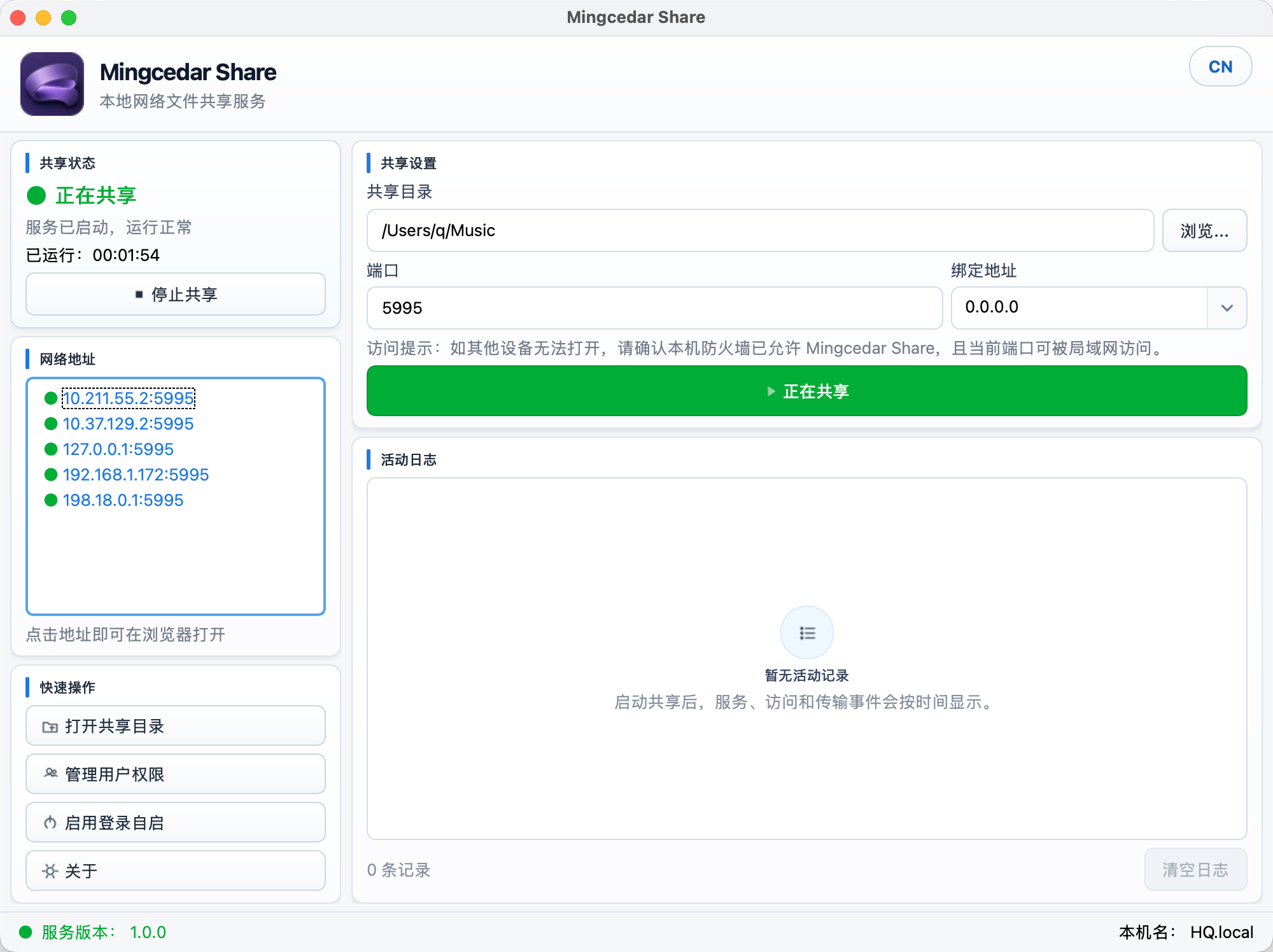
macOS interface in Chinese: configure the shared folder and access address, then view the service state.