
Windows desktop mode
Use the Windows desktop build to choose the shared folder, port, and bind address. The configuration is stored under the current user and fits engineering workstations, maintenance PCs, and short-term field sharing.
Use the Windows desktop build to choose the shared folder, port, and bind address. The configuration is stored under the current user and fits engineering workstations, maintenance PCs, and short-term field sharing.
Use the Windows desktop build to choose the shared folder, port, and bind address. The configuration is stored under the current user and fits engineering workstations, maintenance PCs, and short-term field sharing.
Desktop mode can continue running from the system tray after the window closes and can enable startup for the current Windows user. Confirm the shared folder, port, and allowed network segment before use.
Linux systemd reads /etc/hqshare/config.json. Share path, port, bind address, upload limit, users, and password hashes are stored there.
The Linux installer creates the hqshare systemd service. Enable or disable startup through systemd without deleting the config file, shared folder, or user accounts.
# Linux: enable startup on boot
sudo systemctl enable hqshare

# Linux: disable startup on boot
sudo systemctl disable hqshare

# Linux: check startup state
sudo systemctl is-enabled hqshareInstall from the Linux service package. Run under a dedicated hqshare user instead of root.
cd linux-service
sudo ./install-linux-service.sh --share-path /srv/hqshare/public --port 5995 --bind 0.0.0.0

sudo /opt/hqshare/HQShare --config /etc/hqshare/config.json config set \
  --share-path /srv/hqshare/public \
  --port 6095 \
  --bind 192.168.1.10 \
  --max-upload-mb 1024
sudo systemctl restart hqshareAfter installation, check the systemd unit, environment file, and runtime config. Restart after configuration changes and use the journal to confirm the bind address, port, and shared folder.
sudo systemctl status hqshare
sudo journalctl -u hqshare -f
sudo cat /etc/hqshare/hqshare.env
sudo cat /etc/hqshare/config.json
sudo systemctl restart hqshare
sudo systemctl stop hqshare
sudo systemctl start hqshareLinux service mode manages accounts through the command line. Use viewer, operator, or manager roles. Restart the service after account, password, or role changes so existing sessions refresh.
sudo /opt/hqshare/HQShare --config /etc/hqshare/config.json user list
sudo /opt/hqshare/HQShare --config /etc/hqshare/config.json user add operator01 --password 'ChangeMe@2026' --role operator --display-name 'Field Operator'
sudo /opt/hqshare/HQShare --config /etc/hqshare/config.json user update operator01 --role viewer
sudo /opt/hqshare/HQShare --config /etc/hqshare/config.json user reset-password operator01 --password 'NewPass@2026'
sudo /opt/hqshare/HQShare --config /etc/hqshare/config.json user update operator01 --disable
sudo /opt/hqshare/HQShare --config /etc/hqshare/config.json user update operator01 --enable
sudo /opt/hqshare/HQShare --config /etc/hqshare/config.json user delete operator01
sudo systemctl restart hqshareThe startup flow checks the port. If it is occupied, desktop mode suggests a free port; service mode should update the configured port and restart.
0.0.0.0 listens on all interfaces. For production, bind a specific internal IP and firewall the allowed sources. Use 127.0.0.1 for local testing.
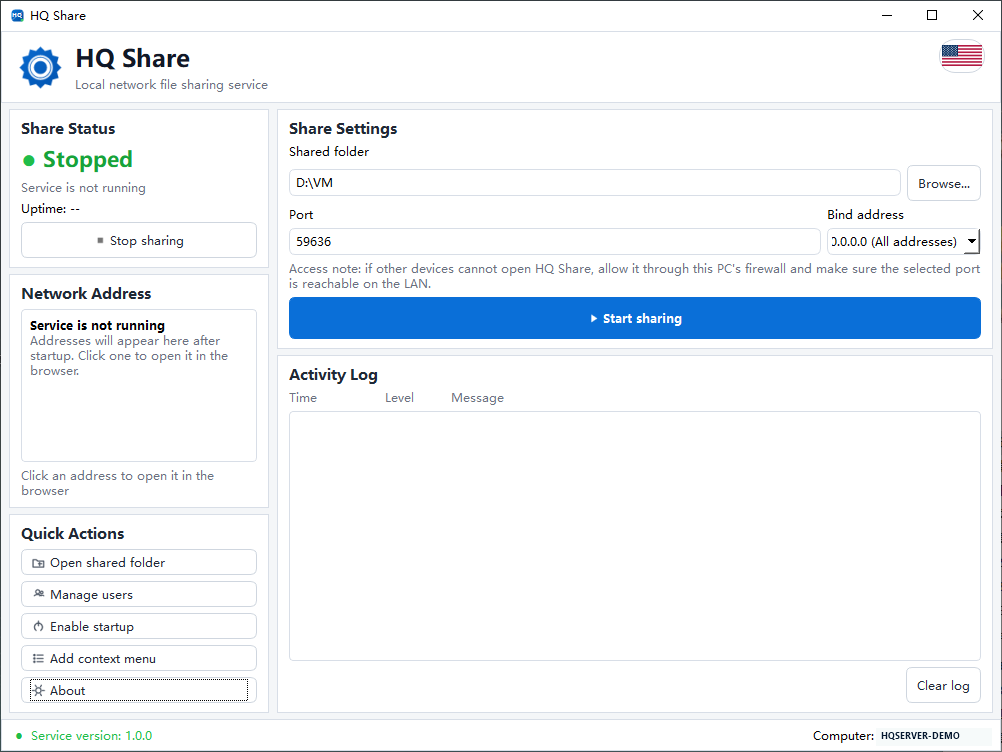
Use the desktop app for engineering PCs and short-term sharing; use systemd or process management for fixed server operation.