
Follow the backup checklist to preserve data, project files and runtime configuration. Record the original server version, access addresses and Node identity.
Manual
Server migration and runtime diagnostics | Mingcedar
Prepare a complete backup, then check licensing, settings and operation on the target server.
Before Use
Prepare a complete backup, then check licensing, settings and operation on the target server.
Check the host license and Settings, then verify Python projects, custom pages and external service configuration.
Inspect Device and Tag quality, alarms and history. For an issue, use the relevant page and event records to choose the next step.
Backup, restore and migration
Back up data, project files, published releases, scripts and runtime configuration. Settings exports only its own fields.
Identify backup locations from the installation tree or persistent container volumes.
- Back up PostgreSQL/TimescaleDB and record the matching application and database versions.
- Back up the actual user-page directory shown in Screen Files, all referenced assets, and the upload history under SCREEN_FILE_HISTORY_DIR. If the project also uses published releases, back up SCREEN_PUBLISH_ROOT_DIR.
- Preserve script sources, dependency manifests and offline packages, plus the config / configs locations actually used, popup templates, media channels, certificates, node identities and project credentials.
- Document the roles of data, logs and backups in the deployment. Store keys and licensing material in a controlled backup location.
Use a database-supported consistent backup method. Copying a live database directory does not ensure recoverability.
- For an installation-wide file backup, schedule maintenance and stop the relevant runtime and data services using the package procedure.
- Prepare matching versions at the restore destination, then restore the database, assets and upload history, any published releases in use, scripts and configuration.
- After startup, inspect database, Redis, the five services and license, followed by screens, device quality, alarms, trends, scripts and permissions.
Migration affects access endpoints, device identity and collection responsibility.
- Update Portal and Screen endpoints and certificates, and verify both from clients.
- Activate replacement hardware as required by the License page. Recheck site connection identities and capabilities.
- Confirm the old node has relinquished collection responsibility for the target PLC before enabling the new node. Verify quality, timestamps and source in Tag Diagnostics.
License status and online activation
Open /license to inspect the host license and choose online or file-based activation.
Use the License link in Settings, or open /license on the host.
- Check status, grant type and remaining trial time. An unactivated host offers a short trial; business operation is restricted when it expires, as shown on the page.
- For reinstalls or migration, check the current device and installation identity under Local Information.
- An activated permanent license does not require the code again. Its valid certificate is stored locally and supports offline operation when the authorization service is unreachable.
The host must be able to reach the authorization service.
- Open Activate and enter the code supplied by the authorization center.
- Submit activation and wait for device validation and certificate persistence.
- After permanent activation, check System Status. On failure, follow the reported network, code or binding issue.
The authorization service identifies same-hardware reinstallation from device evidence.
- Activate from the current installation or generate a new offline request. No manual first-install/reinstall mode selection is needed.
- For replacement hardware, follow the authorization service’s binding requirements. Activation files must match the target device and installation identity.
- For revoked licenses, invalid certificates or binding mismatches, resolve the stated cause; activation does not recover automatically.
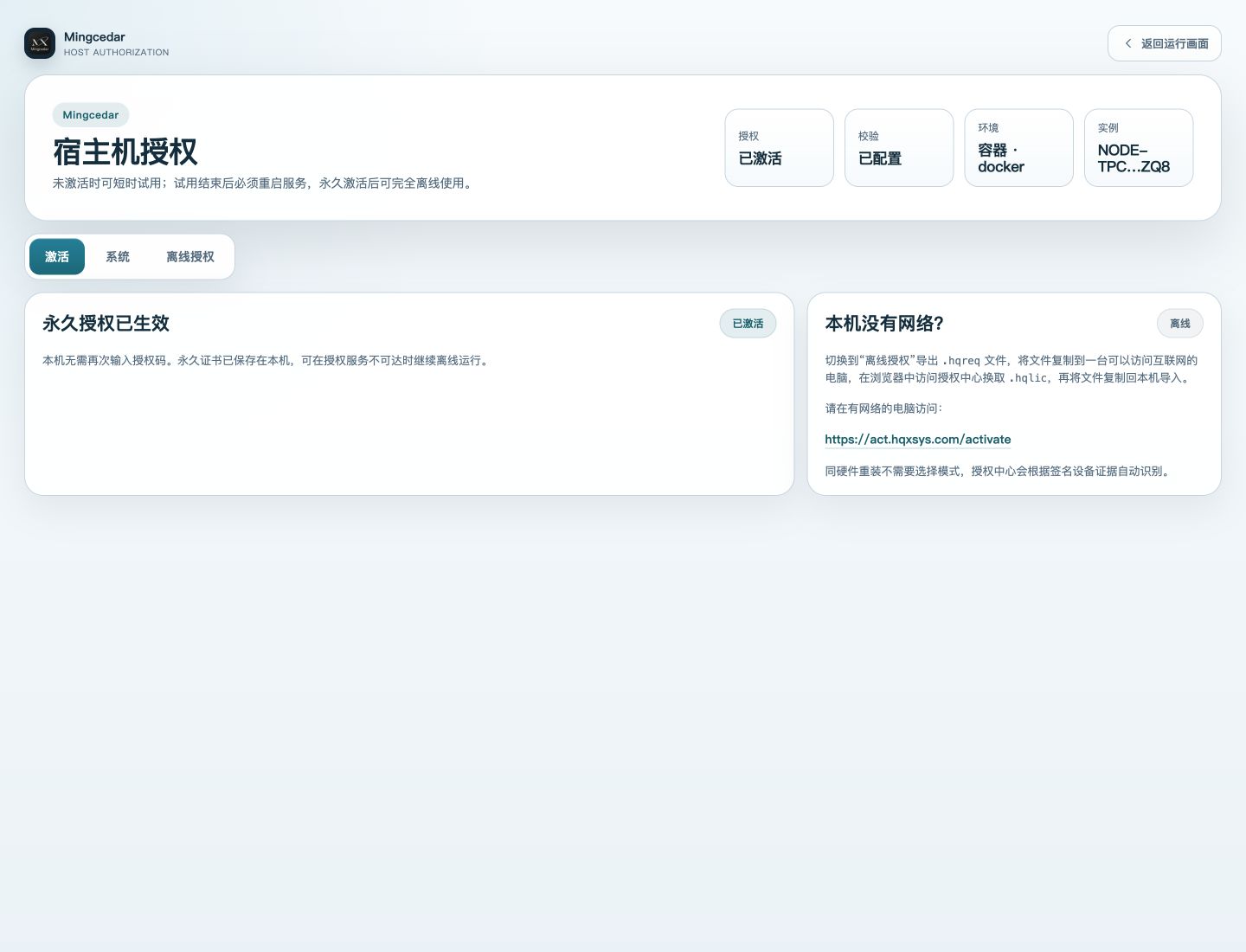
The page shows current license, validation, runtime environment, and instance sections; the permanent license is active and an Offline tab is visible.
Settings
Settings includes Display & operation, Device collection, Python and Video service, with separate save and application rules. Ordinary LAN mode hides Site connections parameters; project-certificate mode exposes that category.
Open Settings from the system settings entry, or visit /settings on the host. Viewing and management permissions determine which settings are visible and editable.
- Select a category and compare configured values with Currently applied values. Deployment-overridden fields are read-only.
- Use category defaults fills the current form only; review and save to apply. Reload discards unsaved changes and reads server settings.
- Import & export settings covers this page only. Exports omit secrets; imports populate the form for review before saving.
- After saving, check whether the change applies immediately or requires restart. If another window changed the configuration, reload and edit the latest version.
Interface preferences, alarm categories and runtime parameters save independently.
- Toggle built-in language entry visibility. This preference saves immediately without restart.
- Choose whether the host background follows the exported PPT page or uses a uniform color.
- Set command confirmation independently for runtime screens and device popups. Reason-required and hold/jog actions retain their own confirmation requirements.
- Save background and command-confirmation settings, then restart as indicated.
Location: Settings → Display & operation → Alarm categories. The number identifies the category used by rules; it is neither a trigger threshold nor a priority ranking.
- Add a category with a unique positive integer, a name of 1–64 characters, a color and an execution priority.
- Add categories as needed. The five installation defaults are editable; the catalog is not limited to five categories.
- Save alarm categories to apply immediately without restart. Removing an item from the editor takes effect only after saving.
- A category referenced by rules cannot be deleted or renumbered. Historical events retain the category information recorded at occurrence.
- Enter the category number in the Tag alarm configuration, then set the condition, threshold, deadband, delay and enabled state.
Alarms, trends, screens, popups and script triggers share collected values.
- Set collection periods in milliseconds for each consumer type. A Tag with several active consumers uses the shortest required period.
- Custom Tag rules match group codes or name regular expressions only when a Tag has no active consumer. Within a match type, higher numeric priority matches first.
- Save Collection Policy to apply automatically, then inspect actual collection in Devices and Tag Diagnostics.
- Expand Device connections & performance for default period, connect/request timeouts, reconnect interval, worker concurrency, block reads and OPC UA subscriptions. Respect field ranges and restart when indicated.
- Worker concurrency applies across devices. Requests to one PLC remain serial, so more workers do not make one PLC faster.
The Python category opens project package management. Runtime parameters have a separate entry in the same category.
- Manage dependencies per project, including package upload, directory import, custom shared packages and environment application. See Python projects and dependencies for the complete workflow.
- Runtime parameters include timeout, memory, concurrency, reliable-event retention and the HTTP inbound signing secret. Adjust for the project workload and save.
- Stored secrets are not displayed; leaving a secret blank preserves it. Restart after changing runtime parameters when the page indicates it.
Site-connection settings govern inter-site transport. The source site still controls its PLC collection settings.
- Ordinary LAN mode hides Site connections and does not require a shared key or CA in Settings. Project-certificate mode exposes the shared key, CA file, route refresh interval and HTTP timeout. Follow the connection chapter for that mode.
- Video service selects managed MediaMTX or an existing gateway. Existing gateways need a playback URL; only existing MediaMTX needs a control API URL. Each address must be reachable by the relevant browser or host.
- Save and restart when indicated, then open the relevant site or video screen to verify availability.
Check bundled S7Plus driver availability. For a separate deployment or replacement, follow these steps.
- Obtain the platform-matching driver, build manifest and license materials. Match the executable SHA-256 to the build manifest.
- Set both the absolute S7PLUS_DRIVER_EXECUTABLE path and S7PLUS_DRIVER_SHA256 in protected deployment configuration. Windows uses the .exe executable. These are not everyday Settings form fields.
- Schedule maintenance and stop the relevant collection services. Update files and configuration, then start services using the package management procedure.
- Select Siemens S7Plus in Devices, enter host, port and required TLS settings, and save. Check configuration application, connectivity and Tag quality. For certificate errors, inspect the trust chain and server name.
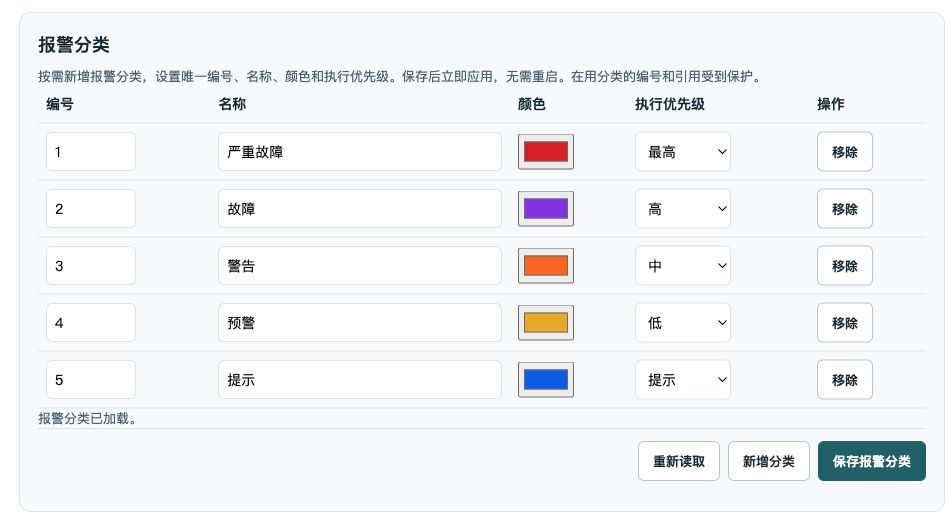
Category IDs are used by alarm rules; execution priority is configured separately. Save Alarm Categories applies the changes immediately.
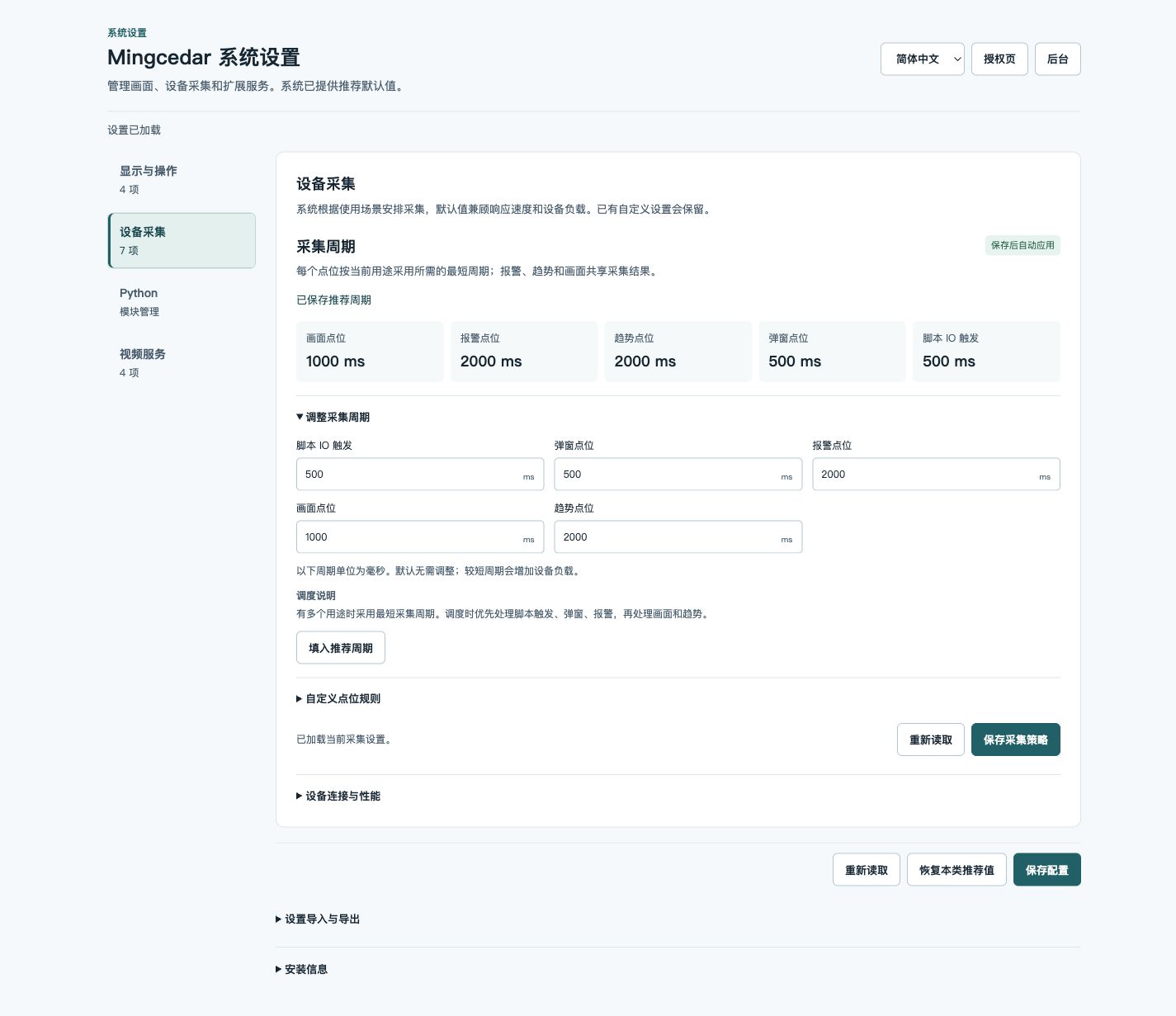
A Tag used in several places adopts the shortest required period. The values shown belong to this installation and can be adjusted for the project.
Integration development overview
IO State API provides external read-only access, the page SDK supports runtime interaction, and Python runs host project logic.
Configure Profiles, published revisions and Access Keys in IO State API for scoped reads and live subscriptions by external systems. It reads collected state and does not provide device writes.
Custom HTML pages use the SDK for declared live values, writes, alarms and history. Publication, menu login requirements and user permissions determine available operations.
Manage code, actions, events and records in the script workspace. Reuse functions through common/ within a project, and manage third-party modules and custom shared packages in Settings → Python.
Python uses native database-driver and HTTP-client APIs. Projects manage credentials, timeouts, transactions and external-operation outcomes. Host database and cache credentials are not exposed to scripts.
Troubleshoot by symptom
Diagnose using the affected page, update times, device quality and event records.
Page access, realtime connection, PLC connectivity and Tag quality describe different stages.
- Check services and data infrastructure in System Status, then inspect device connection and collection in Devices.
- Add the target Tag in Tag Diagnostics and check enabled state, address, type, quality and timestamp.
- If the Tag is valid but the screen remains empty, check page references, the current release, menu target and page permissions.
Inspect the remote site in the local Sites page.
- Check the remote address, connection identity, selected capabilities and device scope.
- Open remote screens, alarms or trends separately to distinguish a connection failure from an unavailable capability.
- Local rules using remote Tags also require local definitions and service input scope. A visible device catalog does not enable every consumer.
Historical queries depend on archiving and records actually saved within the selected period.
- Check the time range, timezone, device filter and selected series.
- Check Tag archiving, sampling mode and interval, followed by Trend service status and retention.
- Invalid quality or unavailable collection can leave no valid points. Gaps reflect recorded data; a wider interval can help locate the affected period.
Acceptance, protocol completion and readback confirmation are different outcomes.
- Retain the request ID, timestamp, target and returned status, then find the operation in Event Records.
- Inspect subsequent quality and values in Tag Diagnostics. Other operations may change the value, so compare timestamps.
- If the outcome remains unknown, reconcile device state and request records before repeating an operation.
Developer interfaces and administration pages have distinct permissions and runtime prerequisites.
- For Python, check the Script service, active project version, enabled events and actions, and run records. After adding a dependency, confirm the installation result and check its import in the same project.
- For IO State API, check published Profile revision, Access Key, scopes and signal range. A connection ticket is single-use.
- For the page SDK, check that the screen is opened through a host menu, its declared reads/writes and user permissions. Use the relevant chapter’s errors and status descriptions.